

Help center
Create, publish and manage an album
Create an album inside an event or on its own, publish it so athletes can buy, share the link, and later rename, unpublish, archive or delete it. What blocks publishing and what happens to your sales when you delete an album.
In short
- My Albums → Create Album.
- Tell us where and when the event was, pick the event (or add it), then name the album and set the price per photo.
- Upload your photos.
- Tap Publish album. It is now live and people can find it and buy.
- Tap Share to copy the link or post it.
Step by step
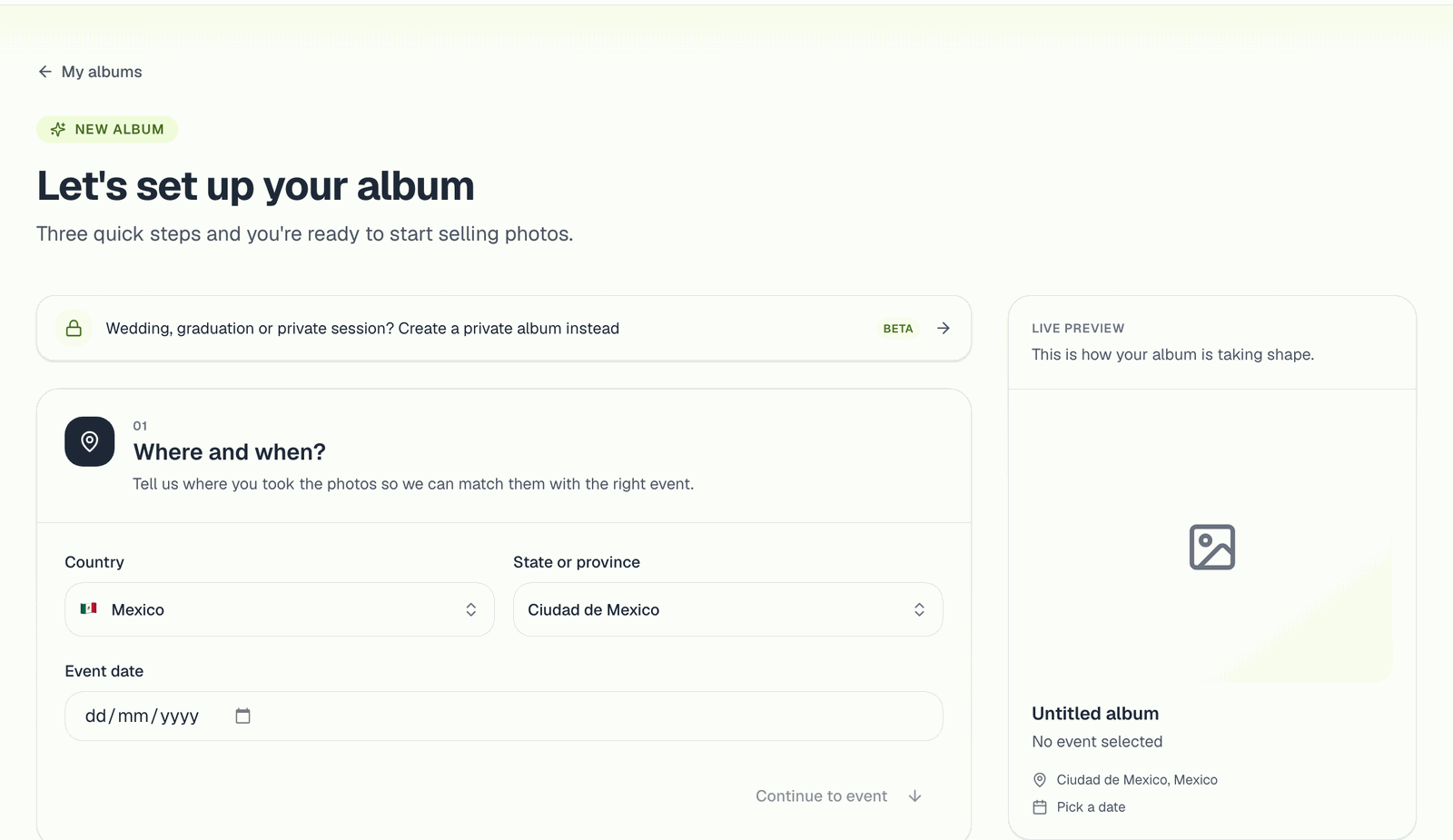
1. Where and when?
Choose the country, state or province and event date. We use them to show you events that match.
2. Pick the event
An event is the race or competition itself. Several photographers can publish albums in the same event, and athletes can search all of them at once from the event page. You have three options:
- Pick an event from the list. If another photographer already created it, choose it: your album appears next to theirs and athletes find you when they search that event.
- I'll add my event manually. Create the event yourself: name, category and a cover photo. Mark Event with minors if participants are under 18: the event then stays out of public listings and search. Private event (link-only) hides it from the events page.
- Not linked to any event. The album lives only on your profile. It can still be public and sell, it just won't appear on the events page. Use this for training sessions, club shoots, or when you want your own space without other photographers.
There is also Private album mode, for link-only galleries with your own branding (weddings, graduations, sessions). See Private albums.
3. Album details
- Album name: what athletes see. Something like "Finish line" or "10K - Km 5" helps when there are several albums.
- Price per photo and currency: buyers pay in this currency. Leave room above about US$0.50, the minimum a card payment allows. A free album (price 0) needs a paid plan: see Give photos away for free.
- Album cover (optional): if you skip it, the event's image is used.
- Optional extras: a password for the album, and Show only each person's photos, where visitors only see the photos that match their selfie. Both can be changed later in album settings.
Tap Create my album. The album starts as a draft: only you can see it.
4. Upload
Open the album and upload. Pick the method that fits your volume in How to upload photos. Recognition of faces and bib numbers starts right away; you'll see Processing recognition with a percentage. You don't have to wait for it to finish to publish or share.
Publishing
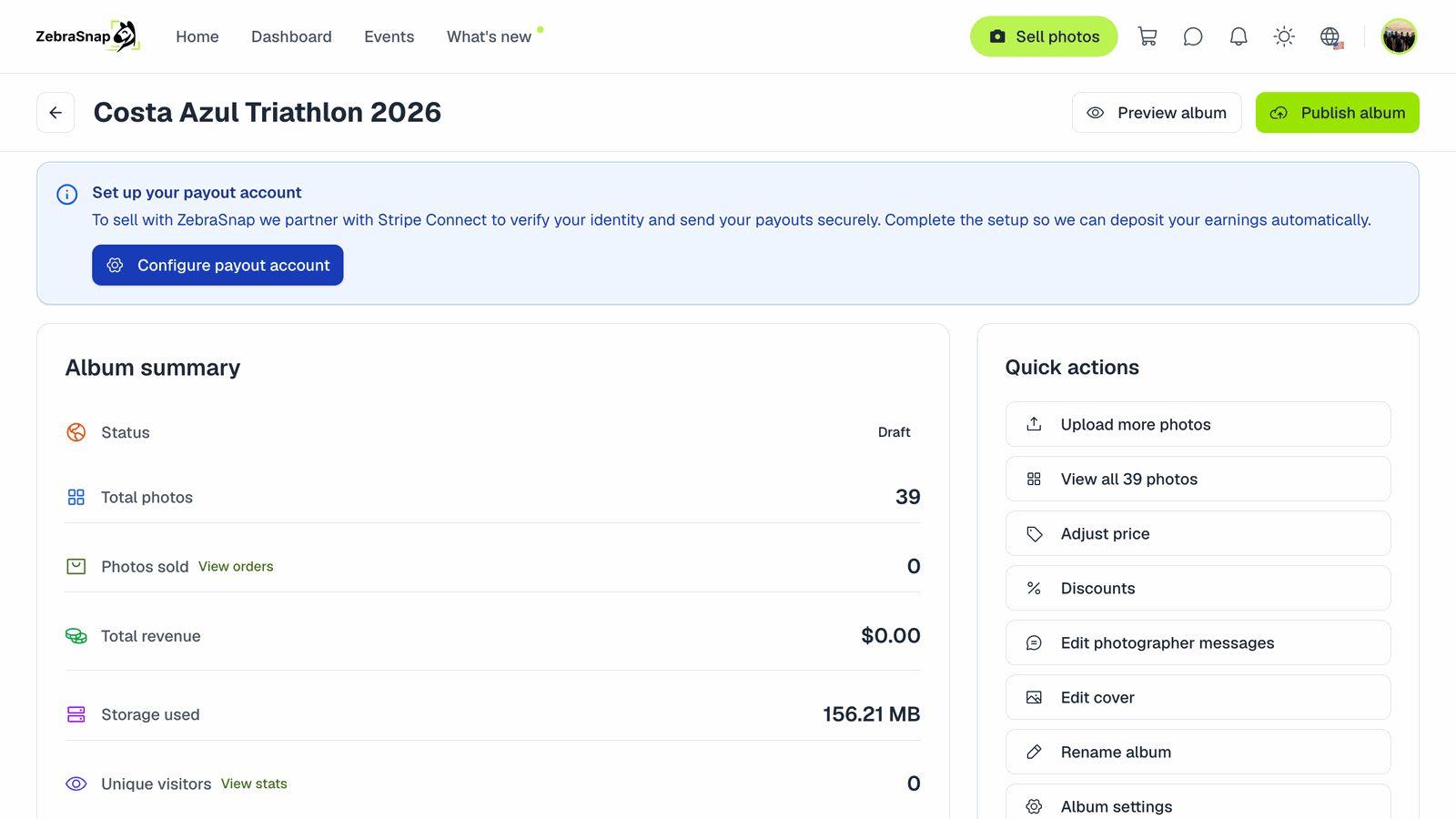
Tap Publish album. In the dialog, choose the recognition you want:
- Face recognition (selfie search).
- Bib number recognition.
- Clothing color recognition (Beta).
- Promote my album on @zebrasnap_, if you are happy for us to feature it on our social media.
These options are applied on the first publish and remembered for your next albums.
What can stop you from publishing
The dialog tells you what's missing:
- No photos yet. Upload at least one.
- No payout account. Set up Settings → Receive Payments so we can pay you. See Start selling.
- Stripe needs more information. Finish the pending steps in your Stripe account from Receive Payments.
- Out of storage. Free space or upgrade. See Plans, prices and limits.
- dLocal Go setup not finished, if you get paid with dLocal Go.
Free albums on a paid plan can be published without a payout account.
Sharing
Once published, the Share button gives you:
- Copy link, to paste anywhere.
- Buttons for WhatsApp, X, Facebook, Telegram, LinkedIn and email.
- Instagram Story: a ready-made story image of your album to download and post.
Your published albums also appear on your public profile, and in the event page when the album belongs to an event.
Managing an album afterwards
All of these are in the album's page, in the Quick actions panel:
- Rename album. Changes the name. An album can't be moved to a different event; if you picked the wrong event, create a new album in the right one and upload there. To fix the event itself, see below.
- Unpublish. Takes the album offline without deleting anything. Publish again whenever you want.
- Archive album. Removes all the photos and their recognition data to free up storage. The album stays in your list with its history and numbers. This can't be undone: unarchiving gives you back an empty album. Download your originals first if you need them.
- Delete album. Removes the album and its photos for good.
What happens to my sales if I delete or archive an album?
Nothing. Your past sales, your earnings and pending payouts are not affected, and buyers keep their downloads, because every sold photo is stored with its order. You simply can't sell those photos again.
Editing or deleting an event
If you created the event and no other photographer has albums in it yet, the Event details card on your album page has Edit (name, date, place, category, cover, private and minors options) and a delete button. Deleting the event keeps your albums on your profile, without an event, with their photos and sales. Once other photographers have albums in the event, it's shared and can't be changed from your account: write to us from the chat bubble and we'll fix it.
On the Free plan
Drafts are archived automatically after 15 days, and published albums after 30 days if they had no sales in the last 10. You get a warning 5 days before. See Plans, prices and limits.
Related articles
- Album settings: price, photo order, privacy and moreEvery setting of an album explained: price per photo and video, hiding the price, photo order, featured photos, password, showing only each person's photos, messages to buyers, cover, watermark, and deleting photos.
- Organize an album into sectionsSplit an album into stages or moments, like Swim, Bike and Run, so buyers who browse by hand jump straight to the right part. How to create sections, fill them and what buyers see.
- Work with a teamInvite second shooters and assistants to upload photos and manage your albums from their own account, without seeing your sales, messages or settings. Available on Pro and Enterprise.
Still need help?
Can't find what you're looking for? Our team is happy to help.