

Help center
Album settings: price, photo order, privacy and more
Every setting of an album explained: price per photo and video, hiding the price, photo order, featured photos, password, showing only each person's photos, messages to buyers, cover, watermark, and deleting photos.
Where to find them
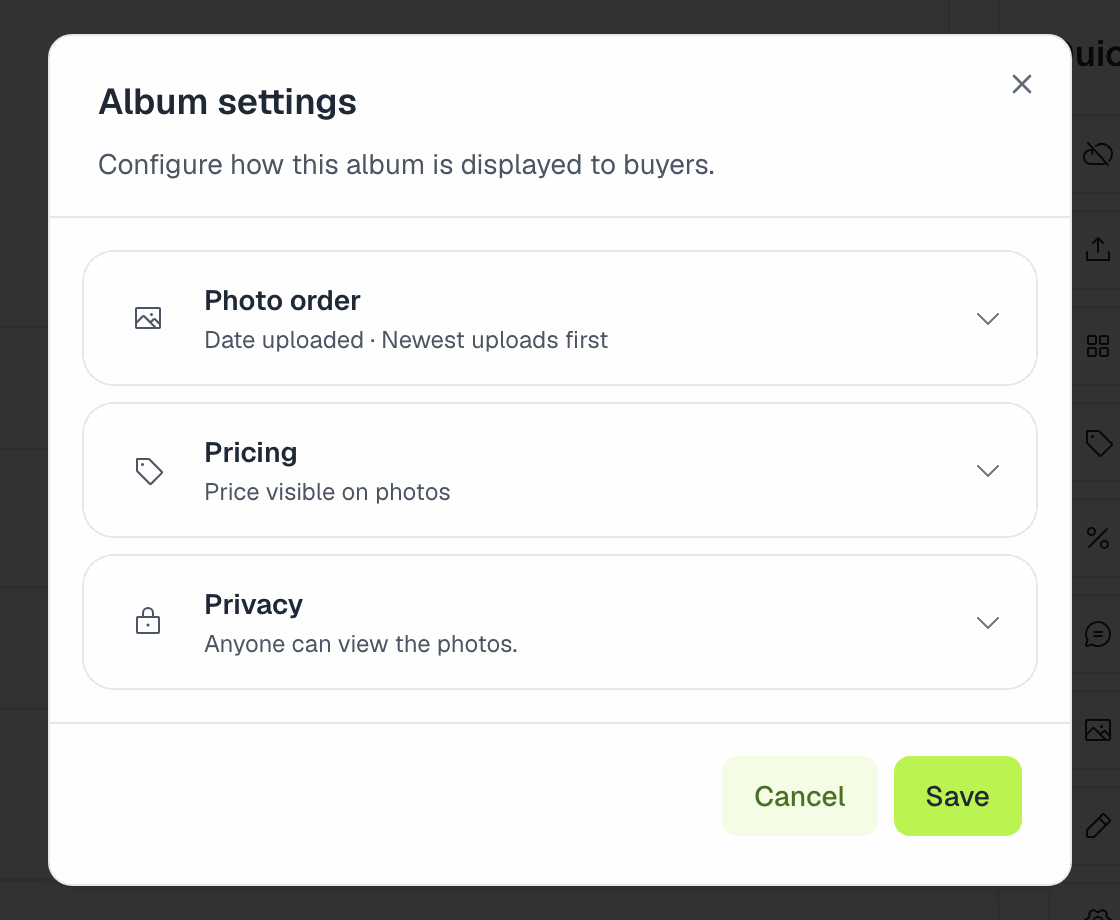
Open the album from My Albums. The Quick actions panel on the right has everything: Album settings opens photo order, pricing and privacy, and next to it are Adjust price, Discounts, Edit photographer messages, Edit cover, Rename album, Watermark, View statistics and View orders.
Price
Adjust price sets:
- Price per photo.
- Video price. Leave it empty to use the photo price for videos too.
Changing the price only affects new purchases. The currency is chosen when you create the album.
Keep the price above about US$0.50 (or the same in your currency). Card payments can't go below that, and a cart under the minimum can't be paid: the buyer sees "This order is below the minimum amount we can charge. Please ask the photographer to raise the price."
A price of 0 makes the album free. That needs a paid plan, and adds the Allow direct downloads option. See Give photos away for free.
Hide photo price hides the price while people browse; they see it once a photo is in their cart.
For bundles and promo codes, see How discounts work.
Photo order
Under Photo order, Sort by decides the order visitors see:
- Date uploaded (the default: newest first).
- Date taken: uses the capture time saved by your camera (EXIF). Photos without it go to the end, so check your camera clock and your export settings.
- Filename.
Order sets ascending or descending. The same order is used inside every section.
Featured photos
Featured photos always appear first, before the chosen order. In the album's photos page (Album photos), tap Select, pick your best shots and use Feature selected. Use it for a strong first impression: the start, the podium, the best action shots.
Privacy
- Password-protected album. Visitors need the password (at least 4 characters) to see the photos. The cover and the album's name are still listed. Changing the password logs out everyone who had already unlocked it.
- Show only matching photos. Visitors never see the full gallery: they take a selfie and only see the photos where they appear. Bib and color search are hidden, and the album page doesn't show section cards or sample photos. Face recognition is turned on automatically. Use it when participants shouldn't browse each other's photos (schools, minors, private events). Keep in mind that people who aren't recognized in any photo won't find anything, so sales can be lower.
Messages to buyers
Edit photographer messages lets you write:
- A message shown on the album page: greetings, when more photos will be uploaded, how to reach you.
- A post-sale message shown after a purchase, like a thank-you or a discount for their next event.
Cover
Edit cover changes the album's image on your profile, in the event page and in shared links.
Watermark
Watermark lets this album use its own watermark and protection, instead of the global ones in Settings → Watermark. Choose Use global settings to go back. See How we protect your photos.
Recognition
Face, bib number and clothing color recognition are chosen when you first publish the album. If recognition gets stuck, a Retry analysis button appears on the album page.
Deleting photos
In Album photos, tap Select, pick the photos (or Select page / Select all), and delete them. You'll need to type DELETE to confirm.
Deleted photos come back if you upload a file with the same name again: every photo in an album is identified by its file name. So if you re-upload a whole folder or ZIP that still contains photos you deleted, they reappear. Remove them from the folder first, or upload only the new files. The desktop app warns you before replacing names that already exist.
Sections and team
- Split the album into parts like Swim, Bike and Run: Organize an album into sections.
- Let assistants upload and manage it for you: Work with a team.
Related articles
- Create, publish and manage an albumCreate an album inside an event or on its own, publish it so athletes can buy, share the link, and later rename, unpublish, archive or delete it. What blocks publishing and what happens to your sales when you delete an album.
- Organize an album into sectionsSplit an album into stages or moments, like Swim, Bike and Run, so buyers who browse by hand jump straight to the right part. How to create sections, fill them and what buyers see.
- Work with a teamInvite second shooters and assistants to upload photos and manage your albums from their own account, without seeing your sales, messages or settings. Available on Pro and Enterprise.
Still need help?
Can't find what you're looking for? Our team is happy to help.