
Desktop app for Mac and Windows

Upload the whole event.Keep editing.

Drop thousands of photos, close the window and move on. ZebraSnap uploads in the background, picks up where it left off and tells you when your photos sell.

  • Free with your ZebraSnap account
  • macOS and Windows
  • Available in 8 languages
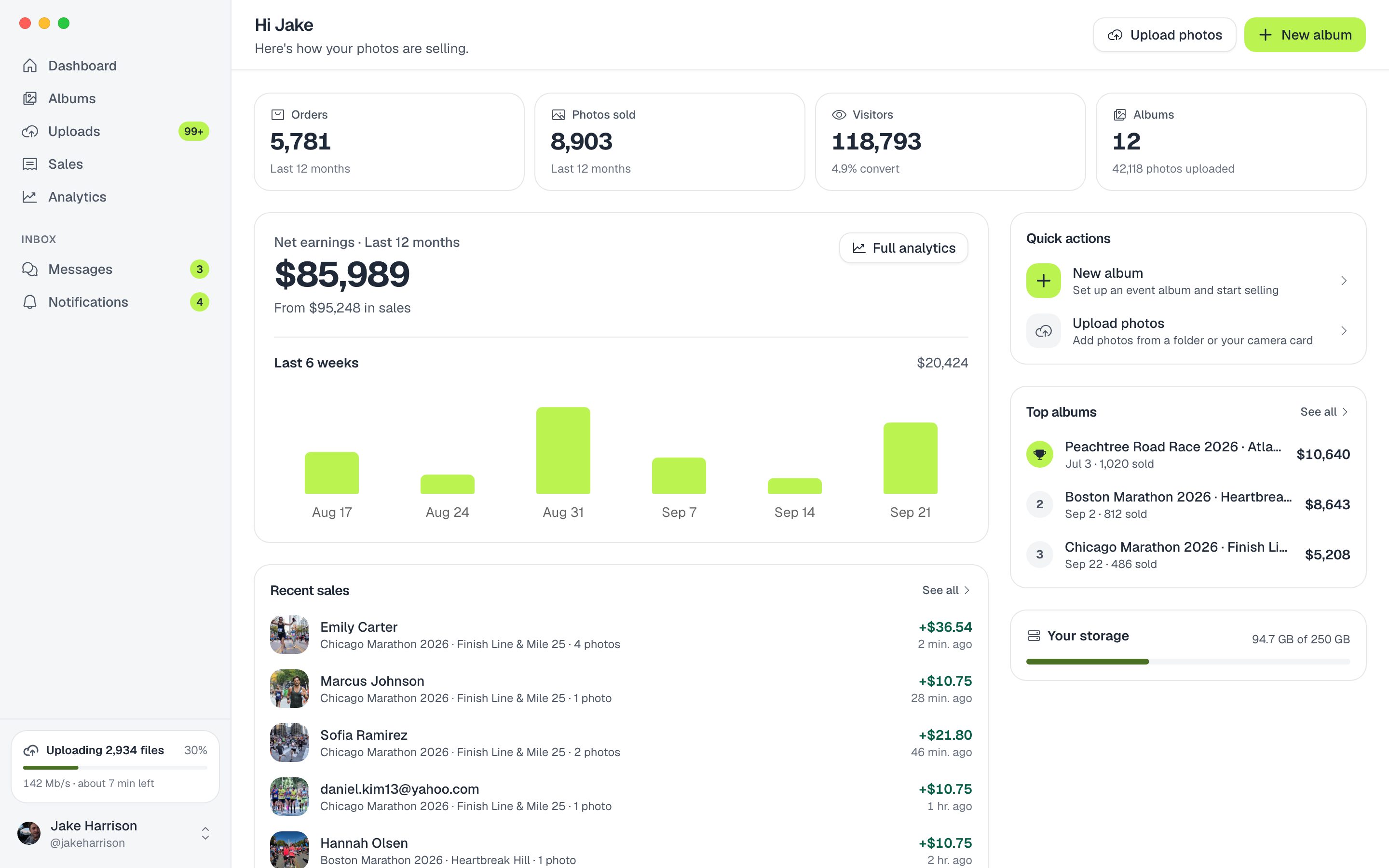
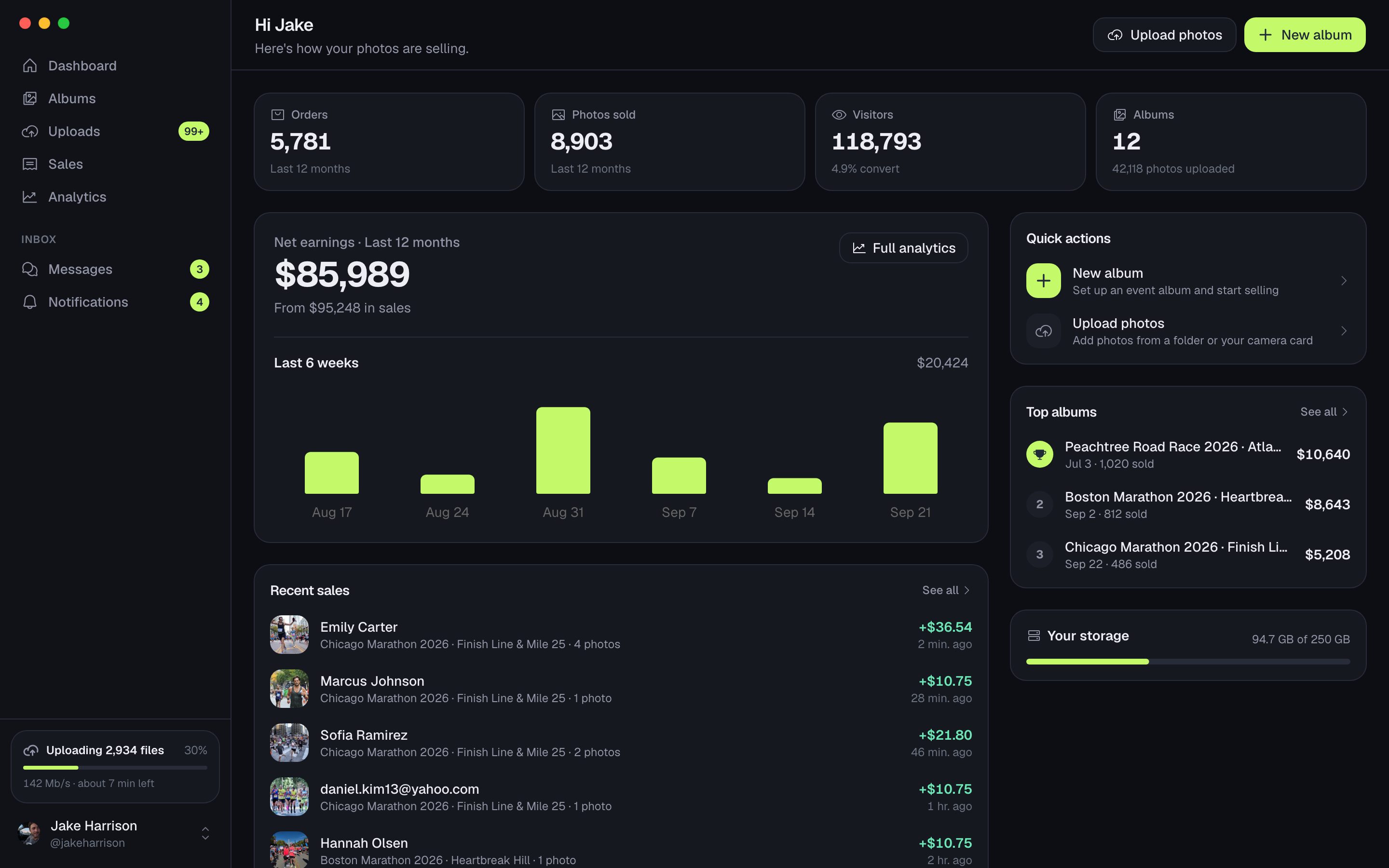
ZebraSnap desktop app showing the dashboard with sales and top albums
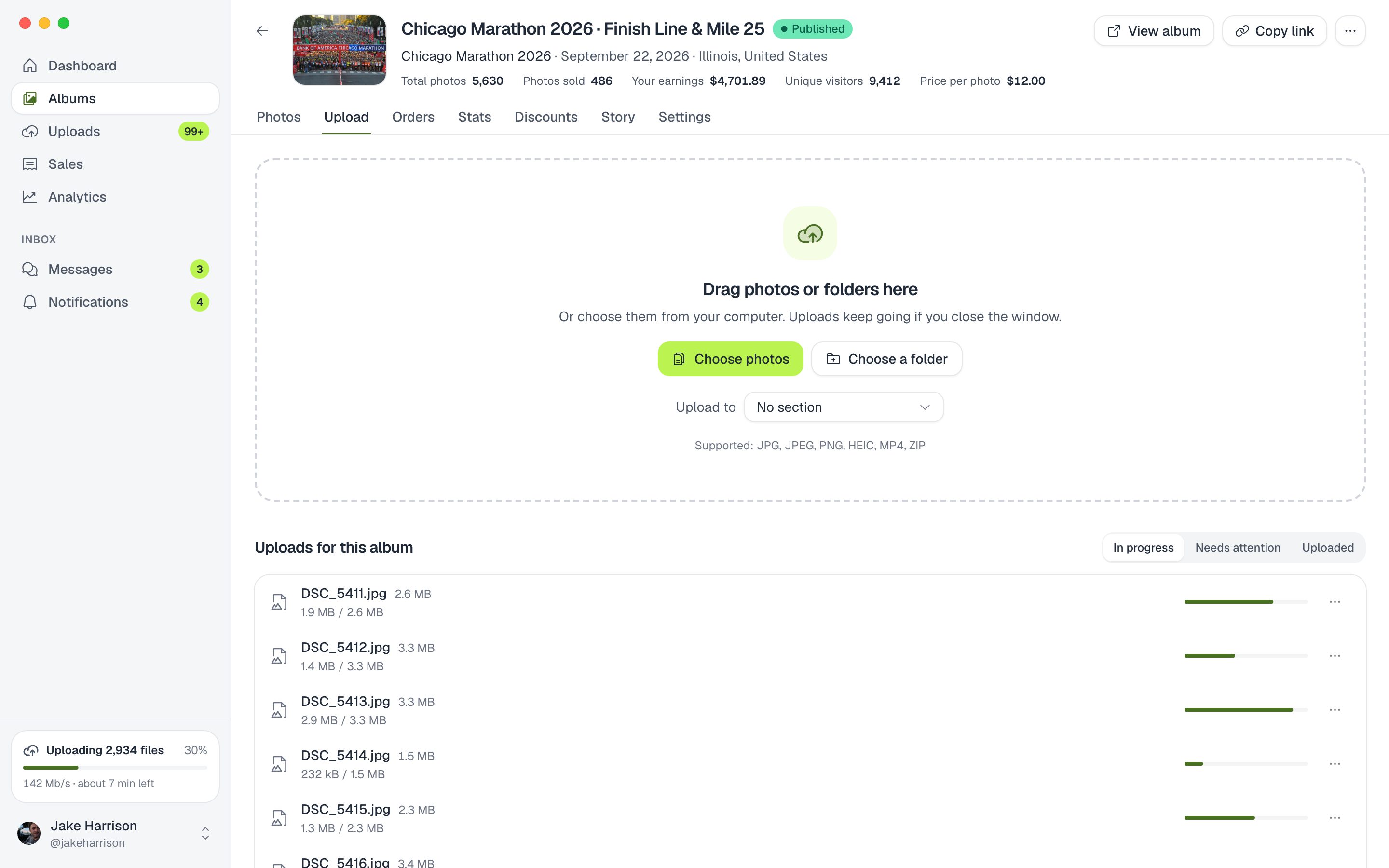
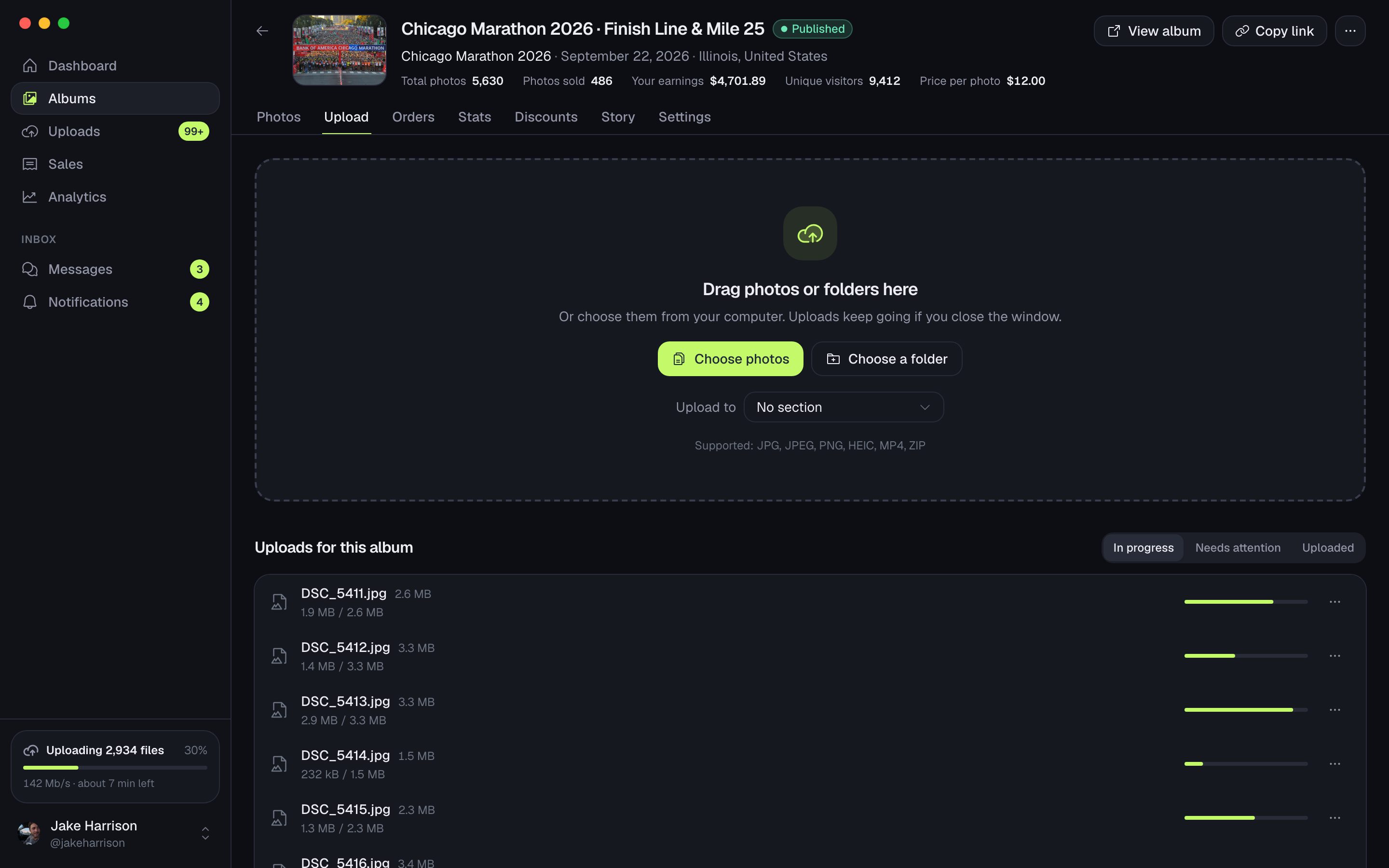
ZebraSnap desktop app with photos being dropped into an album

Uploads

Thousands of photos, zero babysitting.

Drag photos or whole folders onto the app. Uploads run in the background, survive a lost connection or a restart, and keep going with the window closed.

  • Resumes where it left off after a restart
  • Retries on its own when the connection drops
  • Keeps your computer awake while it uploads
  • Progress in the menu bar
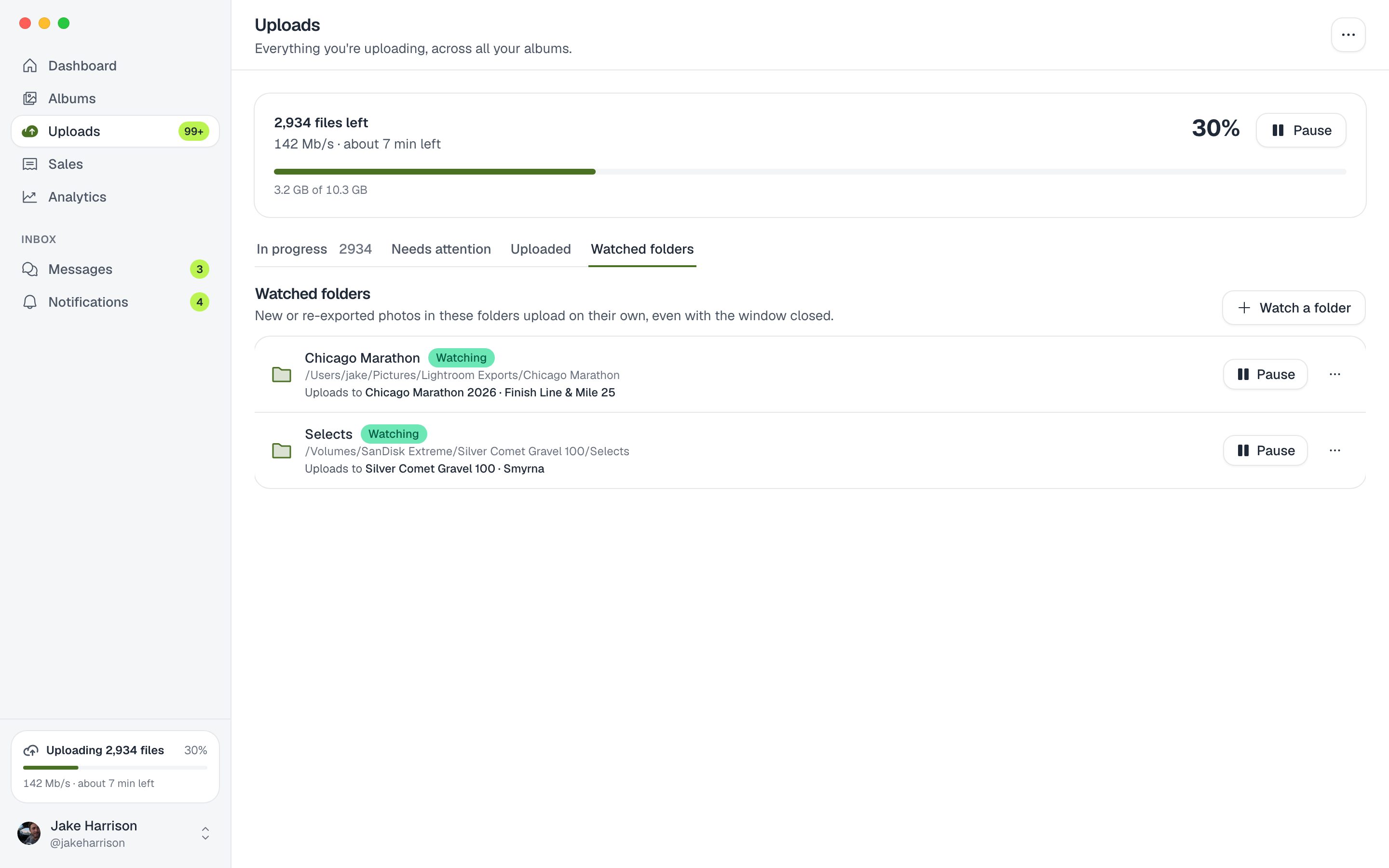
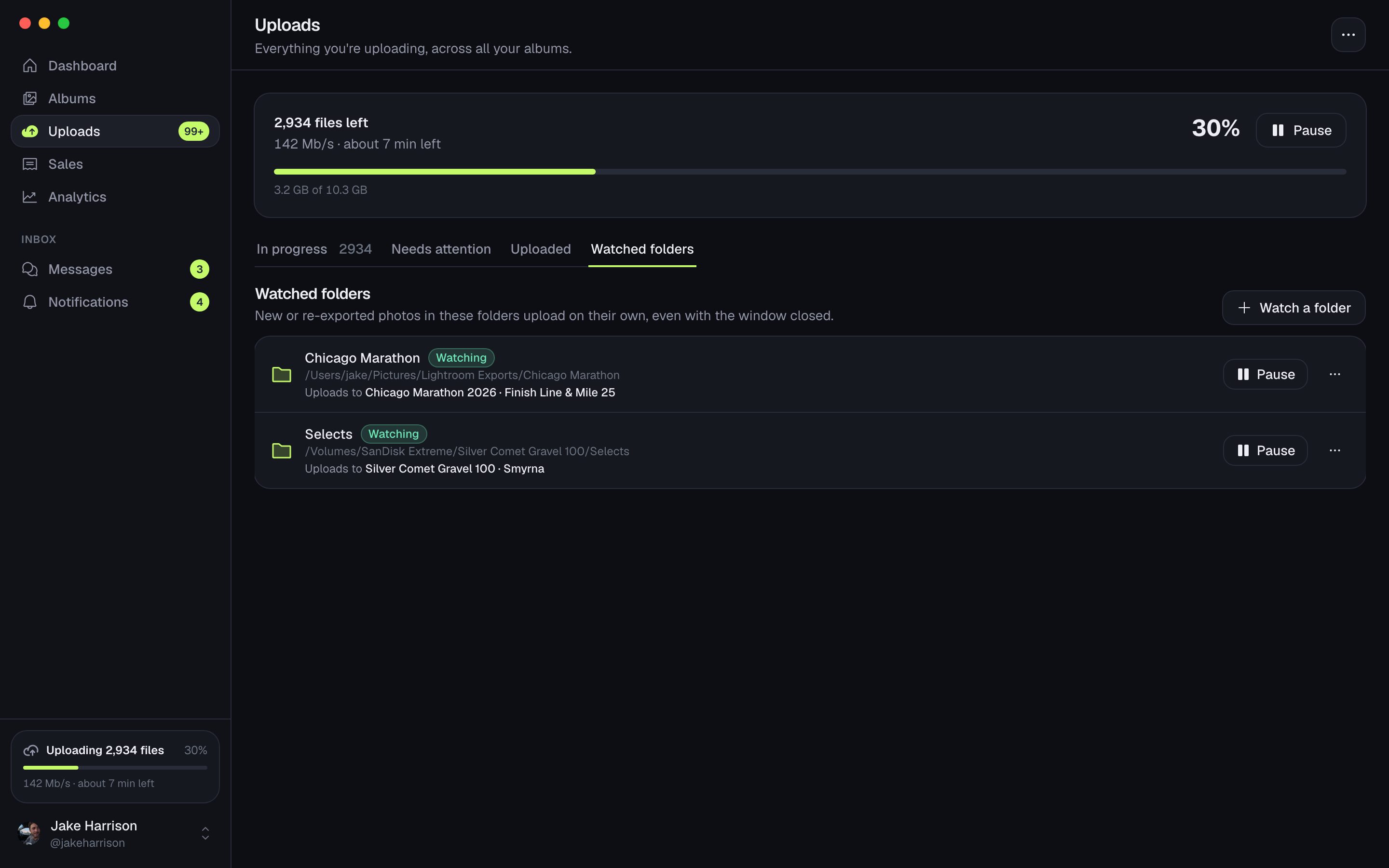
ZebraSnap desktop app showing watched folders linked to albums

Watched folders

A folder that uploads itself.

Link your export folder to an album. Every photo you export from Lightroom, Capture One or your camera goes up on its own, and a re-export replaces the previous version.

  • Works with any app that exports to a folder
  • Include subfolders if you want
  • Waits until each file finishes writing
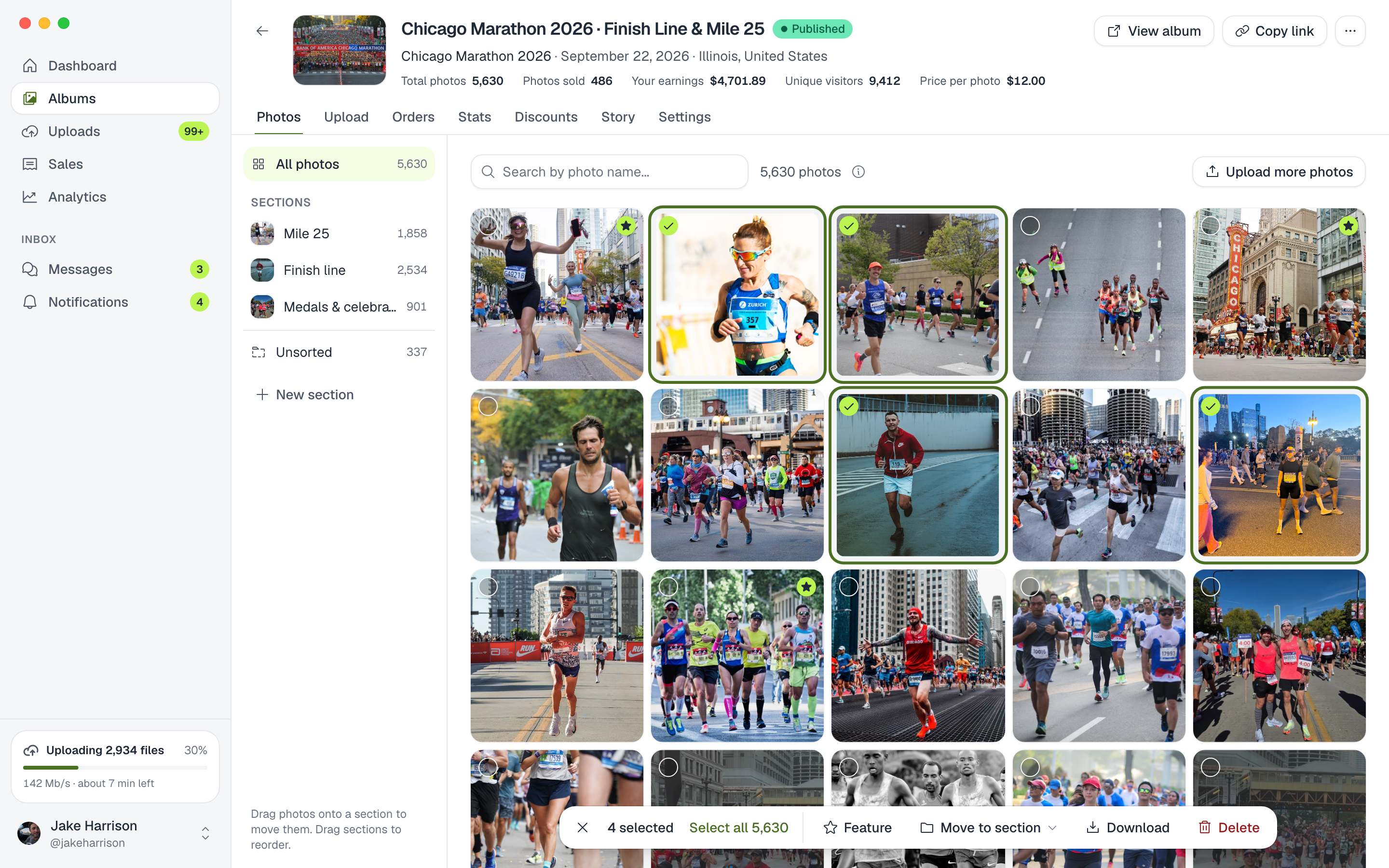
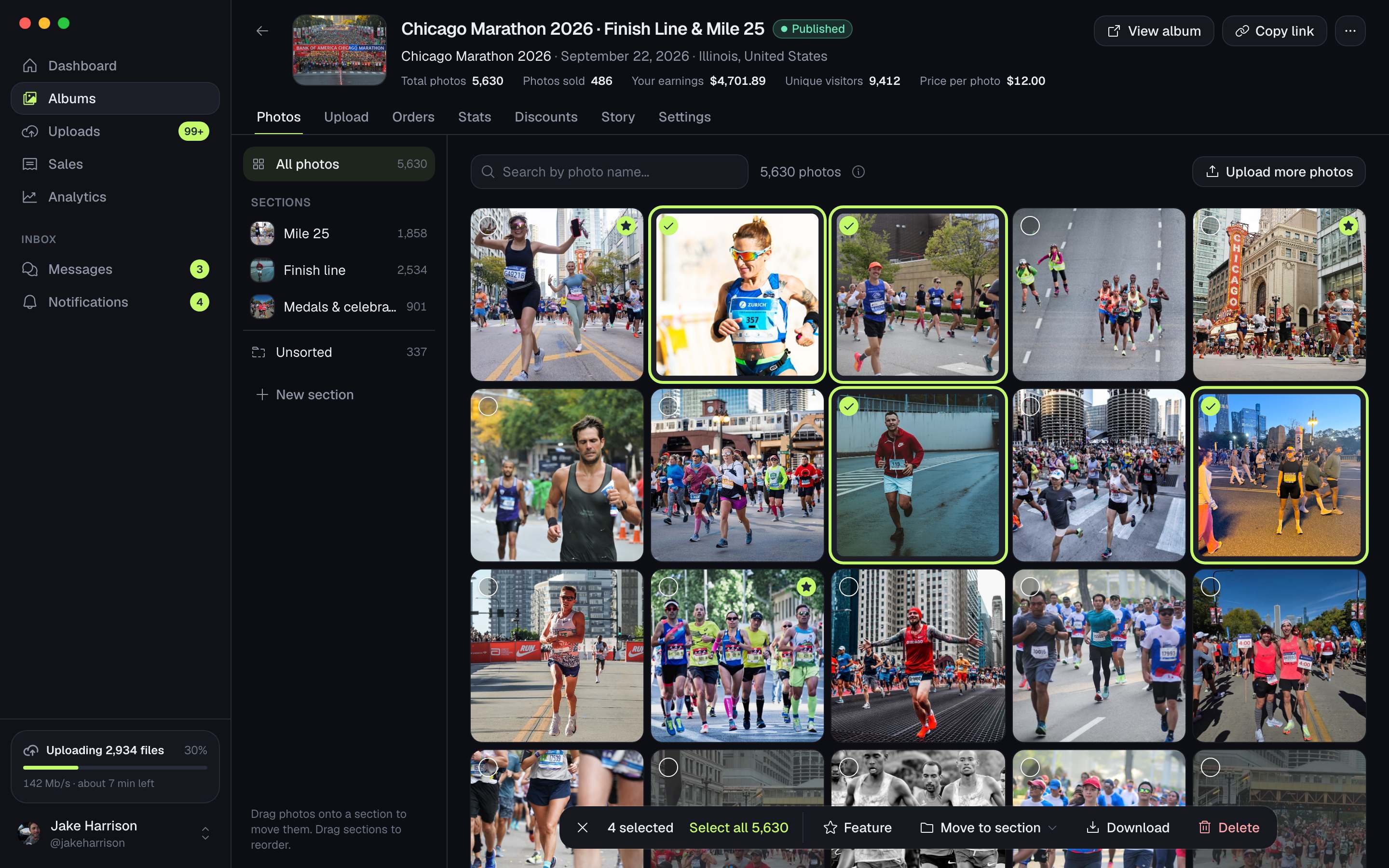
ZebraSnap desktop app showing an album's photos organized into sections

Albums

Organize before you publish.

Split an album into sections, pick the cover, set prices and discounts and publish when it's ready, all from the same window.

  • Sections to group your photos
  • Cover, prices and discounts
  • Upload straight into a section
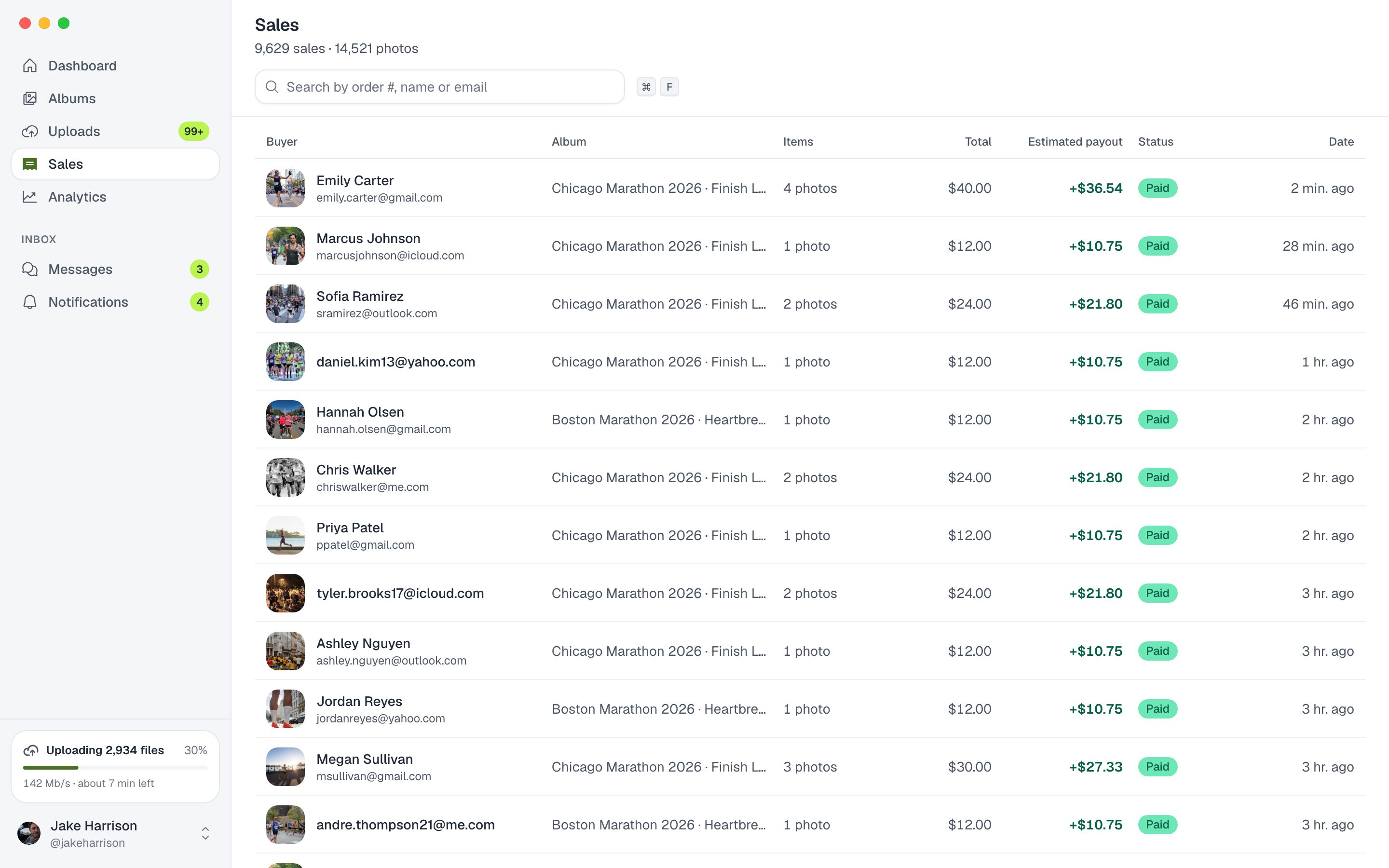
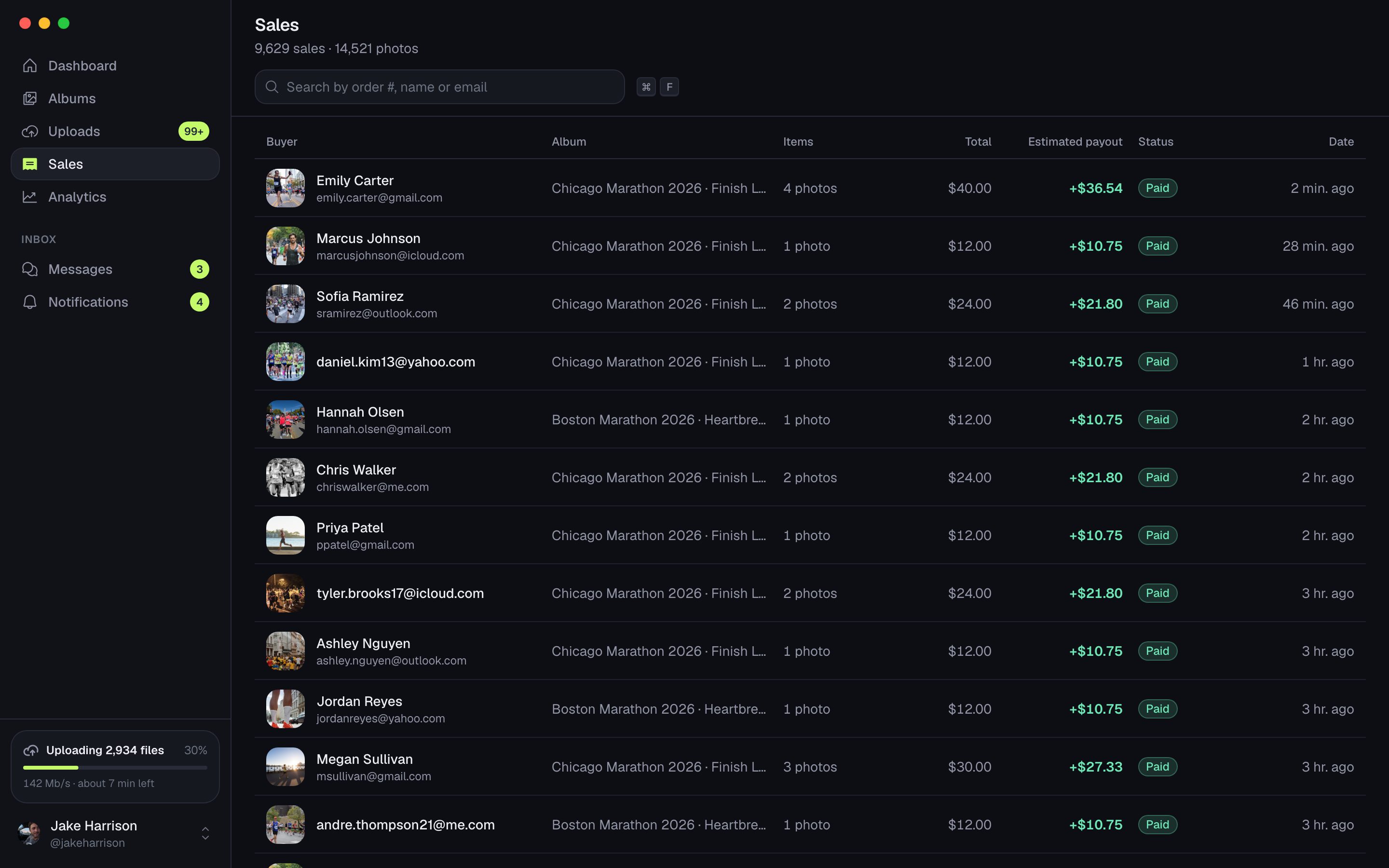
ZebraSnap desktop app showing the list of sales

Sales and analytics

See what sells, while it sells.

Every sale with its photos and what you earned, plus visits, conversion and top albums for the period you choose.

  • Sales list with order detail
  • Revenue, visits and conversion
  • Top albums and buyers
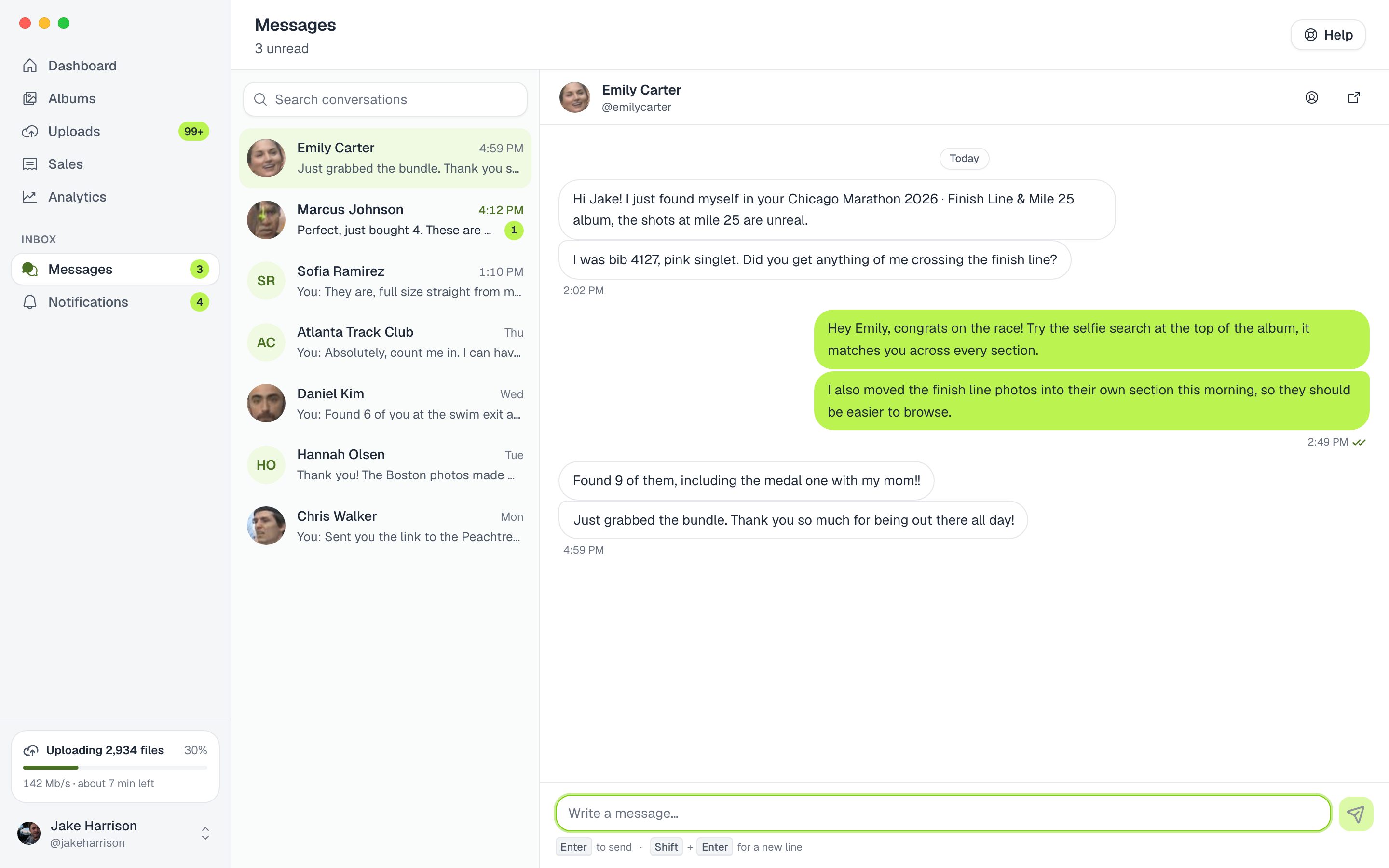
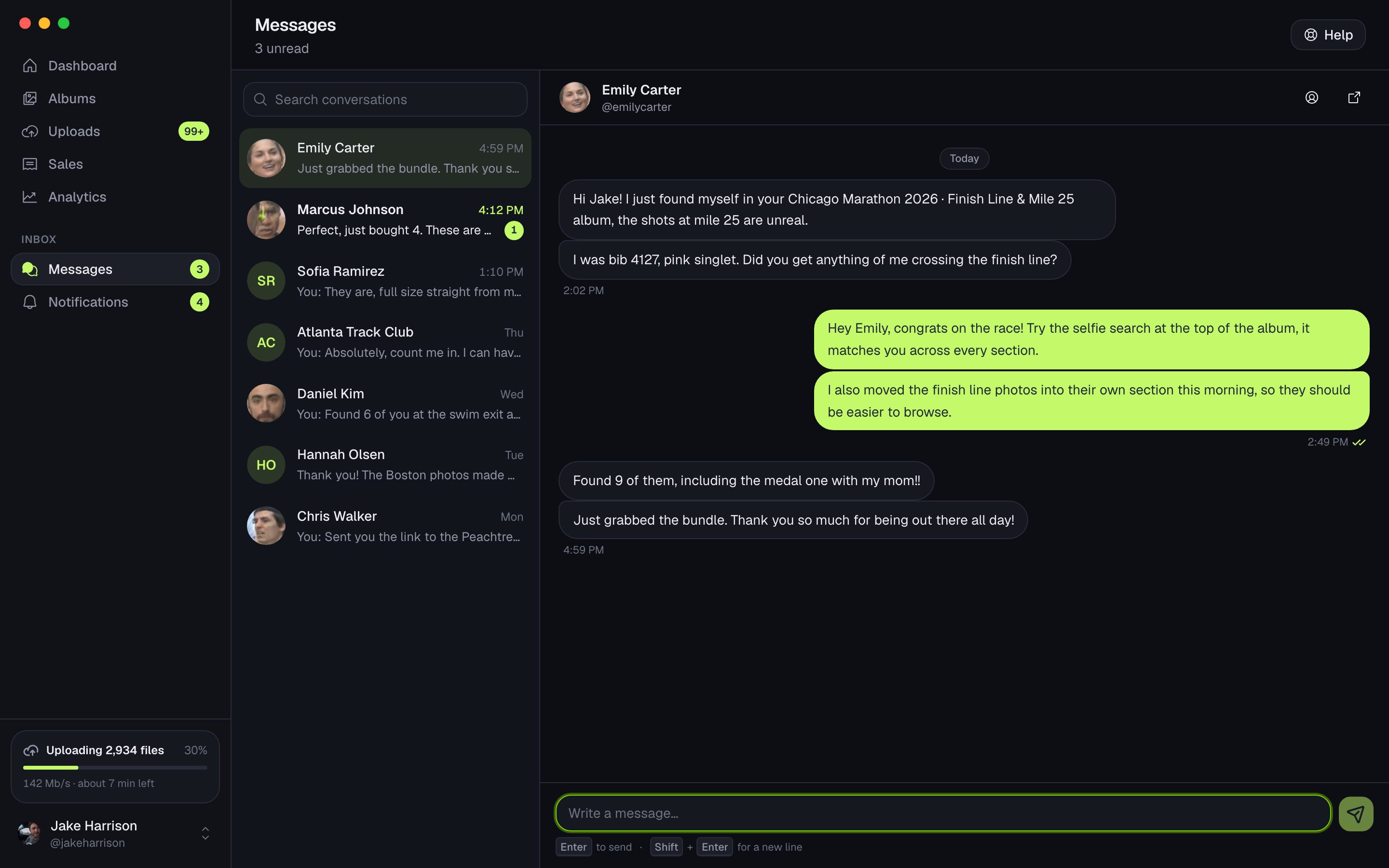
ZebraSnap desktop app showing a conversation with a buyer

Messages and notifications

Buyers get an answer fast.

Reply to buyers and talk to support from your desk. Your computer notifies you about sales, messages and finished uploads even when the app is in the background.

  • Buyer messages and support chat
  • Desktop notifications
  • Choose which alerts you get

How watched folders work

Keep your Lightroom or Capture One workflow.

You don't change how you edit. ZebraSnap watches the folder you already export to.

  1. 1

    Pick your export folder

    In Lightroom Classic or Capture One, export the event's photos to one folder, as you always do.

  2. 2

    Link it to an album

    In ZebraSnap, open Watched folders, choose that folder and the album it uploads to.

  3. 3

    Export and forget it

    Every new or re-exported photo uploads on its own, even with the window closed. If the drive disconnects, it picks up when it's back.

Want only what you export from now on? Turn off "Upload the photos already in the folder" when you add it.

Built for your computer

The details that save you time.

  • Menu bar status

    Upload progress at a glance from the menu bar, or the system tray on Windows.

  • Opens when you sign in

    Starts in the menu bar so your watched folders keep uploading.

  • No accidental duplicates

    If a file name is already in the album, the app asks before replacing it.

  • Automatic updates

    New versions install in the background and your uploads continue after the restart.

  • 8 languages

    English, Spanish, Portuguese, French, German, Italian, Japanese and Korean.

  • Secure sign-in

    Sign in with your browser. Your session is kept in your computer's credential store.

System requirements

What you need

macOS
macOS 11 Big Sur or later, on Apple Silicon or Intel.
Windows
Windows 10 or 11, 64-bit.
Internet connection
Any connection works. Faster ones upload faster, and you choose how many files go at the same time.
A ZebraSnap account
The app is free. Sign in with the same account you use on the website.

FAQ

Questions about the desktop app

How much does the desktop app cost?
Nothing. It's included with every ZebraSnap account, including the free plan.
Do uploads stop if I close the window?
No. Closing the window keeps ZebraSnap running in the menu bar (the system tray on Windows), so uploads and watched folders keep going. Quit the app from the menu bar to stop them; anything left resumes the next time you open it.
What happens if my connection drops?
The app waits for the connection to come back and continues on its own. Big files resume from the parts that already uploaded instead of starting over.
Do I still need the Lightroom plugin?
It's up to you. The plugin publishes from inside Lightroom Classic; a watched folder works with Lightroom, Capture One or any app that exports to a folder. Many photographers use only the desktop app.
Which Mac version should I download?
Macs from late 2020 onward with an M-series chip use Apple Silicon. Older Macs use Intel. You can check it in the Apple menu, under About This Mac.
Windows shows a warning when I install it. Is it safe?
Yes. Windows may show a SmartScreen notice for new apps. Choose More info and then Run anyway to continue.

Your next event uploads itself.

Download the app, sign in with your ZebraSnap account and link your first folder.

On the go? See the mobile app