

Help center
Work with a team
Invite second shooters and assistants to upload photos and manage your albums from their own account, without seeing your sales, messages or settings. Available on Pro and Enterprise.
In short
A team lets the people who help you at events work in your ZebraSnap account: second shooters, assistants, a friend who uploads for you. Each person signs in with their own account and switches into yours with one click. They can create albums, upload photos and edit them, but your sales, earnings, messages and settings stay private.
Teams are part of Pro (up to 3 people) and Enterprise (up to 10 people).
Invite someone
- Open Settings > Team.
- Type the person's email or username and press Send invitation.
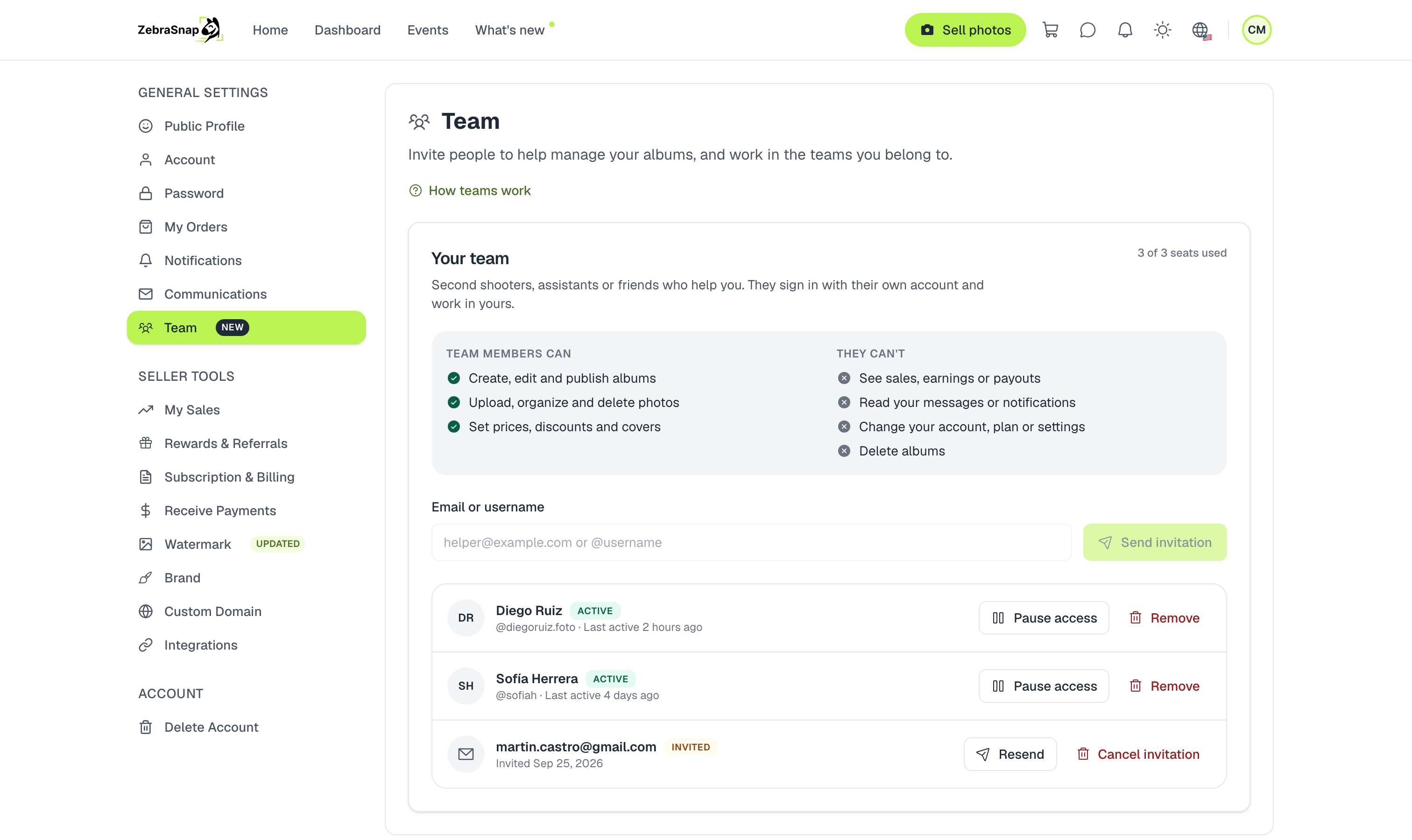
- If they already have a ZebraSnap account, the invitation shows up in their notifications and they get an email.
- If they don't have an account yet, they get an email with a link. They create their account (or sign in with the one they already have) and the invitation is waiting for them.
The list shows who is Active, who is still Invited and when each person last worked in your account.
Accept an invitation
If someone invited you, open Settings > Team and press Accept. The team then appears under Teams you belong to.
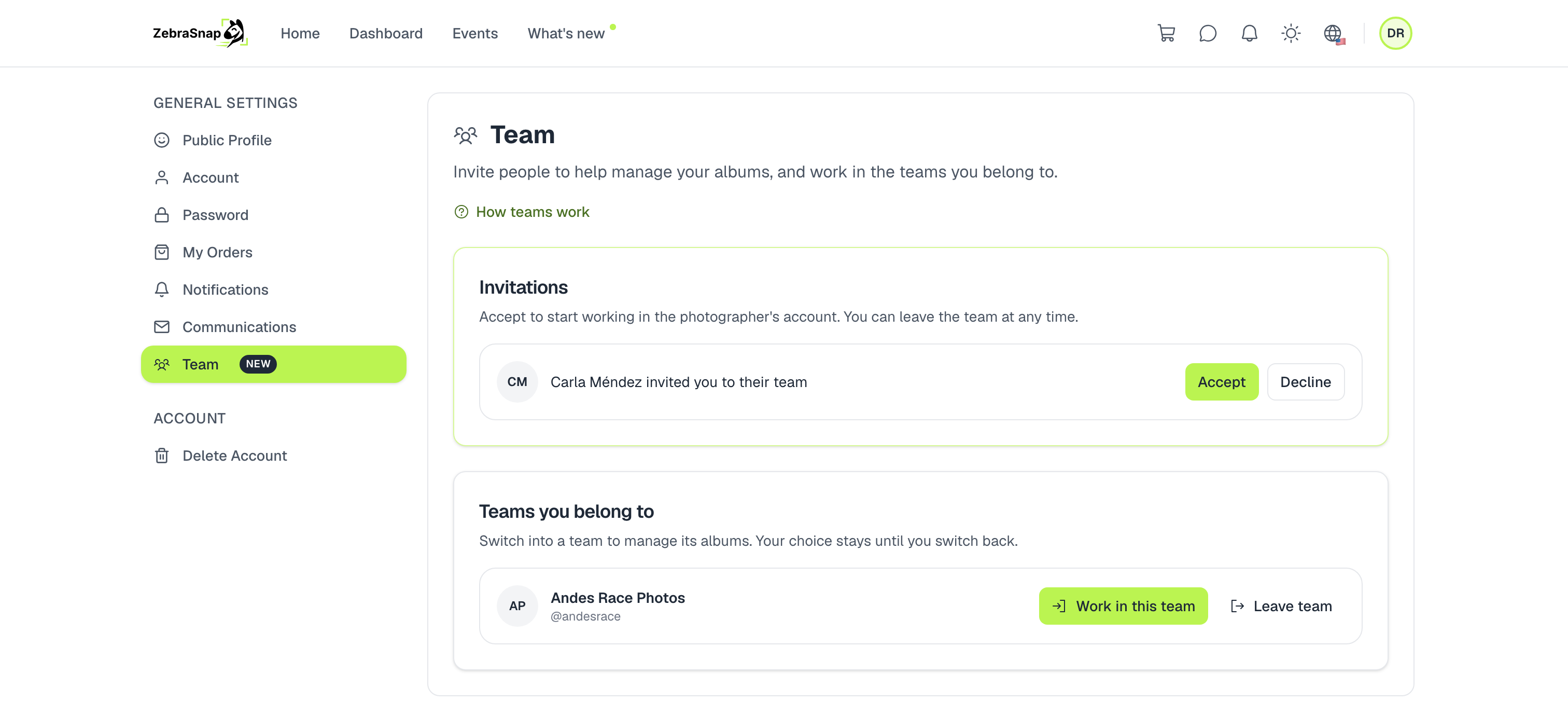
Work in the team
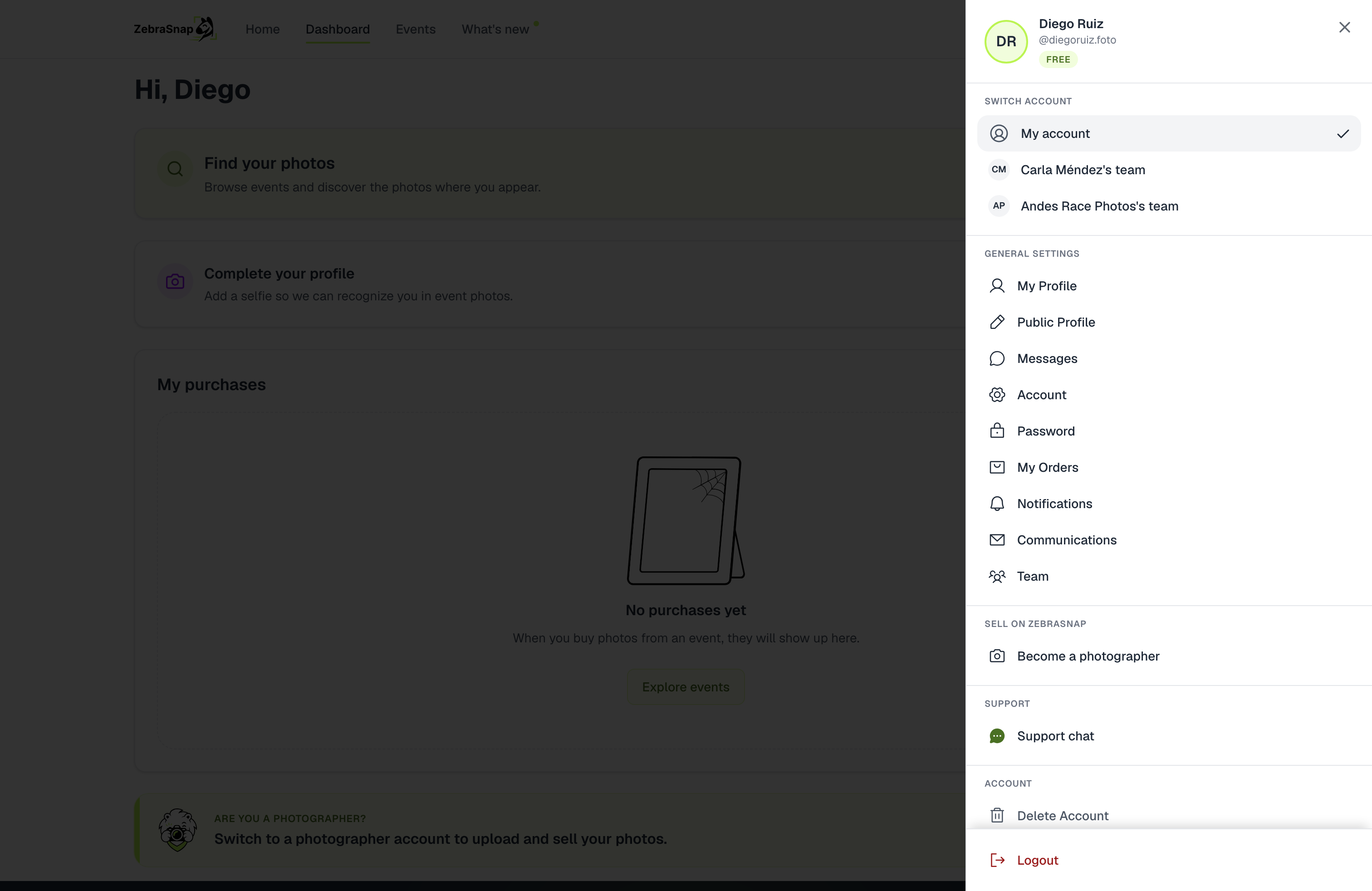
Press Work in this team, or pick the team under Switch account in your account menu. From then on you're working in the photographer's account:
- A lime bar at the top shows whose account it is, with a button to go Back to my account.
- Your avatar shows a Team badge and the menu only has what a team member can use.
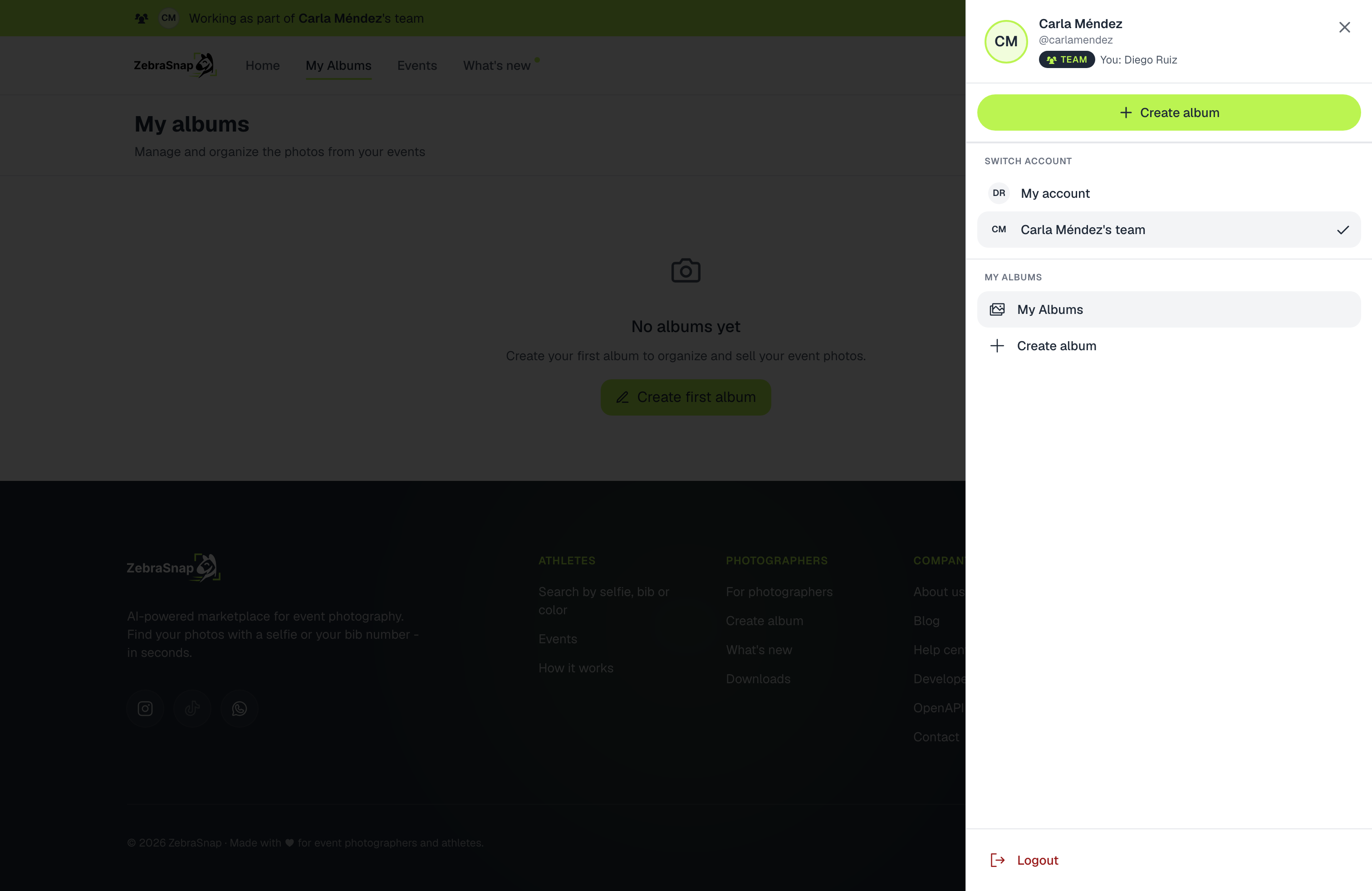
Your choice is saved to your account: if you close the browser, sign in again or open the mobile or desktop app, you're still in the team until you go back to your account. People who only use ZebraSnap to help a photographer land straight in that photographer's albums.
If you belong to more than one team, switch between them from the same menu.
In the mobile app, a Team tab shows whose account you're in and lets you switch back.
The desktop app works the same way. Switch teams from the Team page in your account settings. While you work in a team, the app shows whose account you're in, and pages only the photographer can open say This belongs to followed by their name, with a Back to my account button.
What team members can and can't do
They can:
- Create, edit, publish and archive albums.
- Upload photos from the web, the desktop app, SFTP or the mobile app, and organize or delete them.
- Set prices, discounts, covers, sections and watermarks for each album.
They can't:
- See sales, orders, earnings, payouts or album stats.
- Read your messages, notifications or support chat.
- Change your account, plan, payouts or settings.
- Delete albums or manage your team.
Notifications stay with each person: team members never receive yours, and you keep receiving all of them.
Manage your team
From Settings > Team you can:
- Resend or cancel an invitation that hasn't been accepted.
- Pause access to stop someone from working in your account for a while, and Resume access when you need them again.
- Remove someone from the team.
Pausing or removing someone takes effect right away: the next time they do anything, they're back in their own account.
If you change plans
If you move to a plan without teams, your team members can no longer work in your account. They stay on the list so you can remove them, and they get their access back as soon as you return to Pro or Enterprise.
Still have questions? Contact us and we'll help.
Related articles
- Create, publish and manage an albumCreate an album inside an event or on its own, publish it so athletes can buy, share the link, and later rename, unpublish, archive or delete it. What blocks publishing and what happens to your sales when you delete an album.
- Album settings: price, photo order, privacy and moreEvery setting of an album explained: price per photo and video, hiding the price, photo order, featured photos, password, showing only each person's photos, messages to buyers, cover, watermark, and deleting photos.
- Organize an album into sectionsSplit an album into stages or moments, like Swim, Bike and Run, so buyers who browse by hand jump straight to the right part. How to create sections, fill them and what buyers see.
Still need help?
Can't find what you're looking for? Our team is happy to help.