

Help center
How we protect your photos
Every public album layers a watermark, protected previews, and download blocking on top of your work. You can also switch on glass lenses that spoil screenshots.
In short
Buyers should never walk away with a usable copy of your photo without paying. In every public album we stack several layers of protection on your previews, and you can turn on one more from your settings:
- A watermark across the preview, on your terms.
- Protected previews that don't hand over a clean file to a casual download.
- Download blocking on right-click and drag.
- An optional motion mask of drifting glass lenses that makes screenshots come out unusable.
The full-resolution, clean original is only ever delivered after a sale.
Your watermark
The watermark is your first line of defense and the one you control. In Settings > Watermark (watermark settings) you choose text or a logo (PNG), its size, opacity, rotation, position, and whether it repeats across the whole image. A watermark that repeats across the frame is much harder to remove than a single mark in one corner.
The page has two tabs:
- Album watermark: the watermark on the previews everyone browses. These are your account defaults; any album can use its own from the album's Album watermark panel.
- Post-purchase watermark: an optional mark on the files buyers download after a sale, so a shared purchase can still be traced back to your work. It's off by default: unless you turn it on, buyers get the clean original.
You can also switch the preview watermark off with Enable watermark. That also turns off the tile protection described below, except in free albums with direct downloads.
Protected previews
The preview a visitor sees in a public album is never your original file. We generate a reduced, watermarked version sized for browsing, and we send it cut into tiles that only fall into place inside the browser. On screen the photo looks normal:

Save that file and this is what lands on the disk instead:
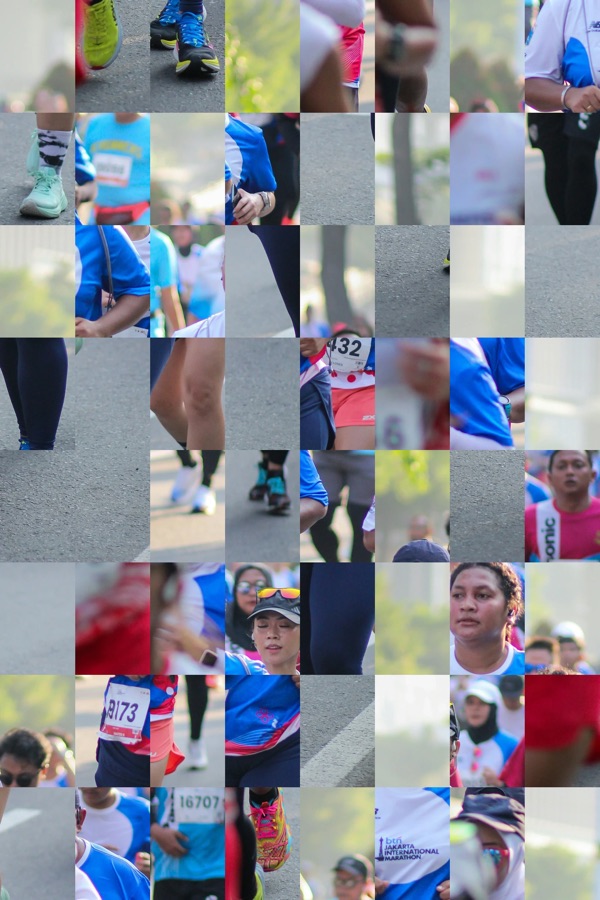
It's on by default in every public album and there is nothing to set up. On a few photos the tile edges leave very faint lines in the preview; if that bothers you, turn off Download protection in watermark settings, or for a single album from its watermark panel. Turning it off only means a saved file arrives whole - your watermark stays either way.
Download blocking
In public albums we block the common "just grab it" gestures: right-click to save, and dragging the image out of the page. It won't stop a determined thief, but it stops the casual one, and together with the watermark it means anything that does leak is low quality and clearly marked.
Motion mask (optional)
The motion mask is an extra layer you can turn on from your watermark settings. It becomes the default for all your albums, and each album can override it from its Album watermark panel. Glass lenses drift over the enlarged preview. On screen they barely get in the way; a screenshot freezes them in place, so the capture comes out warped.
You pick how many lenses (1 to 4), their size, how hard they distort the photo, and how thick the glass looks. Right there in watermark settings you can preview the live view and what a capture grabs.
Why turn it on: it's the one layer that also degrades screenshots, the most common way people try to grab a preview.
Things to know: it only applies to the enlarged preview, not the small thumbnails. The photo stays clear while you look. It's off by default, so preview it first and decide whether the extra protection is worth it for your work.
Limit who sees the album
Two album options keep previews away from people who shouldn't see them at all:
- Show only matching photos: nobody browses the full gallery. Visitors take a selfie and only see the photos that match them.
- Password-protected album: only people with the password can view the photos.
Both are explained in Album settings.
If someone still copies your work
No visible protection is completely unbeatable - anything shown on a screen can, in theory, be captured. What our layers guarantee is that whatever leaks is low quality, watermarked, and clearly yours, which makes it both less useful and easy to claim as your own.
If you find a modified copy of your photo posted somewhere, you can report it to the platform hosting it as a copyright infringement. The watermark and the reduced quality of the copy are strong evidence that the original is yours.
Still have questions? Contact us and we'll help.
Still need help?
Can't find what you're looking for? Our team is happy to help.