
Help center
Customize your brand: logo, colors and cover
How to upload your logo (and a version for dark backgrounds), pick the logo background, your colors and the size of your cover. Your brand shows on your custom domain and your private albums.
In short
In Settings > Brand you set how your brand looks, once. It is used on:
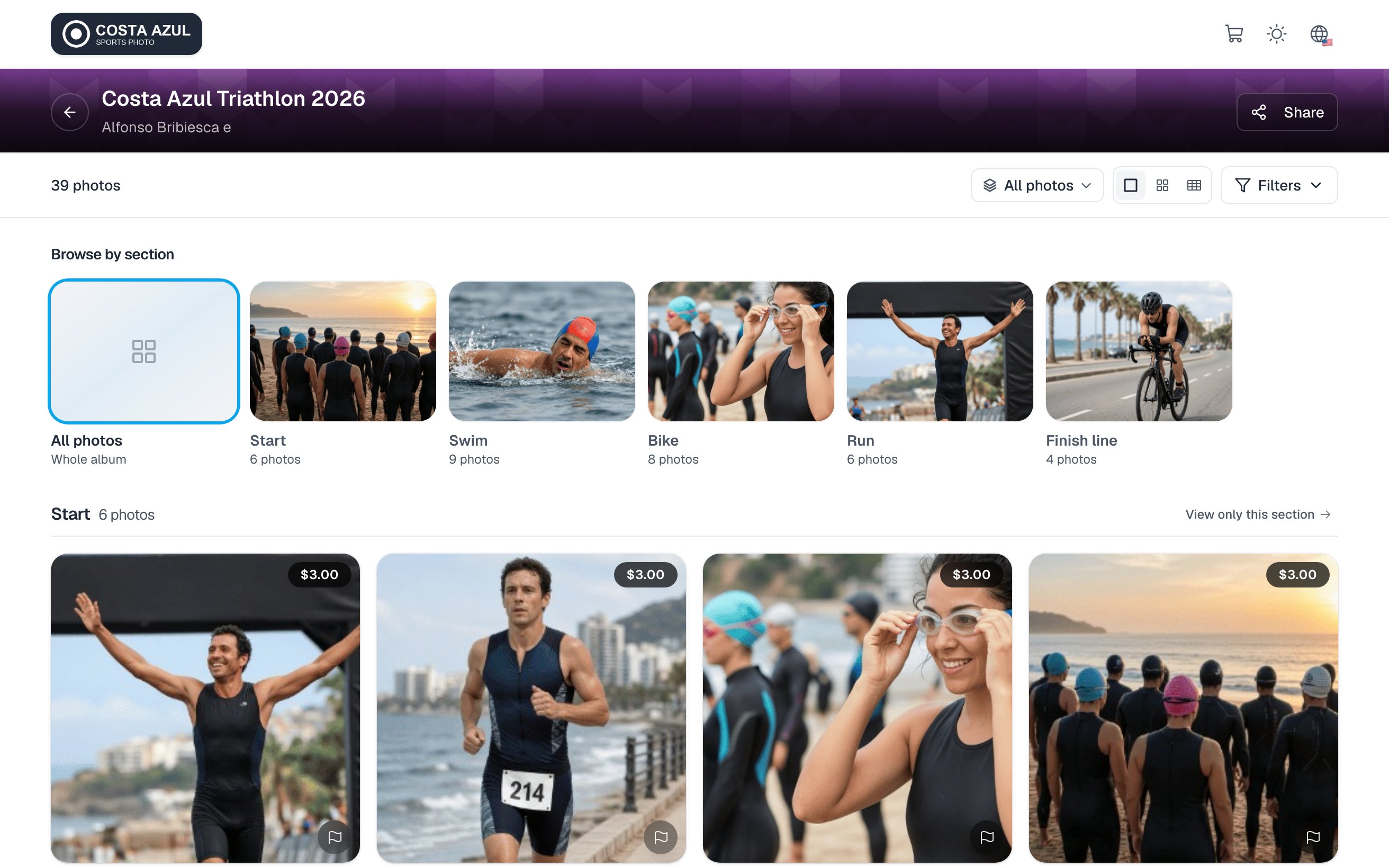
- Your custom domain: your logo at the top of every page, your colors on the buttons, and a minimal footer with your terms and "Powered by ZebraSnap". Links you share show your logo and your domain.
- Your private albums: all of them use it, except the ones with their own logo or colors.
Your logo
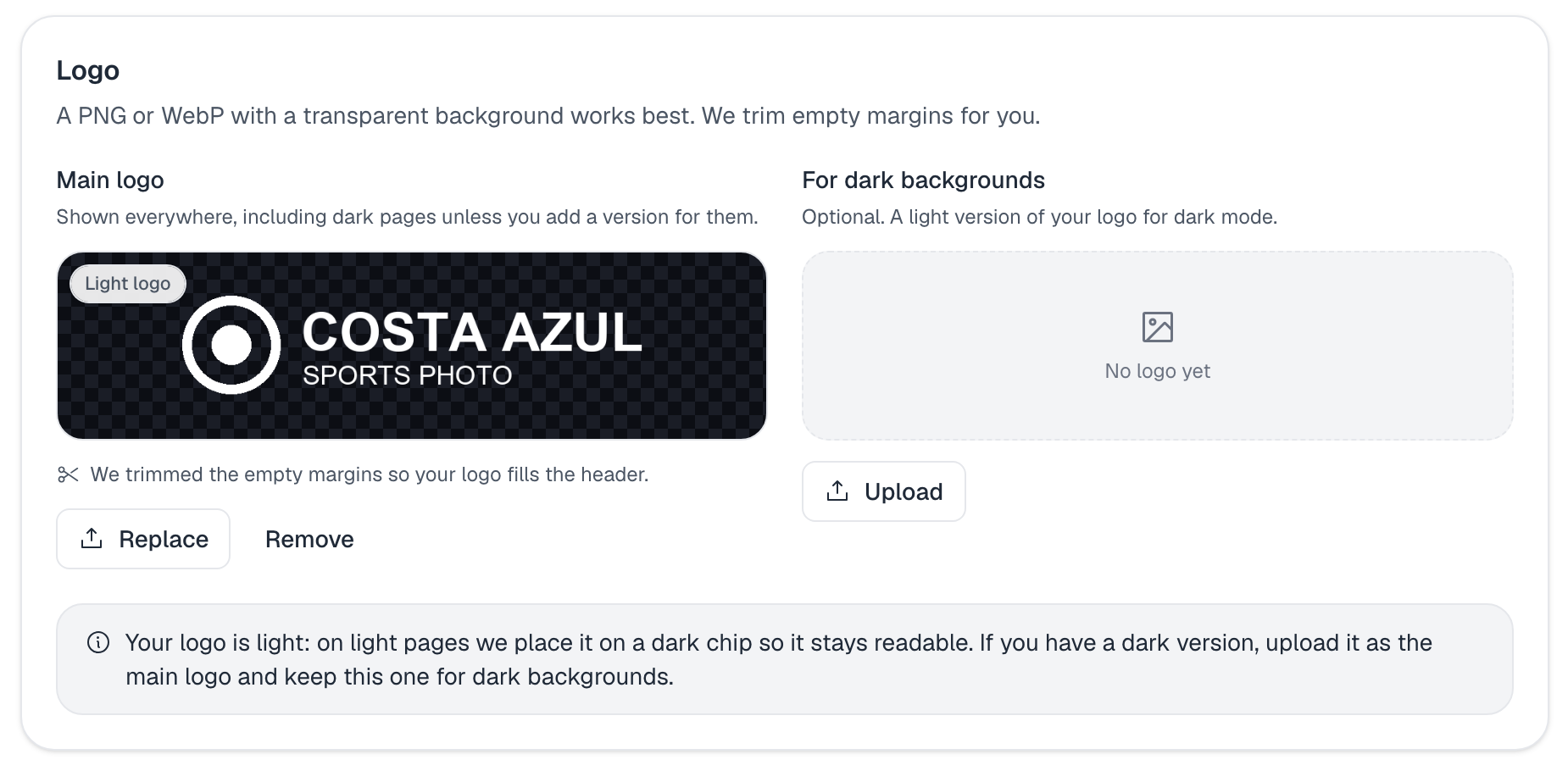
- Upload your main logo under For light backgrounds: the dark or color version of your logo. It is used in light mode, and in dark mode too if you don't add a version for dark backgrounds.
- Use a PNG or WebP with a transparent background. A JPG works too, but it shows as a card with its background.
- We trim the empty margins around the logo for you, so it fills the header.
- When you upload it we analyze it and tell you how it will look: whether it is light, dark or has a background, and what to do for a cleaner result.
Version for dark backgrounds (optional)
Visitors can see your pages in light or dark mode. Under For dark backgrounds you can upload a light version of your logo: we use it only in dark mode.
- If your logo is dark, upload a light version here. Otherwise, in dark mode we place it on a light chip.
- If your logo is white, upload it as the main logo and in light mode we place it on a dark chip. If you also have a dark version, use that as the main logo and keep the white one for dark backgrounds.
Logo background
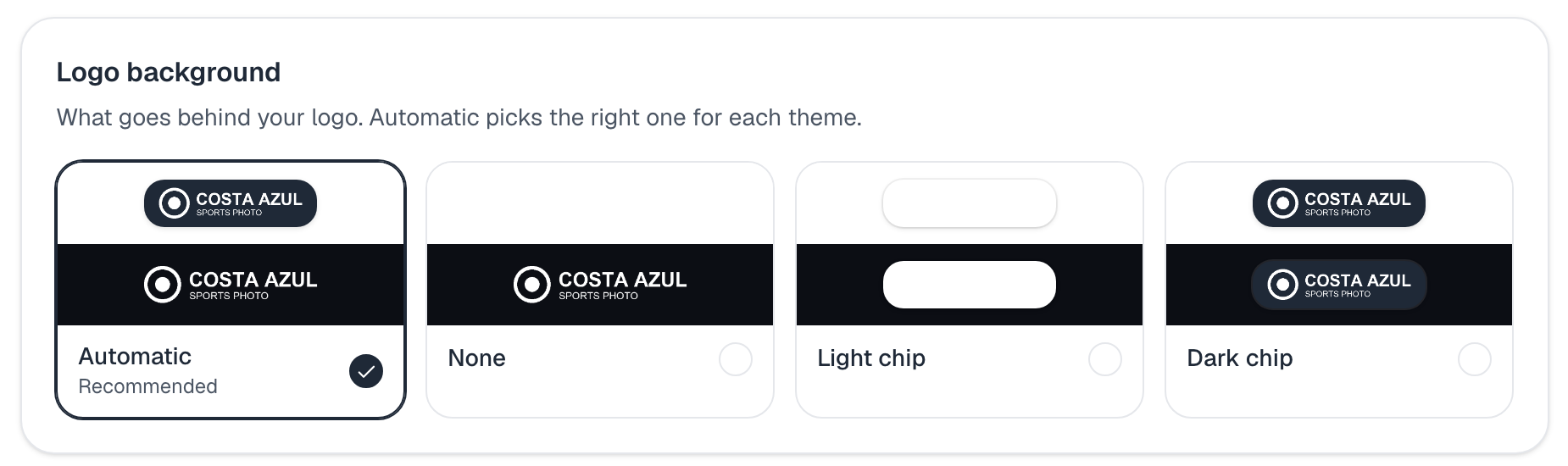
- Automatic (recommended): picks per theme. A white logo goes on a dark chip on light pages, and a dark logo on a light chip on dark pages.
- None, Light chip or Dark chip: the same in both themes.
Each option shows your real logo in light and dark, so you see the result before saving. If your logo is square (an icon), we show your name next to it.
Colors and preview
- Primary color: buttons and accents. If it has low contrast we warn you; we adjust shades automatically, but a darker or lighter tone will look better.
- Secondary color: used by some private album templates.
The preview shows your header in light and dark mode with your changes, before you save.
Profile cover
The recommended size is 2208 x 384 px (5.75:1). Phones crop the sides, so keep the important part in the center. Upload it and adjust the crop right here on the Brand page.
"Member since"
Under Public profile you can hide the month you joined, shown under your name on your profile.
How it looks on your domain
Related articles
- Custom domains on ZebraSnapUse your own domain - apex or subdomain - for your photographer profile and albums. What it does, who can use it, what we manage for you.
- Connect a domain you already ownStep-by-step instructions to point your existing domain or subdomain at ZebraSnap, with notes for the most common registrars.
- Buying a domain through ZebraSnapHow buying a domain with us works, what is included, and what happens after the first year.
Still need help?
Can't find what you're looking for? Our team is happy to help.