

How it works
You invite a person with their email or their username. Once they accept, they can work in your account: they see your albums and edit them as if they were their own. You decide when to pause their access or remove them from the team.
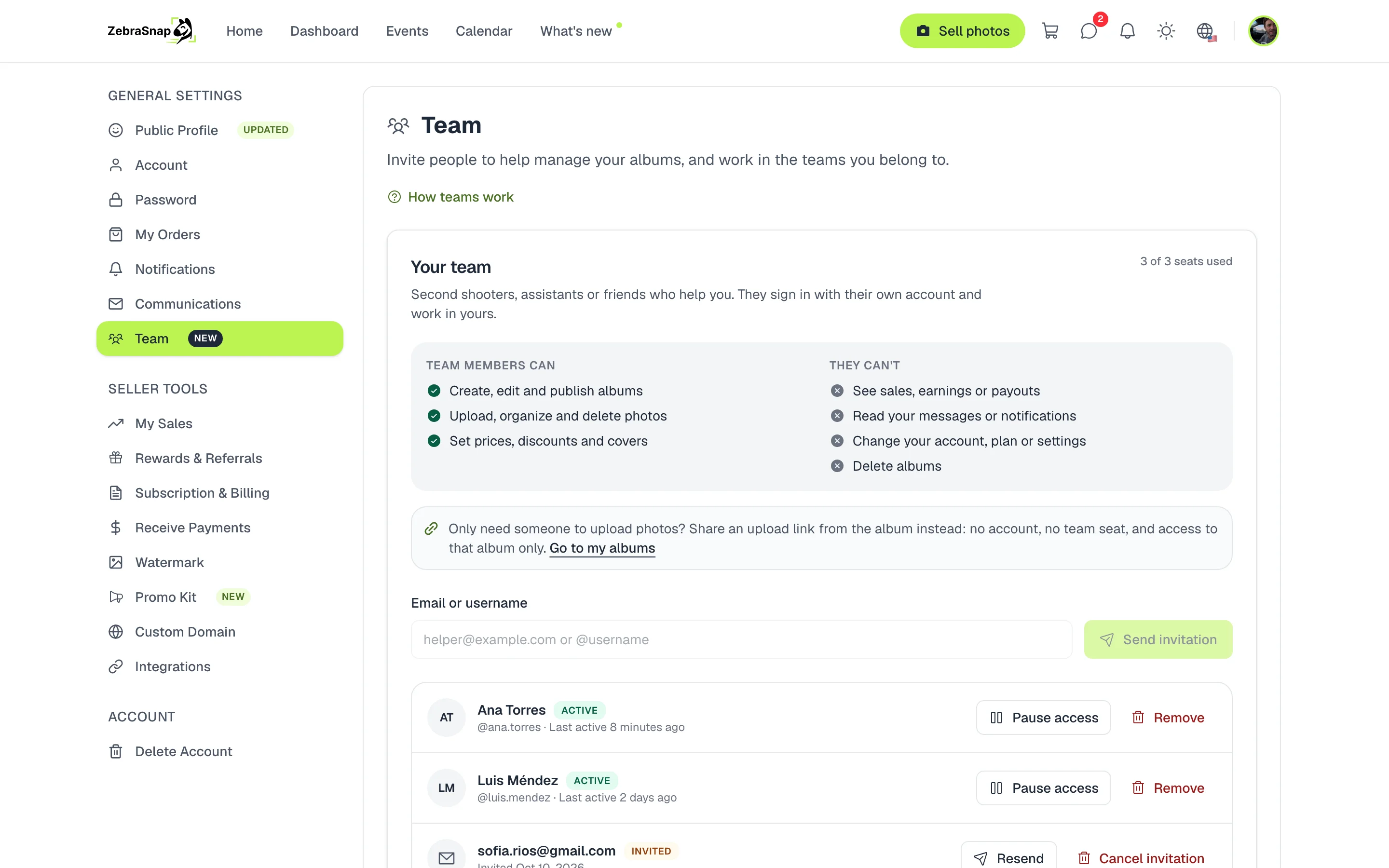
What your team can do
- They can create, edit and publish albums; upload, organize and delete photos; and set prices, discounts and covers.
- They can't see your sales, earnings or payouts; read your messages or notifications; change your account, plan or settings; or delete albums.
Invite your team
- Open Settings. Go to Team.
- Type their email or username. In Email or username, type the email or the @username and press Send invitation.
- Wait for them to accept. They show up as Invited until they accept; you can resend or cancel the invitation.
- Done. Once they accept, they show up as Active and you see when they last worked in your account.
Tip. Pending invitations also take a spot. Cancel the ones you no longer need to free up space.
How your team works
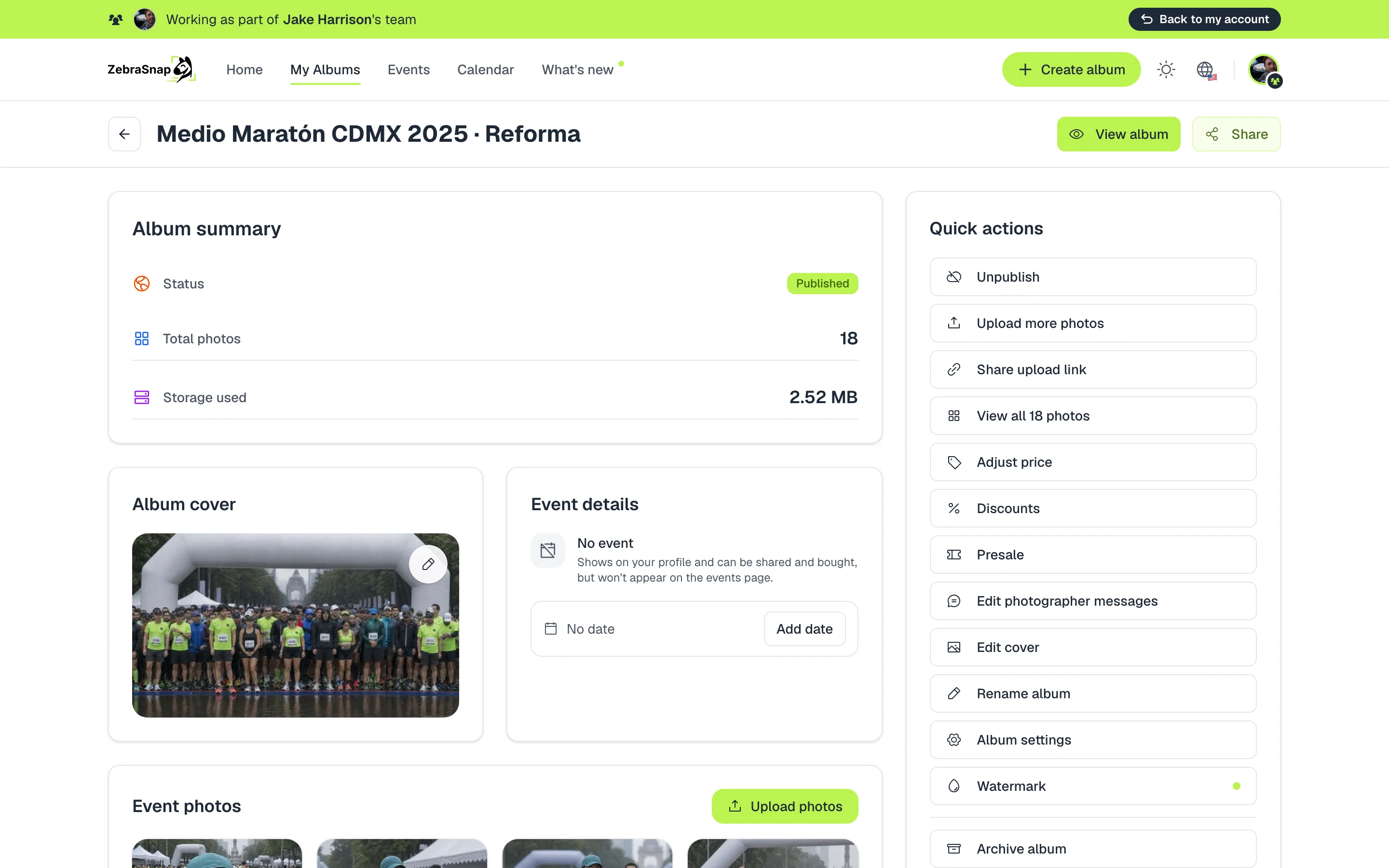
Whoever accepts your invitation signs in to their account and chooses Work in this team. From then on they see your albums, with a banner at the top showing which team they are working in, and they go back to their account with Back to my account.
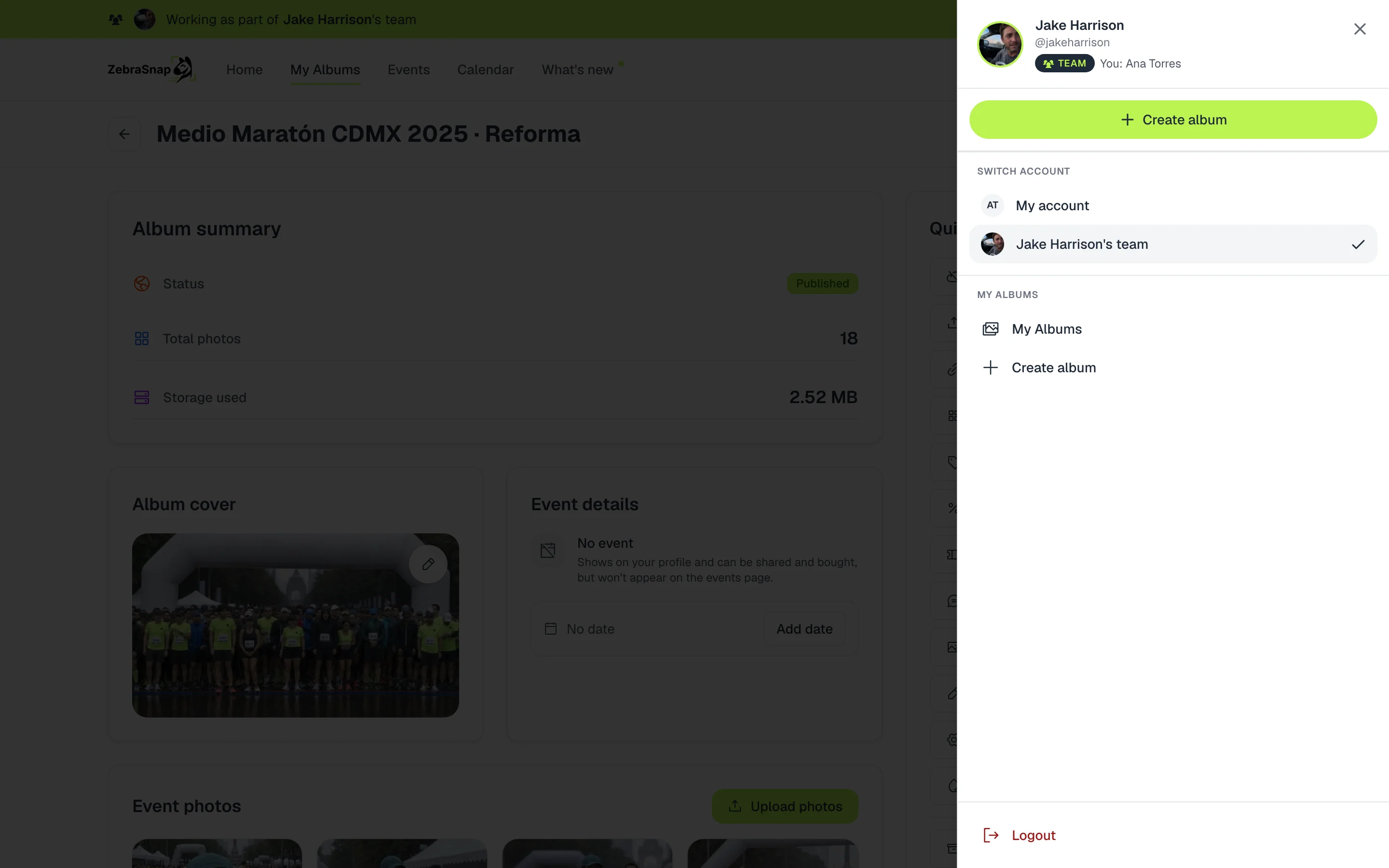
If they belong to several teams, they move from one to another from their account menu, under Switch account. It works the same on the web, the app and the desktop app.
How other photographers use it
Three photographers at a marathon
Each one uploads their photos to the same album from their own computer, and the album is complete that same night.
An assistant who edits
Your assistant organizes the sections, picks the cover and sets up discounts while you keep shooting.
Wedding season
You pause your second shooter's access during the months without events and turn it back on when they return.
Frequently asked questions
- Can my helpers see how much I sell?
- No. Members do not see sales, earnings or payouts, do not read your messages or notifications, cannot change your account or plan and cannot delete albums.
- Do they need a ZebraSnap account?
- Yes, each member signs in with their own account. If you invite an email with no account, they get a link to create one and join.
- Who gets paid for what they upload?
- You do. Everything your team uploads and publishes is part of your albums, and sales are paid to your account.
- Can I take away someone's access?
- Yes. You can pause their access and turn it back on later, or remove them from the team. When you pause them, they are signed out of your account right away.
- What if I only need someone to upload photos to one album?
- Share an upload link from the album: they do not need an account and it does not take a spot on your team.
- PRO (3 people) and Enterprise (10 people) plans
- Web, app and desktop app