

How it works
A private album is an album without an event that only people with the link can see. The page uses your branding: your logo or the name you choose in the header, your colors on buttons and accents, and one of four templates. Everything else works like any album: your clients find themselves with a selfie or their number and buy with the same cart.
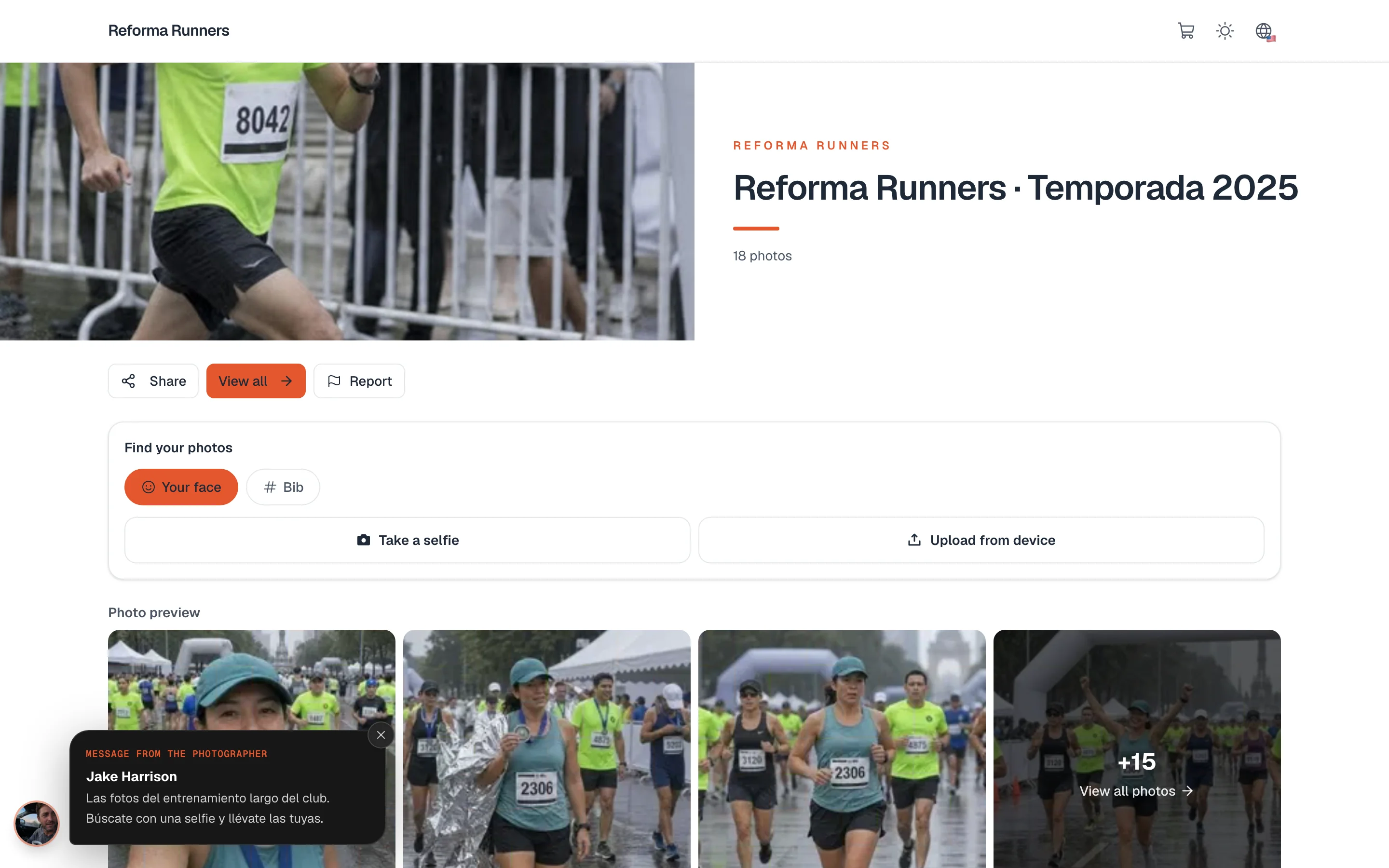
Create a private album
- Start a new album. In Create album, press Wedding, graduation or private session? Create a private album instead.
- Fill in the details. Name, price and cover. A private album has no event or location.
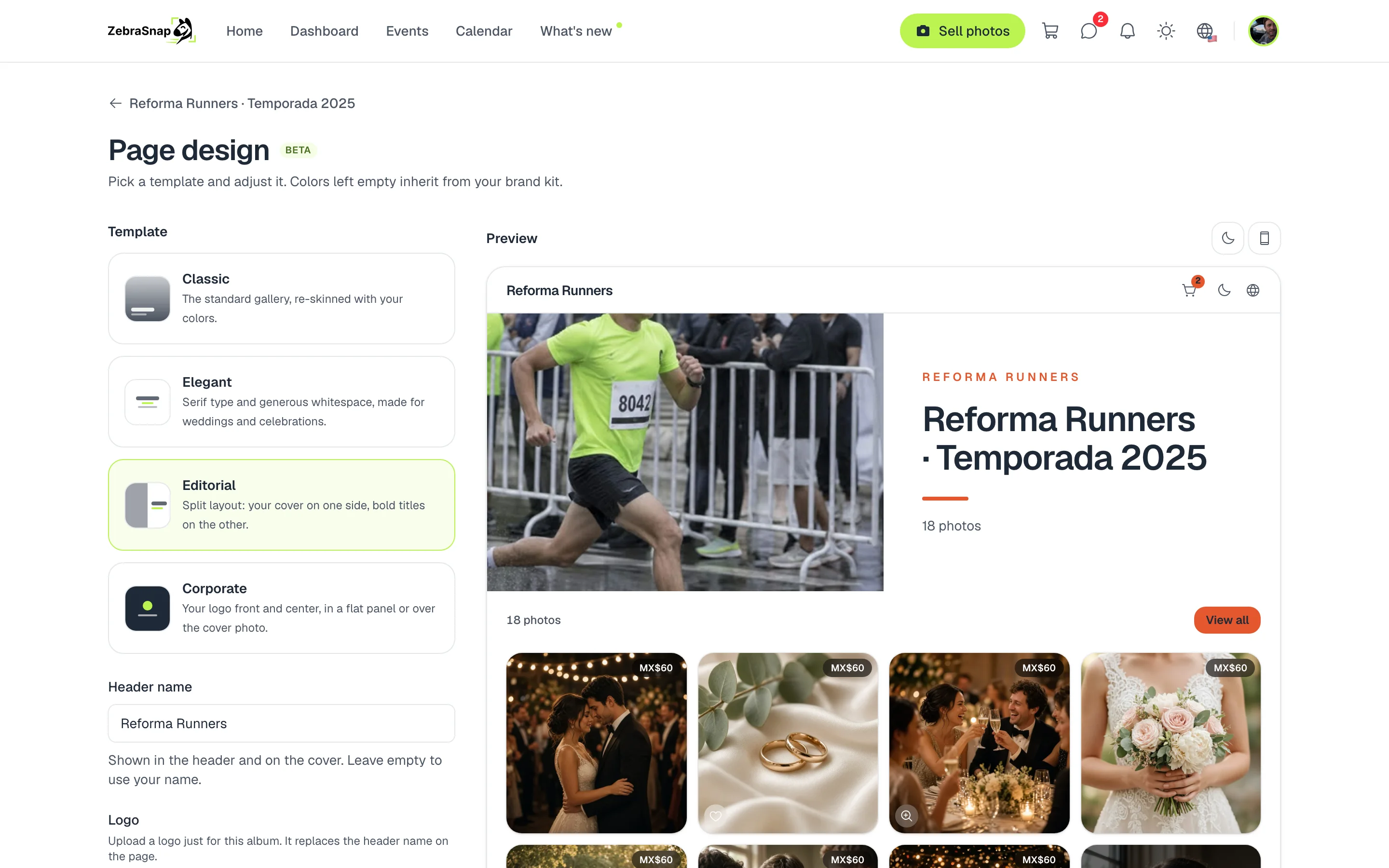
- Choose the template. In Page design, choose Classic, Elegant, Editorial or Corporate.
- Upload your photos and publish. Like any album. Then share the link with your client.
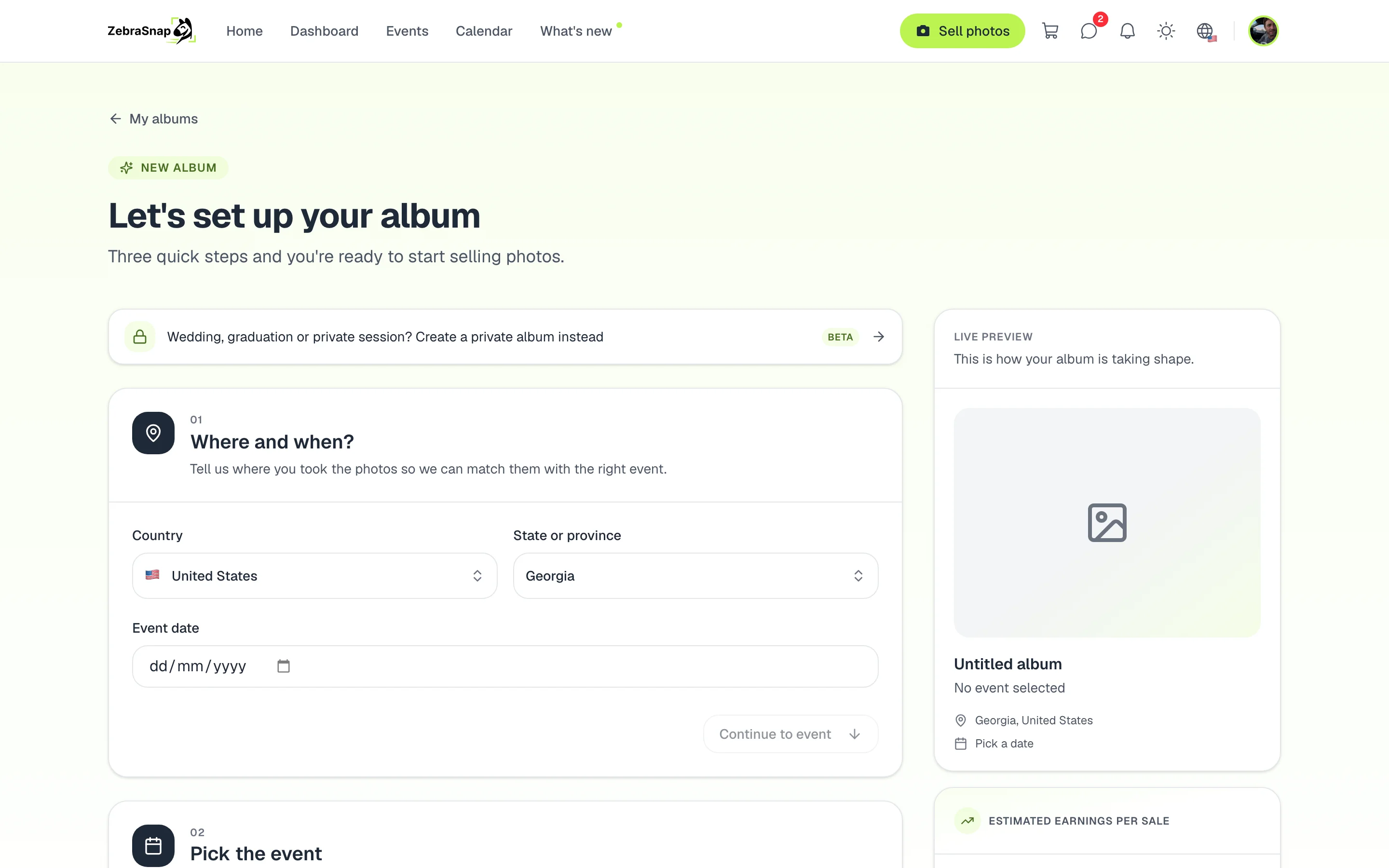
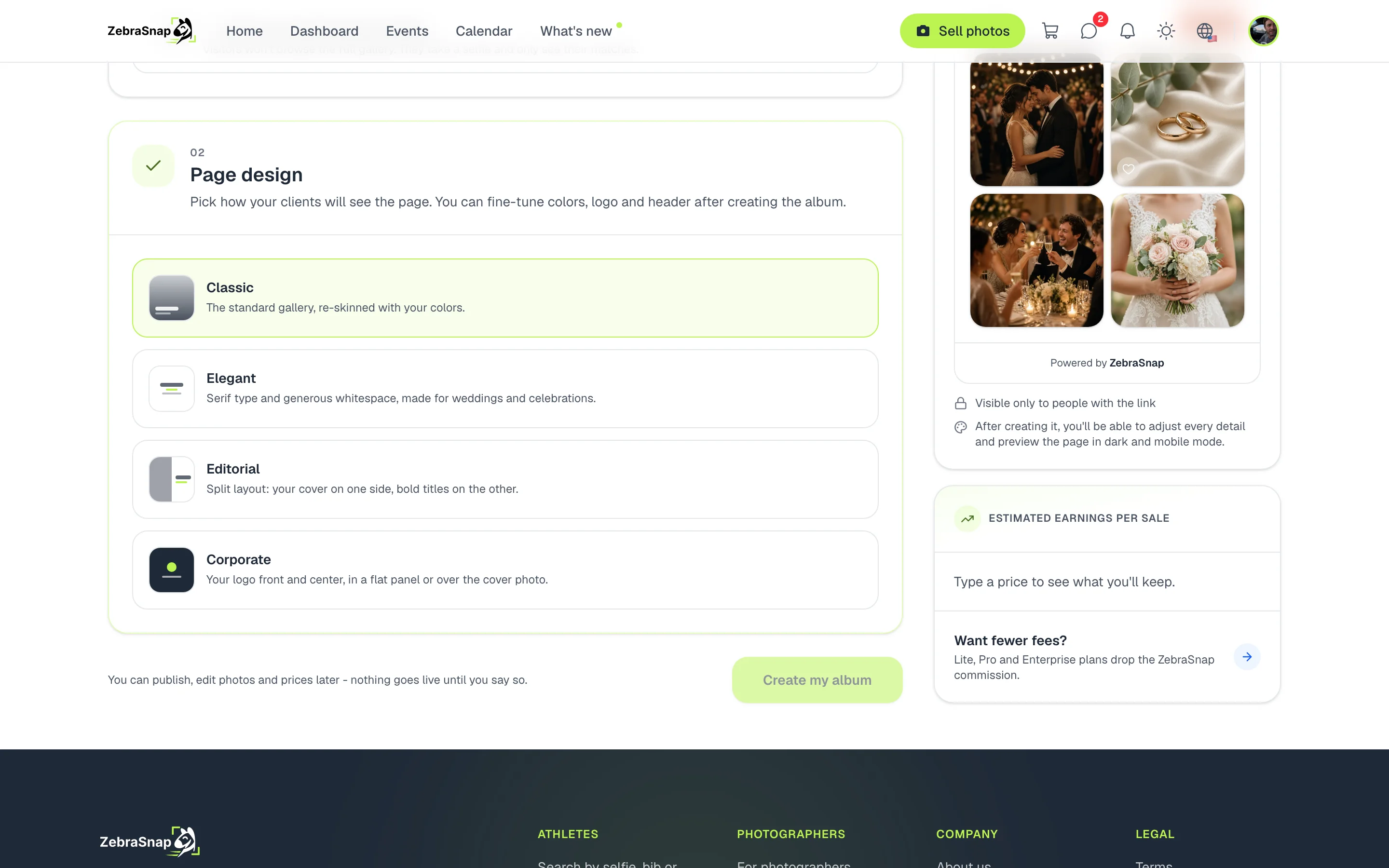
Tip. For a club or a company, type its name in Header name: your clients feel the album was made for them.
Customize the page
Open the album and press Customize page. There you change the template, the header name, a logo just for this album and the colors. Colors you leave empty come from your brand kit. The preview shows the full page, and you can check it in dark mode and at phone width before saving.
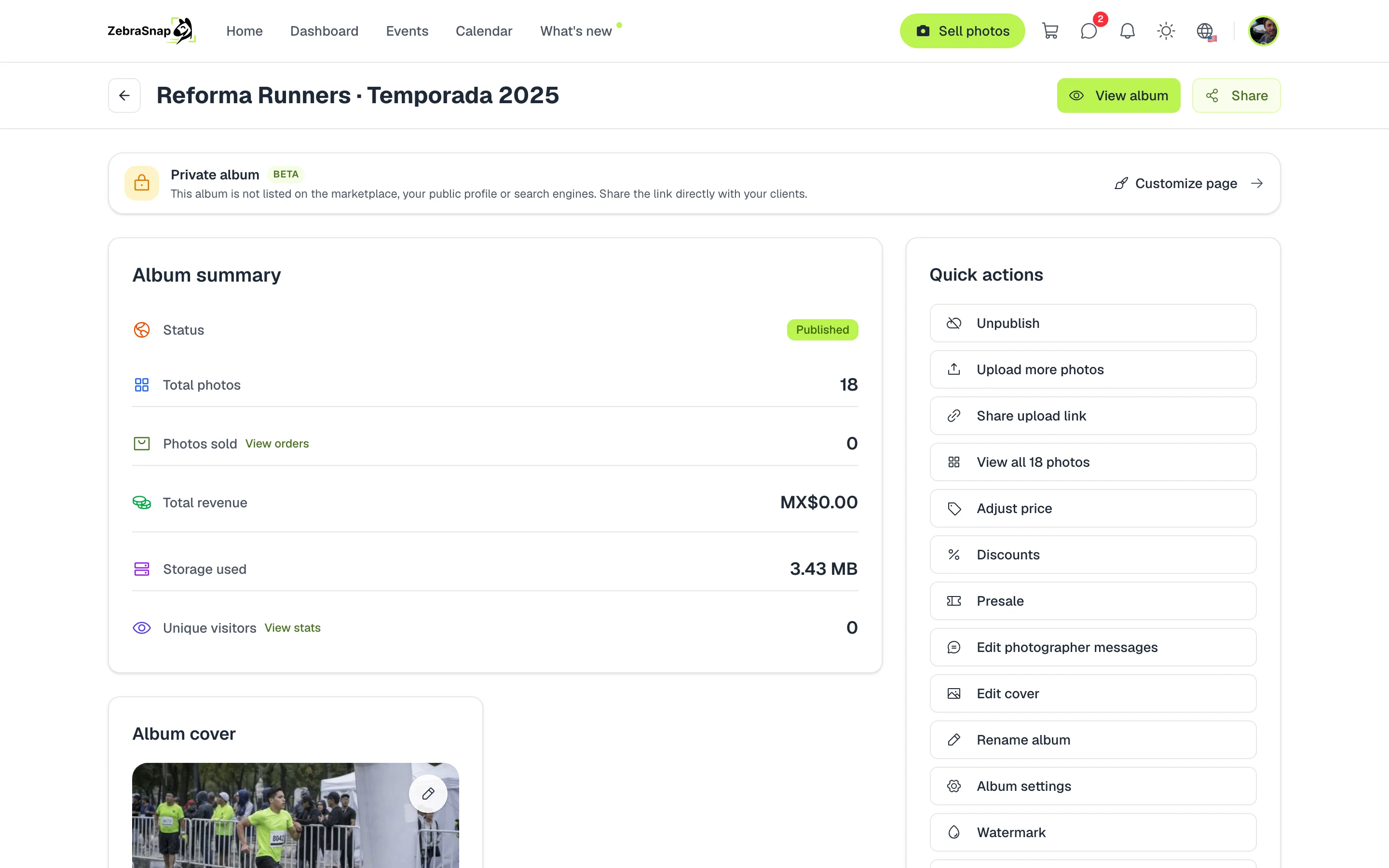
Your brand kit
In Settings > Brand you set your logo, your primary color and your secondary color once. They are used in all your private albums, and each album can change what it needs. If you have your own domain, your private album links use your domain.
Who can see it
Anyone with the link can open the album once it is published, no account needed. It does not appear on the marketplace, on event pages, on your public profile or in the sitemap search engines read. To lock it down further, add a password or turn on showing each person only their own photos.
How other photographers use it
A club training run
You photograph a running club's long training run. You deliver an album with the club's name and colors, and each runner finds themselves with a selfie.
A company event
You cover a company's internal race. The album carries the client's logo in the header and only people who get the link can see it.
Weddings and graduations
With the Elegant template, guests find their photos with a selfie, and you can turn on showing each person only their own.
Frequently asked questions
- Who can see a private album?
- Anyone with the link, no account needed. It does not appear on the marketplace, on event pages, on your profile or in search engines.
- Can I turn an event album into a private one?
- No. An album is created private from the start and cannot be changed later, or the other way around.
- Can I add a password?
- Yes. You can combine it with a password or with showing each person only their own photos.
- Do my clients see the ZebraSnap brand?
- Only a line at the bottom of the page. The header, the colors and the template are yours.
- Can I create it from the mobile app?
- No. You create it on the web or in the desktop app, and you fine-tune the design on the web.
- All plans (Beta)
- Web and desktop app