

How it works
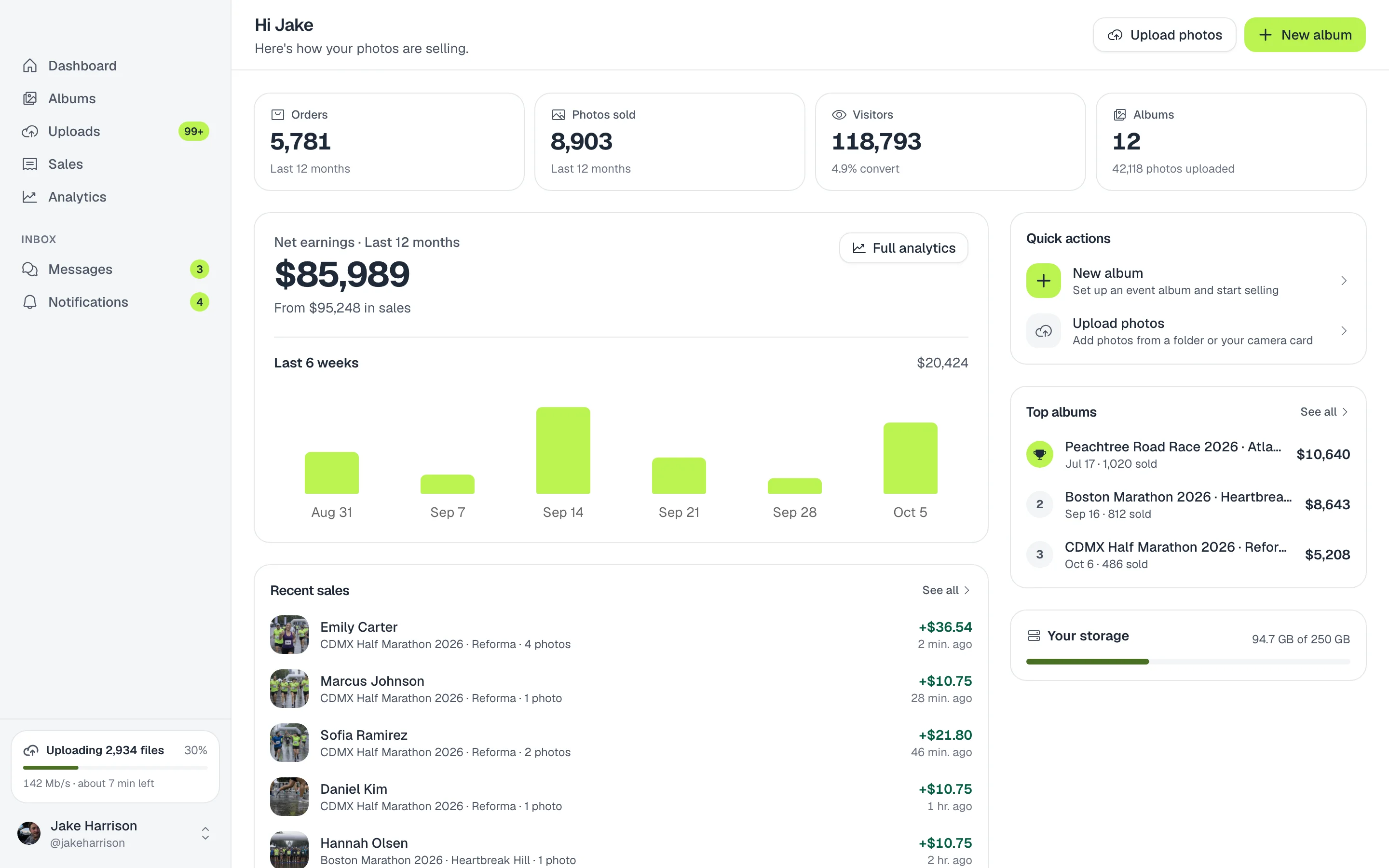
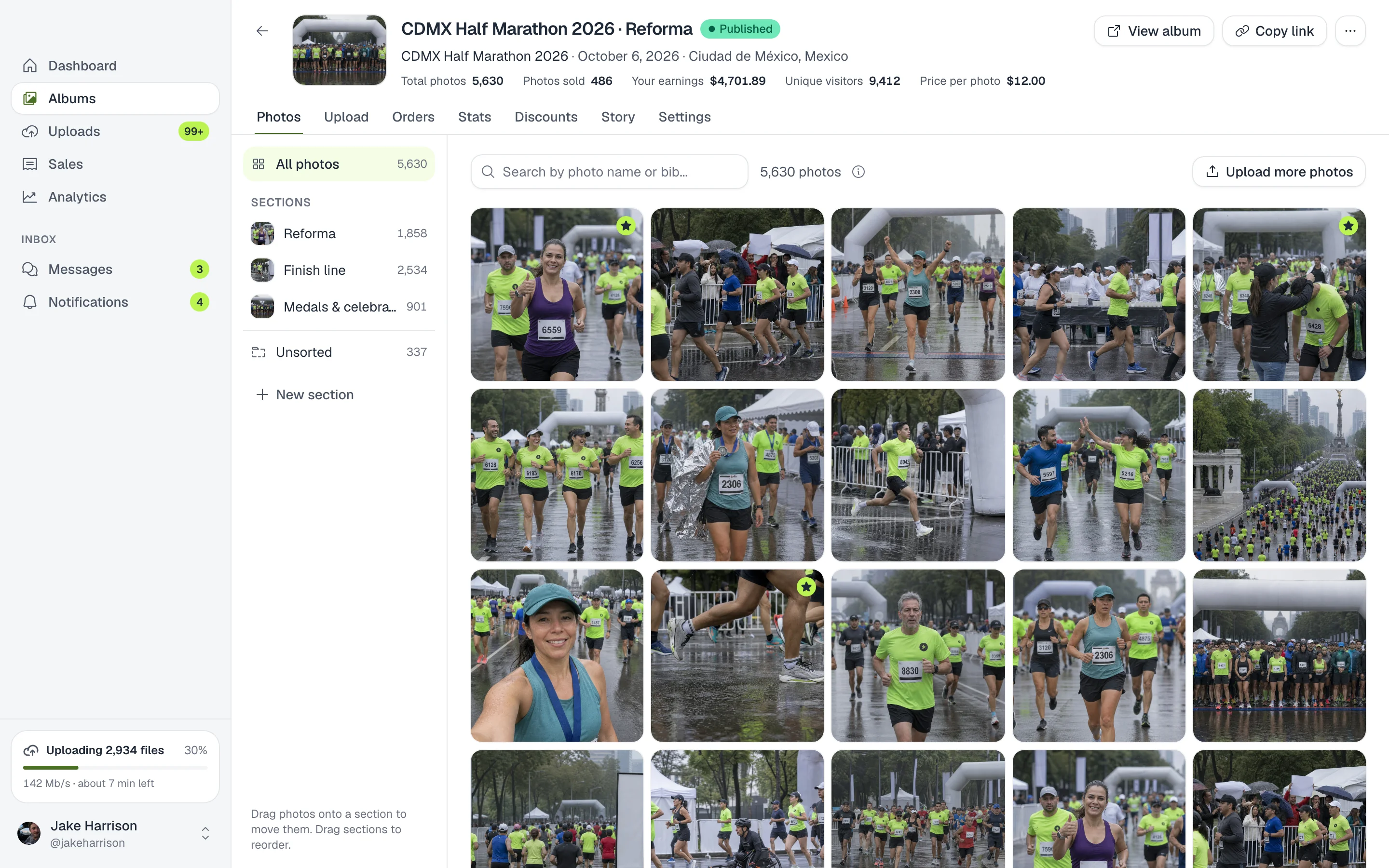
The desktop app is all of ZebraSnap on your computer, with one advantage: it uploads photos better than the browser. Drop your photos or a folder onto an album and they upload in the background, several at a time. If the connection drops, it waits and resumes on its own.
Upload a full event
- Download the app. For Mac or Windows from the downloads page, then sign in with Continue in your browser.
- Open your album. In Albums, pick the album or create a new one.
- Drop your photos. Drag the photos or the whole folder onto the Upload tab.
- Get on with your day. In Uploads you see the progress, the speed and the time left. You can pause and resume whenever you want.
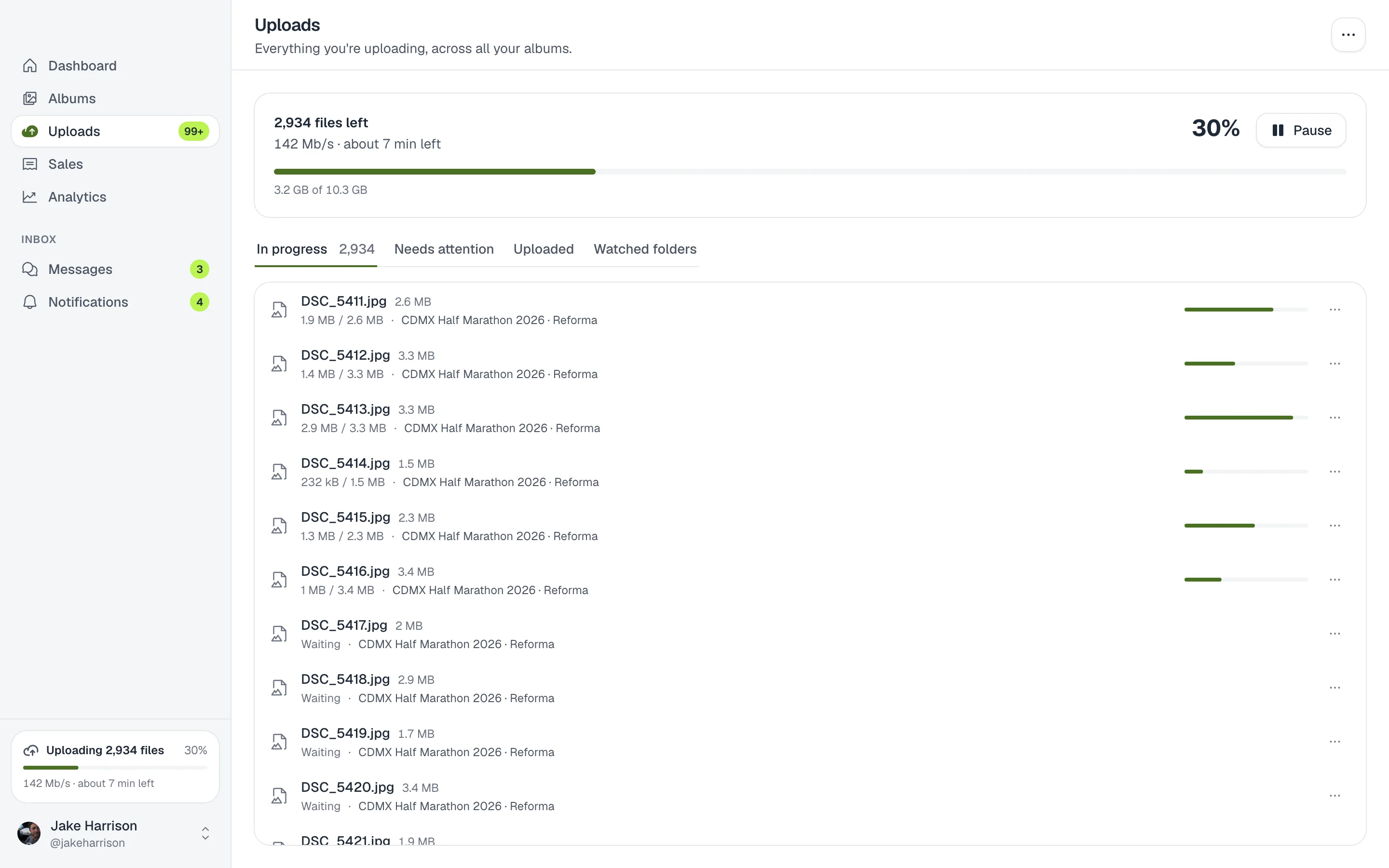
Tip. If a photo could not be uploaded, it shows up in Needs attention with the reason and a button to retry it.
Watch your export folder
In Uploads > Watched folders, press Watch a folder and connect your Lightroom, Capture One or camera export folder to an album. Every new or re-exported photo in that folder uploads on its own, even with the window closed.
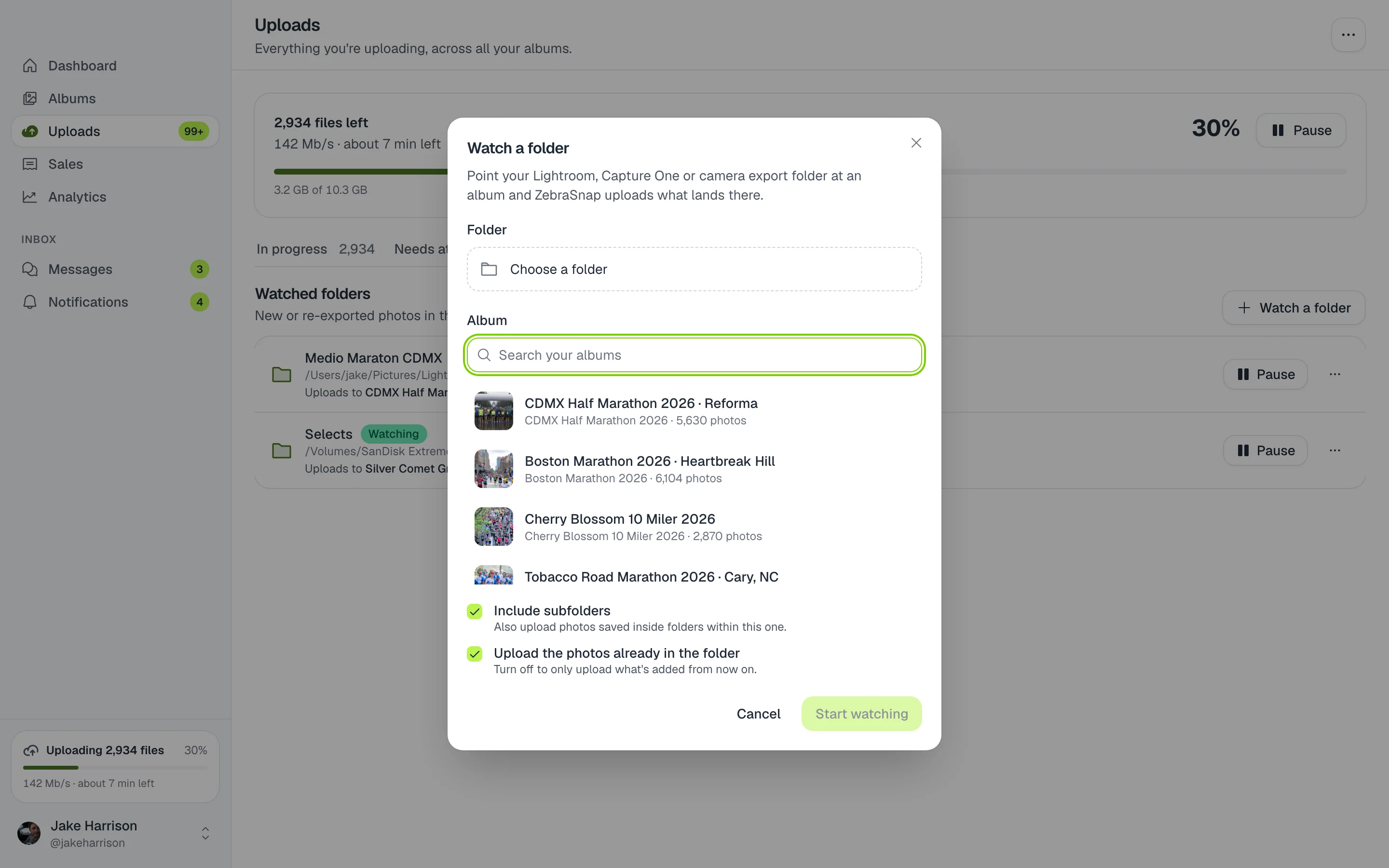
- Include subfolders also uploads the photos in the folders inside it.
- Upload the photos already in the folder uploads what you already have. Turn it off to upload only new photos.
Your whole business in one app
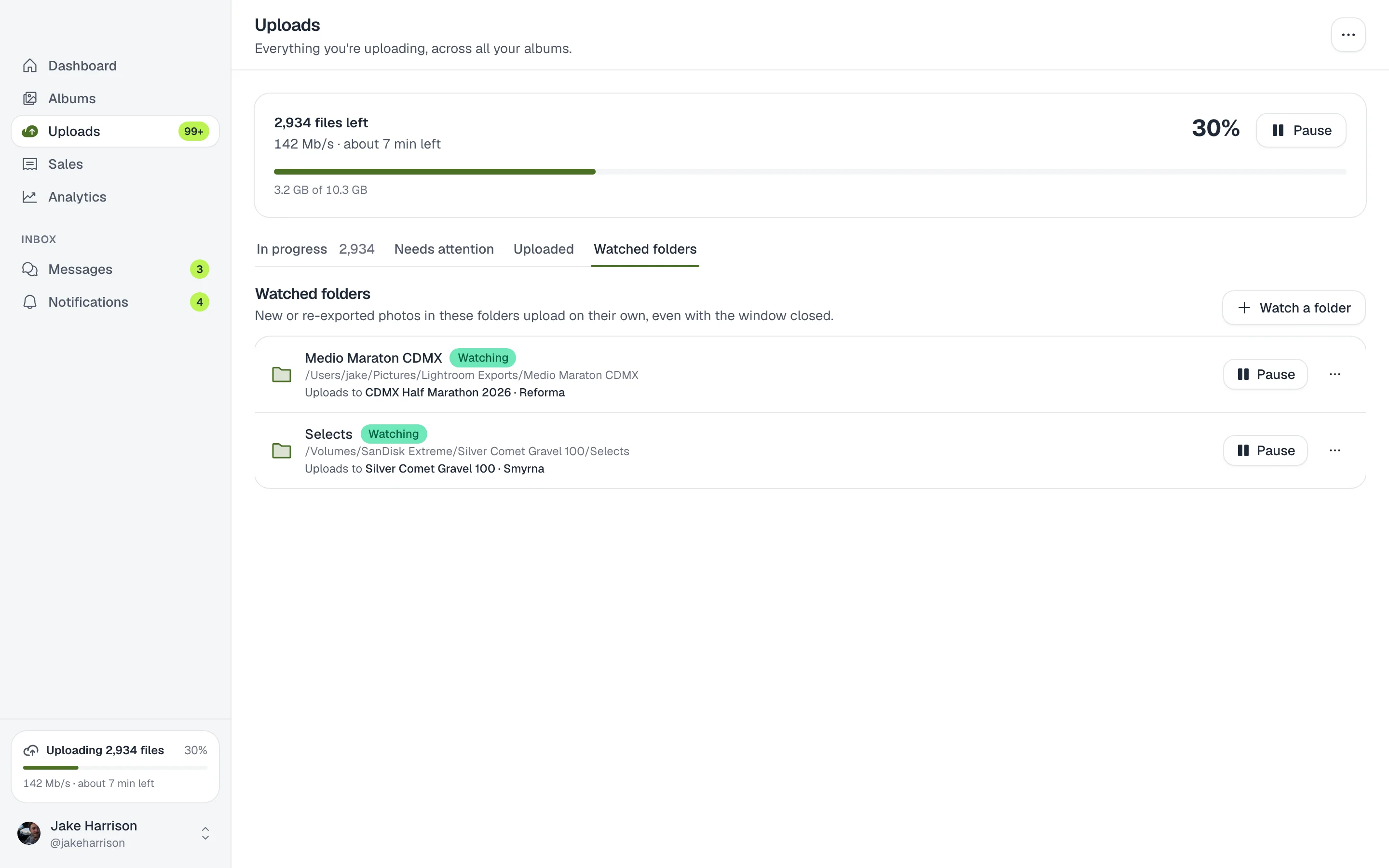
- Albums. Create and publish albums, organize sections, set prices and discounts, and create the Instagram story.
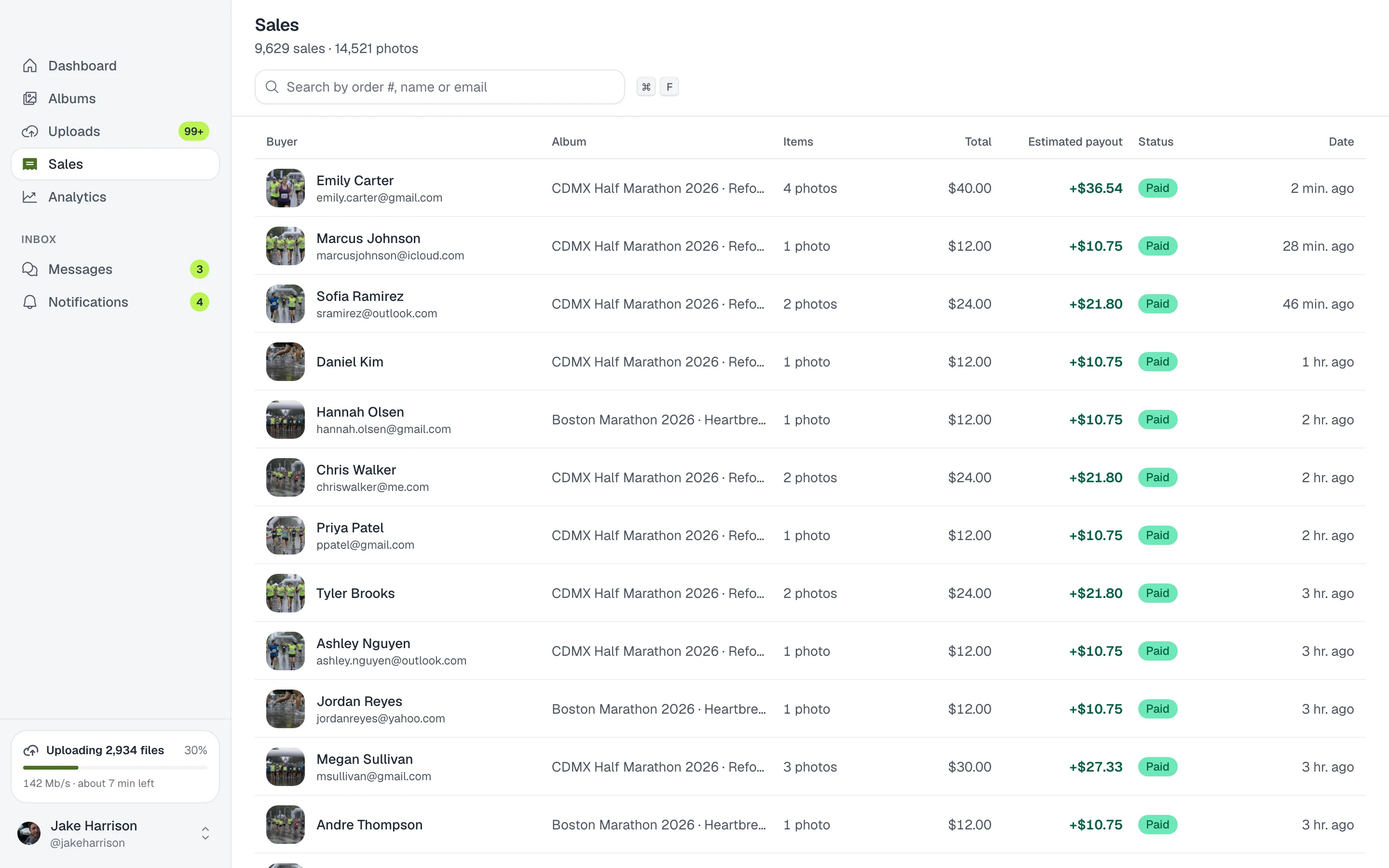
- Sales and stats. Every sale with what you earn, plus the visits and sales of your albums.
- Messages and notifications. Reply to your clients without opening the browser.
The app updates itself, so you always have the latest version.
How other photographers use it
Three thousand photos from a marathon
You drag the whole folder onto the album and keep editing. If the hotel internet goes down, the upload waits and picks up on its own.
Export and sell
You watch your Lightroom export folder: every photo you export shows up in the album a few seconds later.
Monday at the office
You check the weekend's sales, answer messages from athletes and get the next event's album ready, all from the same app.
Frequently asked questions
- How much does it cost?
- Nothing. The app is free on every plan.
- What happens if the internet drops?
- The upload waits for the connection and continues where it left off. Each photo is retried several times before it is marked as failed.
- Do I have to keep the app open?
- The window can be closed: uploads and watched folders keep going in the background as long as the app is running.
- Can I choose how many photos upload at once?
- Yes. In Settings you adjust the files at the same time: more is faster on a good connection, fewer leaves bandwidth for everything else.
- How do I sign in?
- With Continue in your browser you sign in with your ZebraSnap account and authorize the app. You can also use your email and password.
- All plans
- Mac (Apple Silicon and Intel) and Windows 10 or later