

How it works
Once your album is published, the generator builds an image to announce it: the album cover, the event name, a call to action, the short link to buy, your username and the ZebraSnap logo. You don't have to design anything; if you want, you can adjust it.
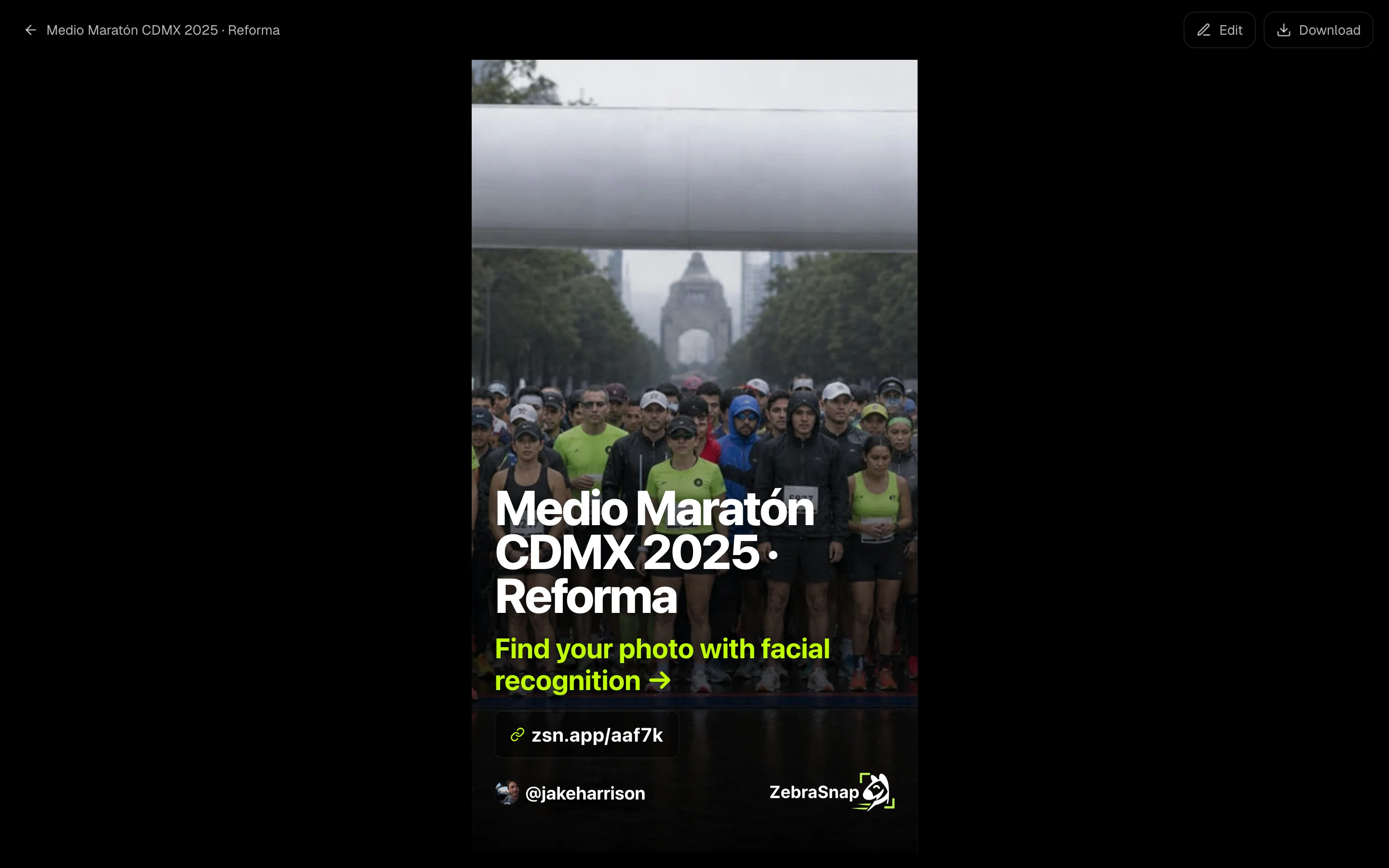
Create your story
- Open your published album. Press Share and choose Instagram Story.
- Check the image. It already has the album cover, the event name and your link.
- Download it. Press Download. The album's short link is copied to your clipboard.
- Post it on Instagram. Upload the image as a story, add a link sticker and paste the link.
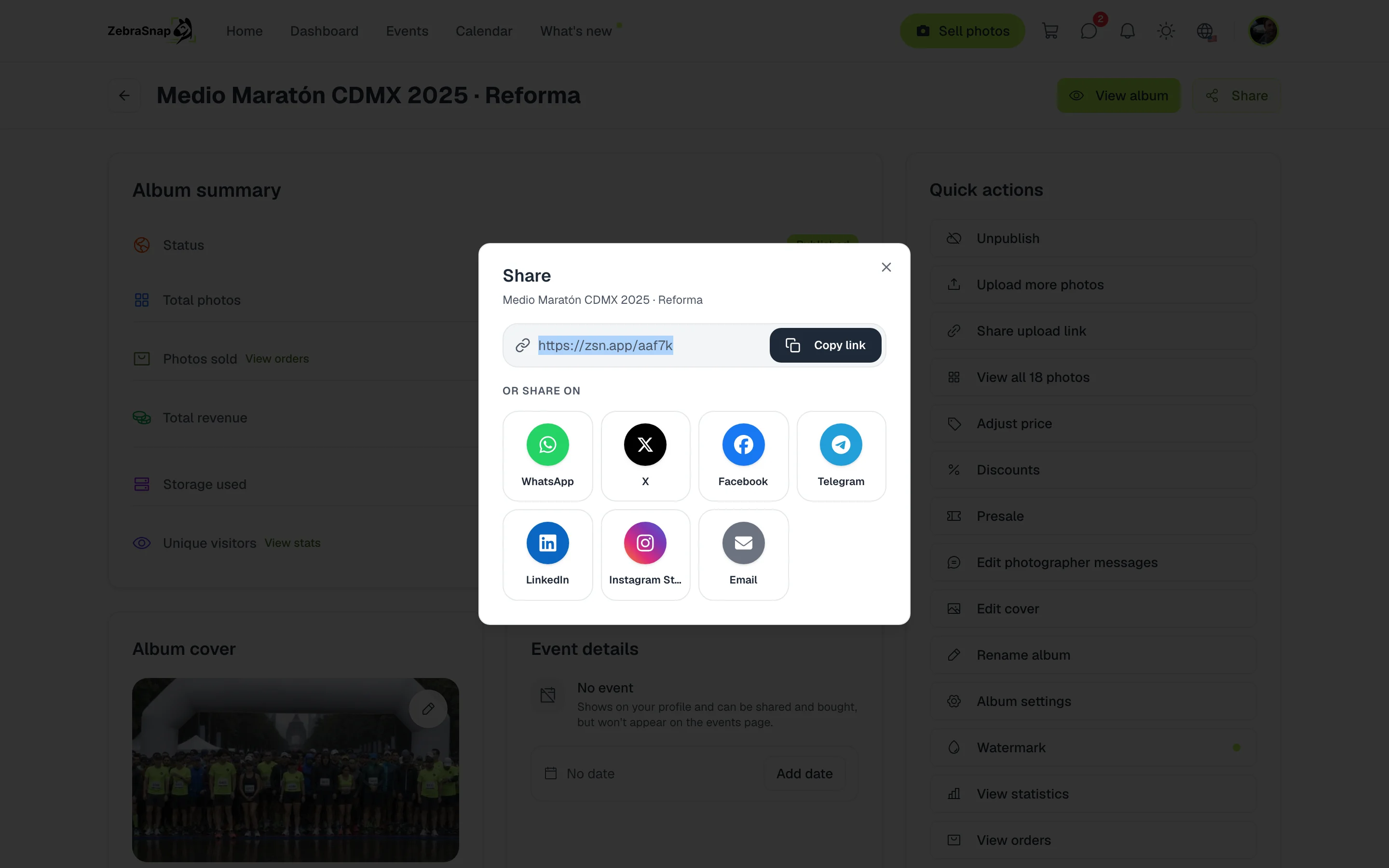
Tip. Post the story on the day of the event. That is when the most athletes are looking for their photos.
Make it yours
Press Edit and a bar appears with everything you can change:
- Dimensions. 9:16 for stories, 4:5 for feed posts, 1:1 square or 16:9 landscape.
- Text position. Bottom, center, top or with your brand apart from the title.
- Accent color. The color of the call to action: 8 colors or one of your choice.
- Texts. The title and the call to action.
- Photo. Upload another image or press the camera button to pick a random photo from the album.
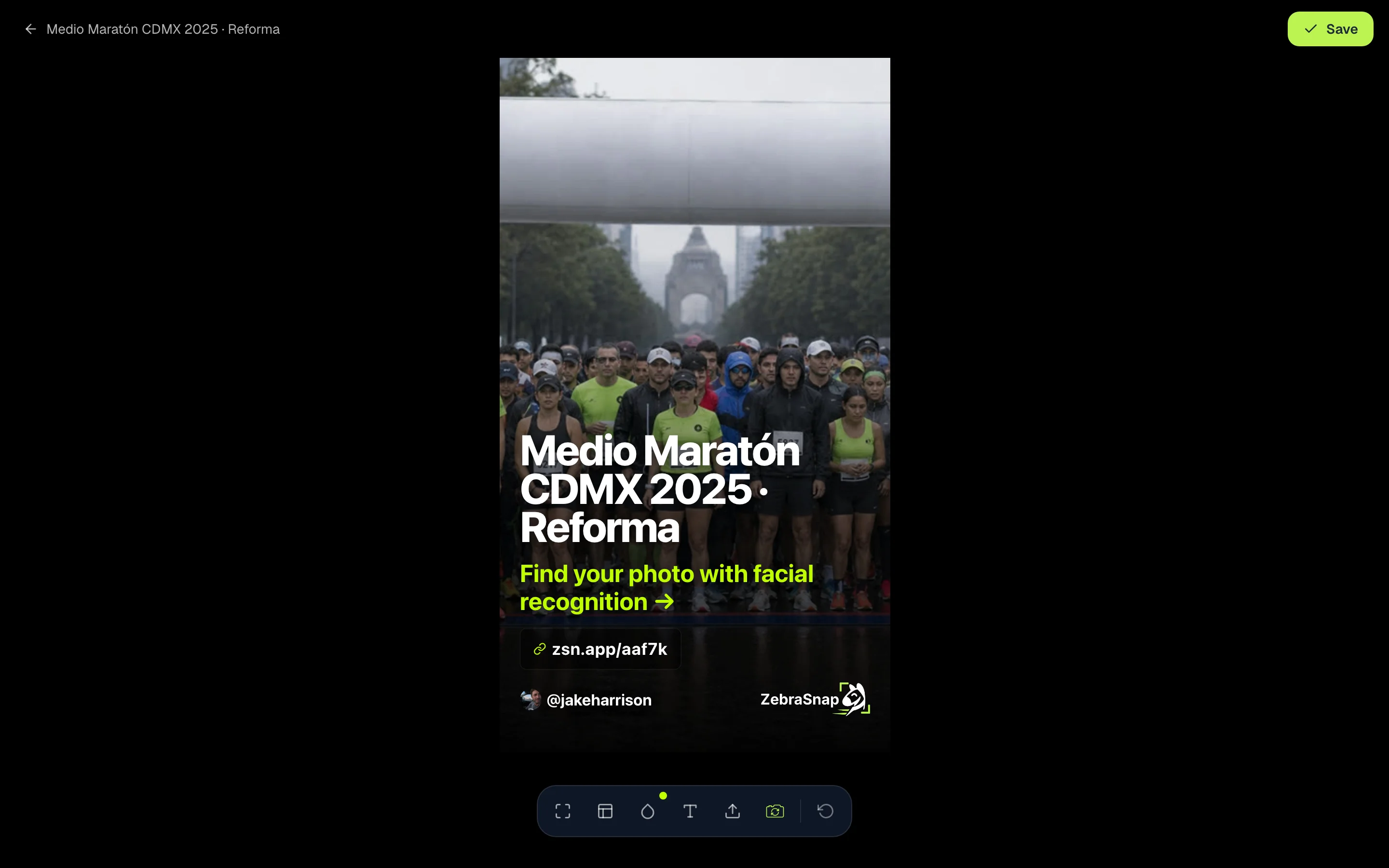
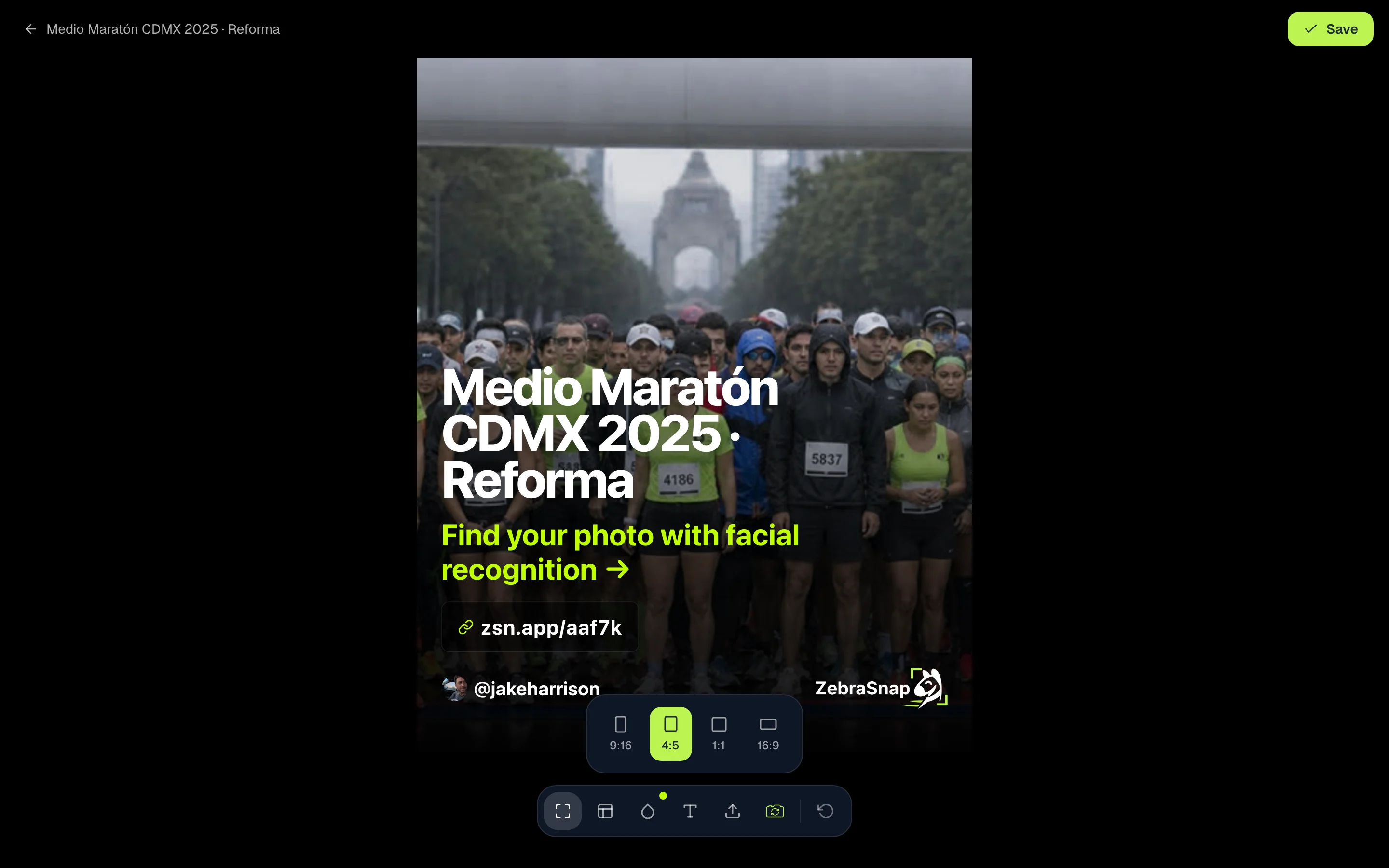
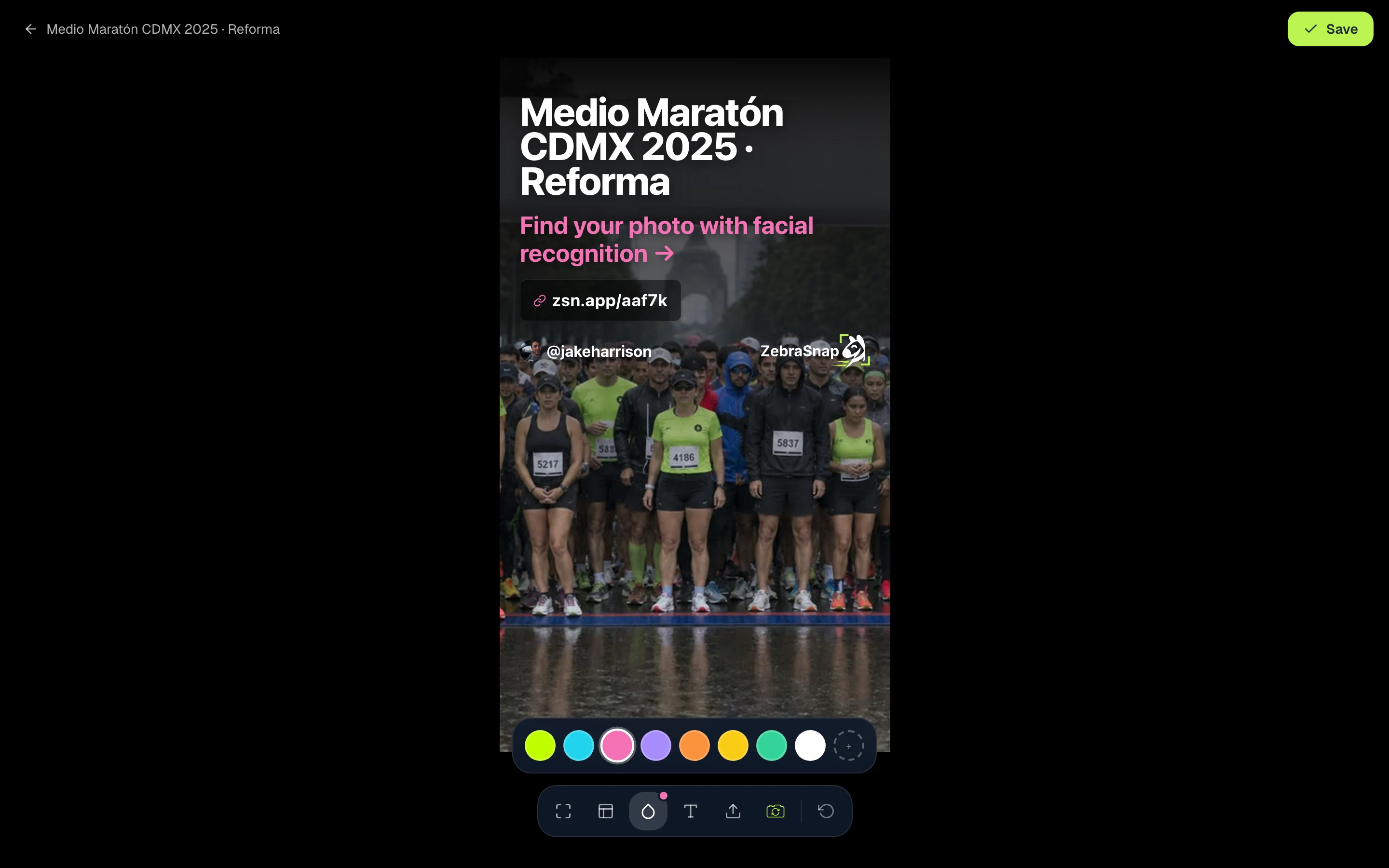
When you are done, press Save. Your format, position, color and call to action are used for your next albums.
In the app and the desktop app
- App. In your album, tap Create Story. You choose from 8 templates, can add a QR code that leads to the album, and save it to your photos or share it straight to Instagram.
- Desktop app. In your album, open the Story tab and choose from 7 styles.
How other photographers use it
The night of the event
You publish the album, create the story with a photo of the start and post it before the runners get home.
A post for the feed
You switch the format to 4:5 and the same image works as a post, with the link in your bio.
A story for the organizer
You download the image and send it to the organizer to share on their account, with your link and your username.
Frequently asked questions
- Where is the generator?
- In your album, press Share and choose Instagram Story. The album has to be published.
- How do I put the link in the story?
- When you download the image, your album's short link is copied automatically. In Instagram, add a link sticker and paste it.
- Can I use a photo that is not in the album?
- Yes. With Change photo you upload any image; with the camera button you pick a random photo from the album.
- Do I have to set it up for every album?
- No. When you save, your format, position, color and call to action are used for your next albums. The title and the photo come from each album.
- Are there templates?
- Yes, in the app (8 templates, with an optional QR code) and in the desktop app (7 styles).
- All plans
- Web, app and desktop app