

Help center
Uploading with the ZebraSnap desktop app
The Mac and Windows app that uploads whole events in the background, resumes after a lost connection, watches your export folder, and lets you manage albums, sales and messages from your computer.
In short
The desktop app is the most comfortable way to upload a big event: drop your photos or a whole folder on an album and they upload in the background, even with the window closed. If the connection drops, it retries and resumes on its own.
It is also a full photographer app: create and publish albums, set prices and discounts, organize sections, and see your sales, analytics and messages. See The ZebraSnap apps for everything it does.
Download and install
Download it from the Downloads page, or from your album's upload page (Upload → Desktop app):
- Mac (Apple Silicon and Intel).
- Windows 10 or later.
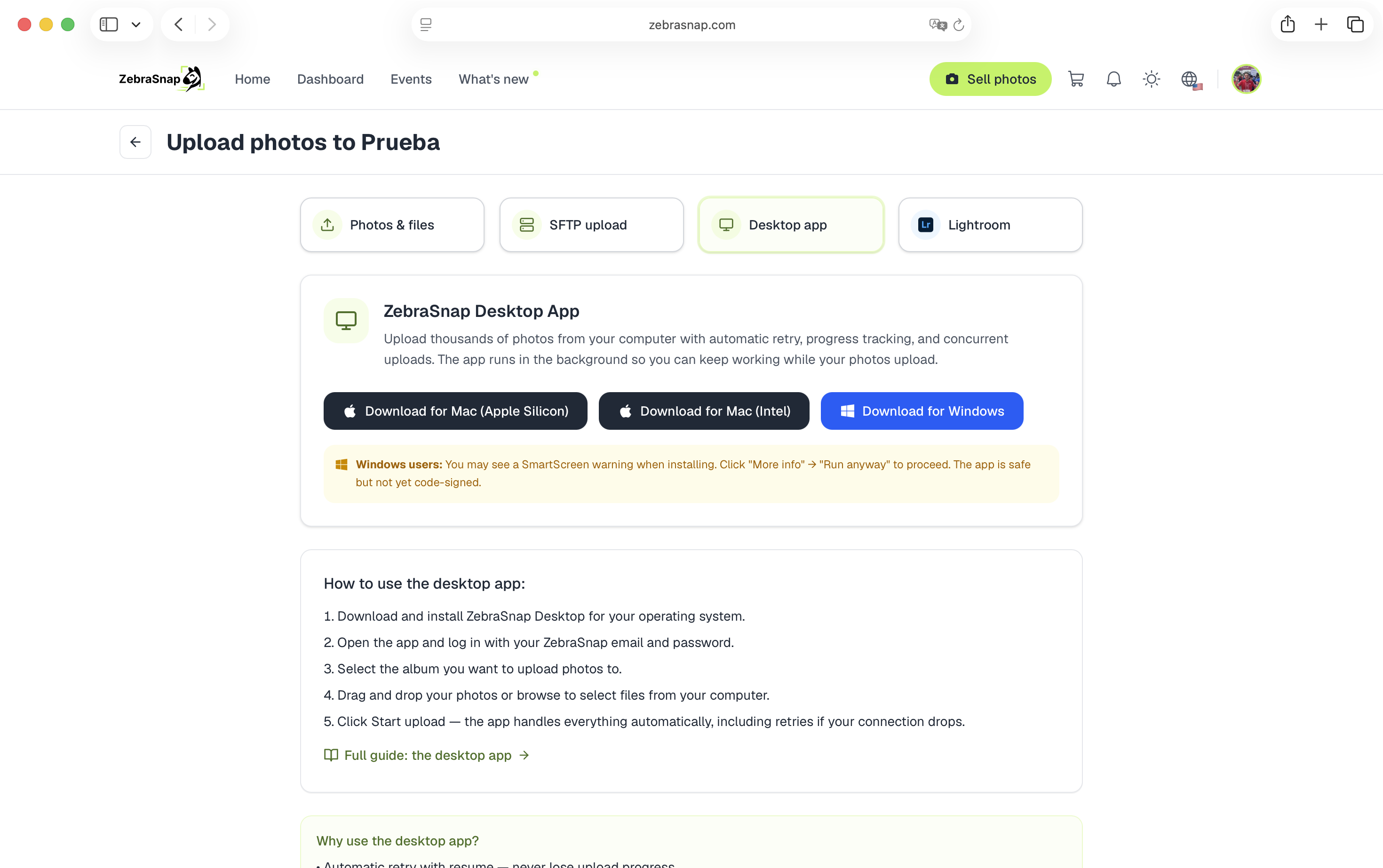
Windows: the first time you run the installer, Windows SmartScreen may show a warning because the app isn't code-signed for Windows yet. Click More info → Run anyway. The app is safe.
The app updates itself, so you always have the latest version.
Sign in
Open the app and choose:
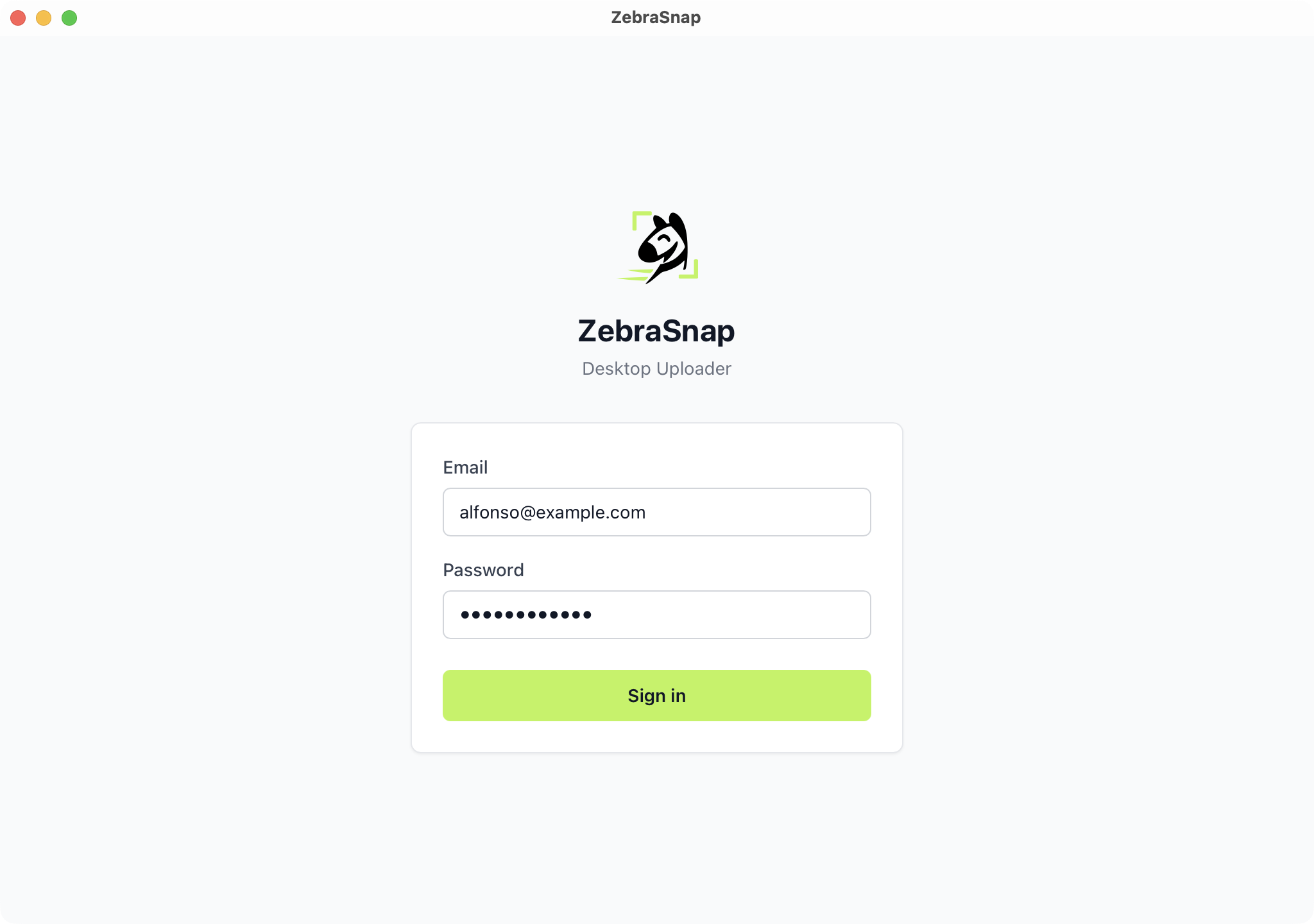
- Continue in your browser: sign in on zebrasnap.com with Google, Apple or your email and click Authorize. The app picks it up on its own. This is the easiest option, and the only one if you signed up with Google or Apple and never set a password.
- Sign in with email and password, with your email or username.
Upload an event
- Open Albums and choose the album. Only albums that accept uploads can be picked (archived albums can't).
- Go to its Upload tab.
- Drag photos or folders here, or use Choose photos / Choose a folder. You can also drop files anywhere in the app and pick the album afterwards.
- If the album has sections, choose one in Upload to, or leave No section.
There is no start button: files start uploading as soon as you add them. Follow the progress in Uploads, across all your albums, split into In progress, Needs attention and Uploaded.
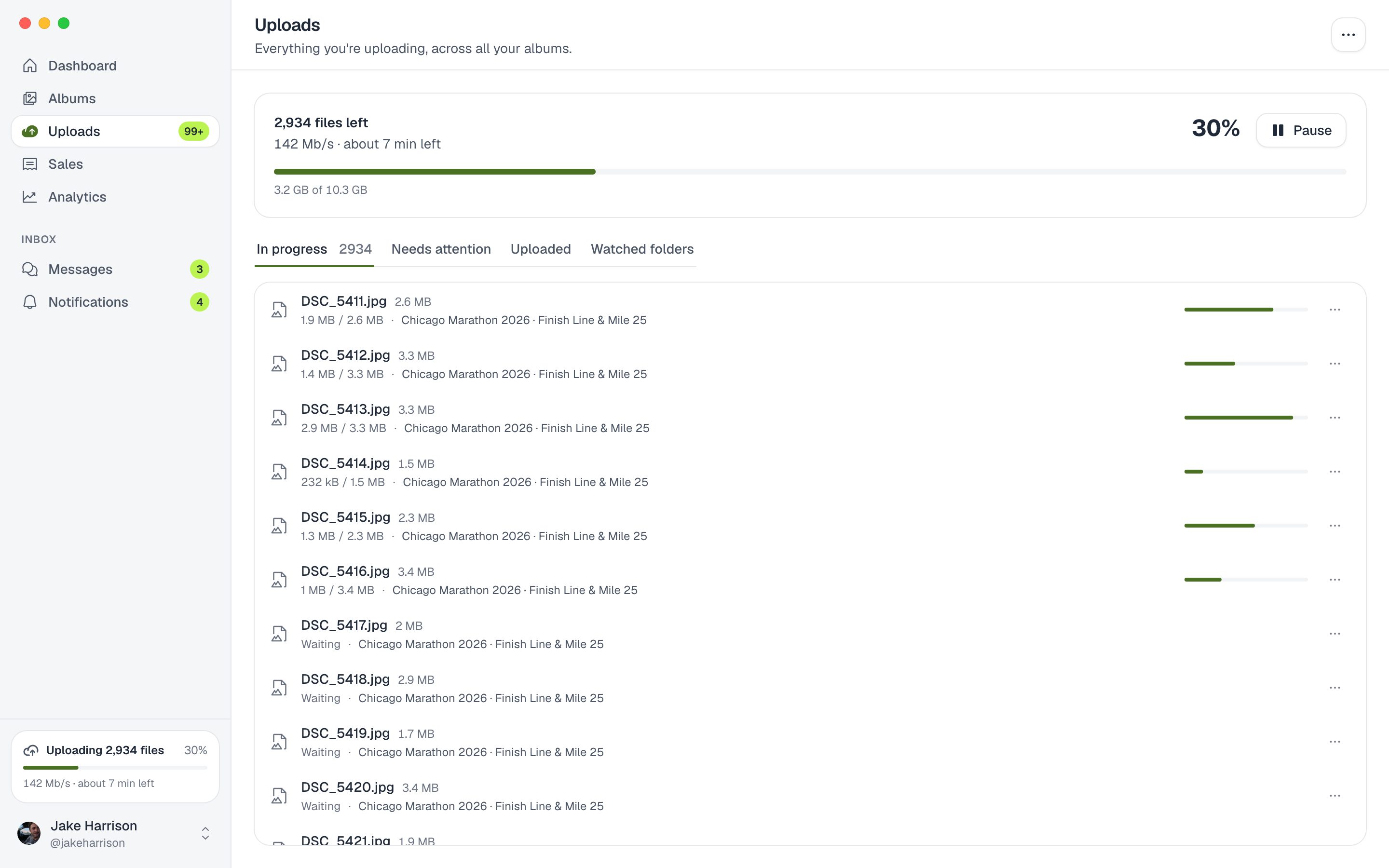
When a file finishes, recognition runs on our servers and the photo appears in the album a few minutes later.
Photos with the same name
Every photo in an album is identified by its file name. If you add files whose names are already in the album, the app asks first: Replace them (useful when you re-export an edited version) or Skip them. Different photos with the same name, for example from two cameras, need to be renamed before uploading so they don't replace each other.
Watched folders
Point the app at your Lightroom, Capture One or camera export folder and link it to an album. From then on, every photo you export there uploads by itself, including re-exports of edited photos.
- Go to Uploads → Watched folders and tap Watch a folder.
- Choose the folder and the album.
- Decide whether to Include subfolders and whether to Upload the photos already in the folder, or only what you export from now on.
- Tap Start watching.
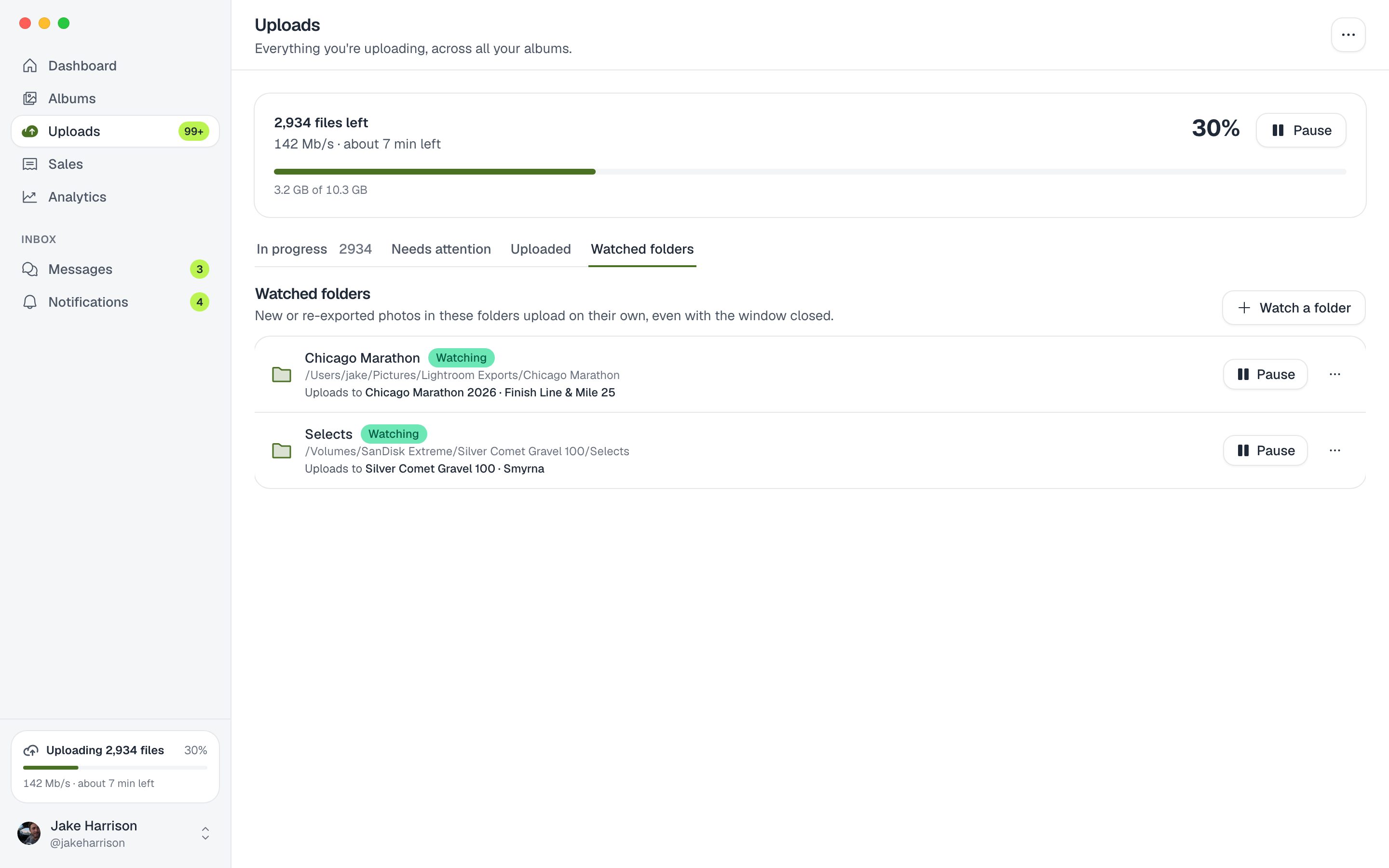
If the folder is on an external drive that gets disconnected, the folder shows Not found and picks up where it left off when you plug the drive back in.
Uploads that keep going
- Close the window and it keeps uploading from the menu bar (Mac) or the system tray (Windows).
- Open when I sign in to my computer (in the app's settings) starts it in the background, so watched folders keep working.
- Keep the computer awake while uploading stops your computer from sleeping mid-upload.
- Pause and Resume at any time; it continues where it left off.
- Files at the same time: 6 by default. On a fast, stable connection you can raise it for more speed.
When something fails
Files that can't upload go to Needs attention, with the reason: the file was moved or deleted, it isn't a supported format, the album stopped accepting uploads (check your storage and the album's status), or you were signed out. Use Retry or Retry failed uploads once it's fixed. Network errors retry on their own.
Supported files are the same as on the web: JPG, JPEG and PNG photos up to 16 MB, MP4 videos up to 2 GB, and ZIP (or 7Z, RAR, TAR) archives. See How to upload photos.
Desktop app or SFTP?
Both handle big events well:
- Desktop app: no setup, sections, watched folders, and everything else about your albums in one place.
- SFTP: works from any computer or operating system with any SFTP client, useful when you can't install apps (for example on a shared computer).
Related articles
- How to upload photos: all the ways, explainedZebraSnap gives you five ways to upload: the web, the desktop app, the mobile app, SFTP and Lightroom. Which one to pick, what files we accept, and tips for big albums.
- Uploading from the web (Photos & files)The fastest way to get started: drag photos, ZIPs, or videos into your browser and ZebraSnap handles the rest. Step by step, plus what to do when something fails.
- Uploading with SFTP - step by step with CyberduckThe most resilient way to upload big albums, even on flaky connections. What SFTP is, where to find your credentials, and a click-by-click walkthrough with Cyberduck (any SFTP client works).
Still need help?
Can't find what you're looking for? Our team is happy to help.