

How it works
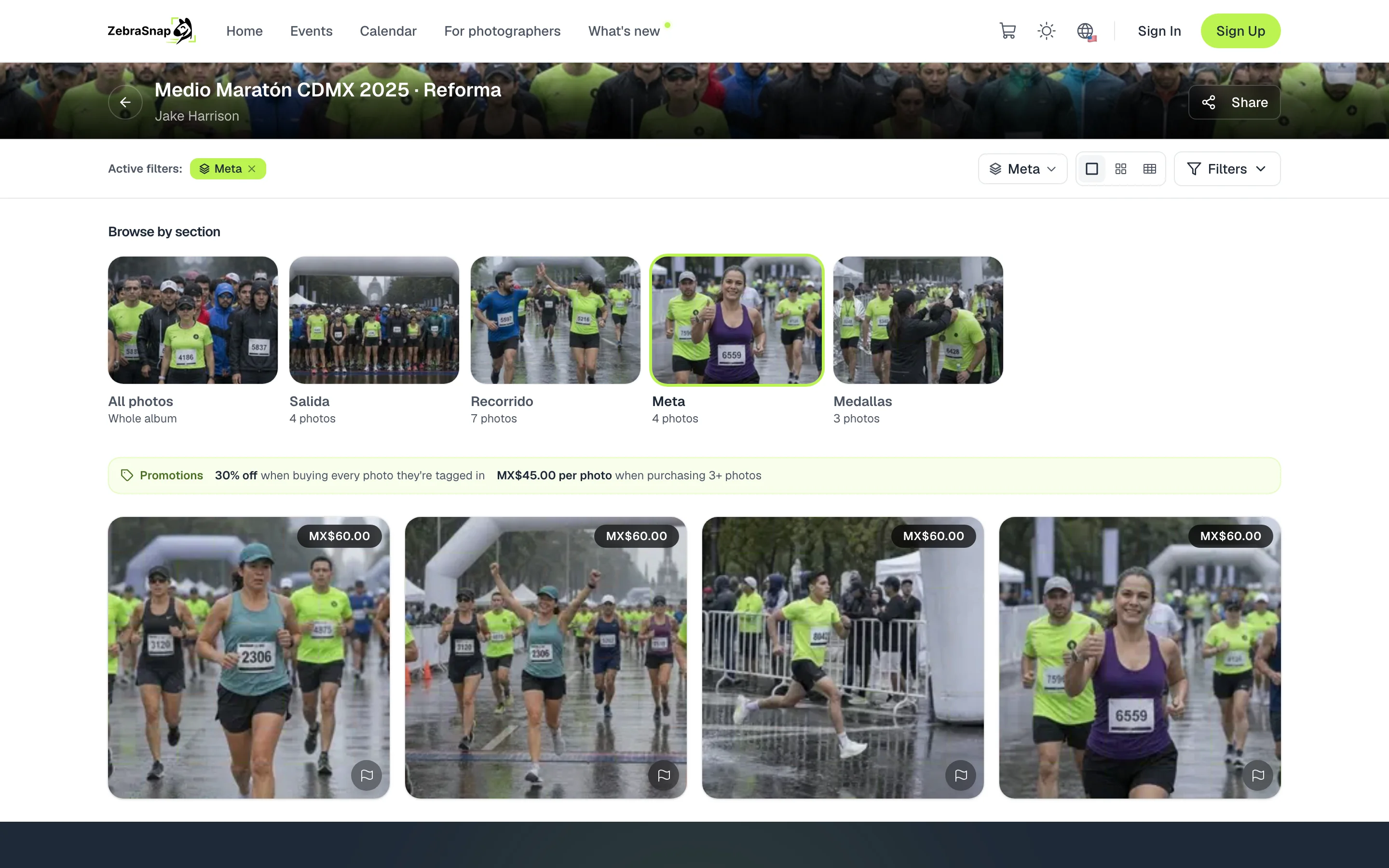
A section is a group of photos inside an album: the start, a spot on the course, the finish line or the awards. On the album page, your buyers see the sections as cards under Browse by section, each with a cover and how many photos it has.
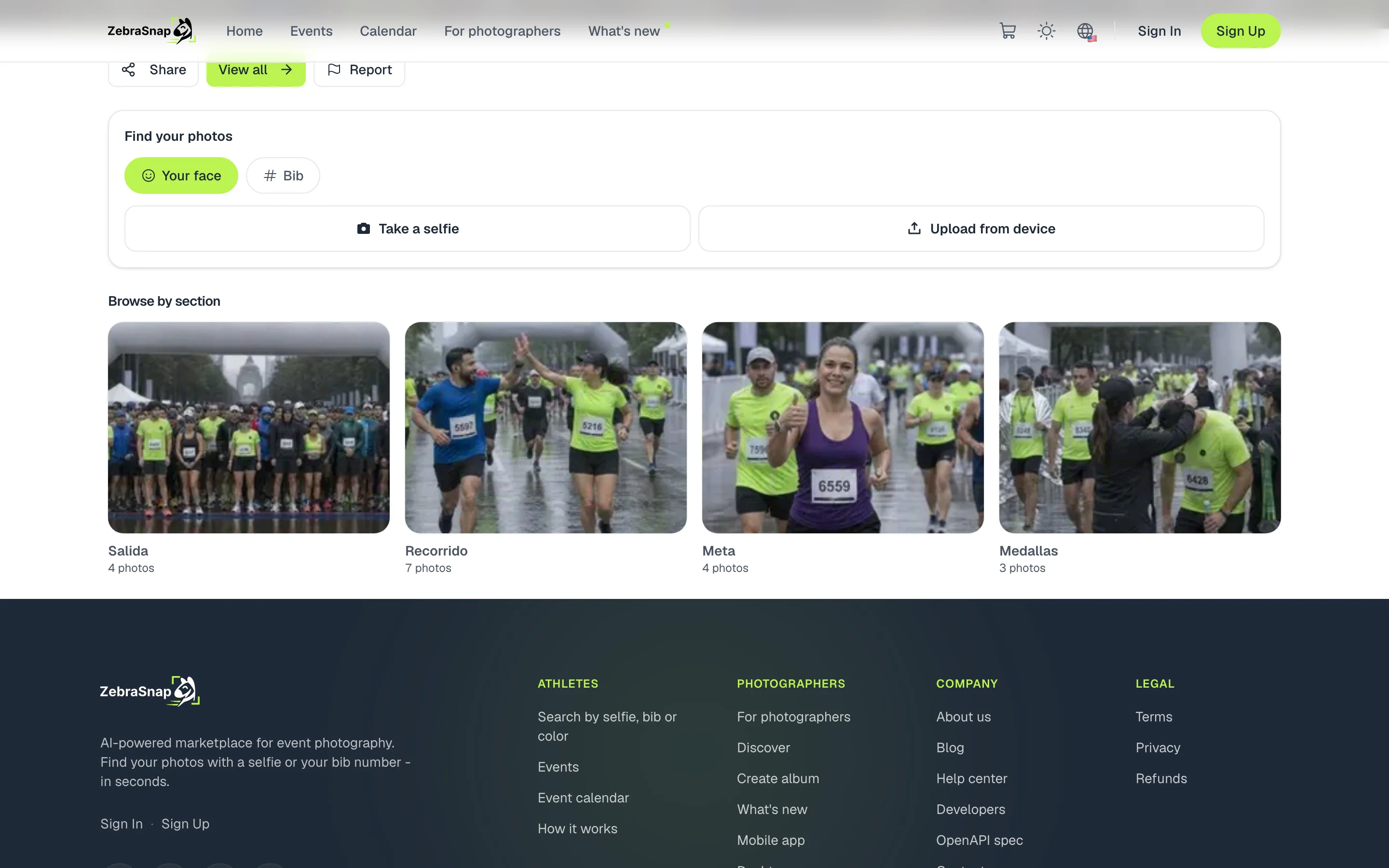
When they pick one, they see only those photos, and they can go back to the full album whenever they want.
Create your sections
- Open the album photos. At the top you see the sections bar, with All and Unsorted.
- Create a section. Press New section and type its name, for example Start.
- Move your photos. Drag photos onto a section, or select several and use Move to section.
- Organize them. From each section's menu you rename it, change its cover or move it to another position.
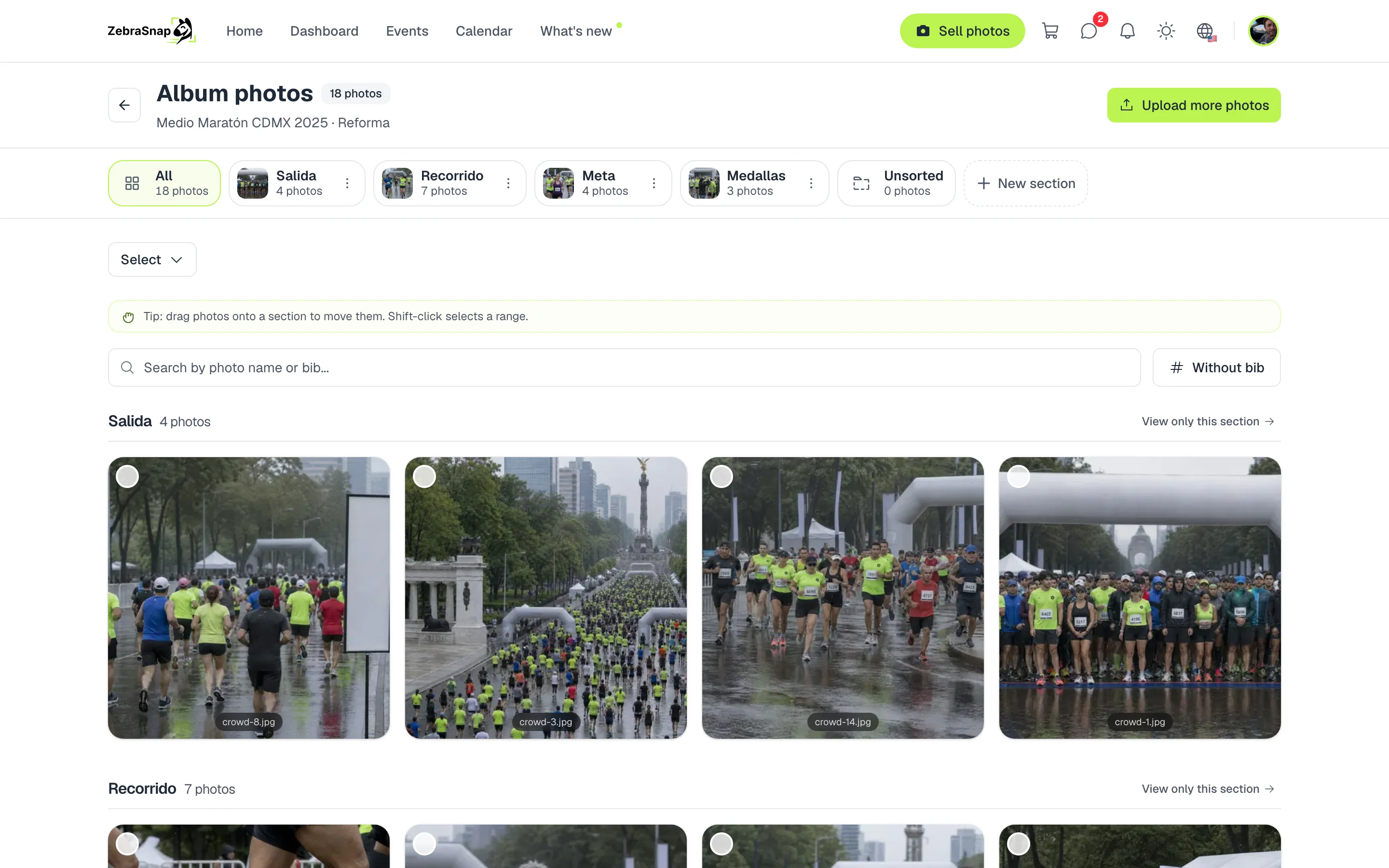
Tip. Shift + click selects a range of photos so you can move them all together.
Upload straight to a section
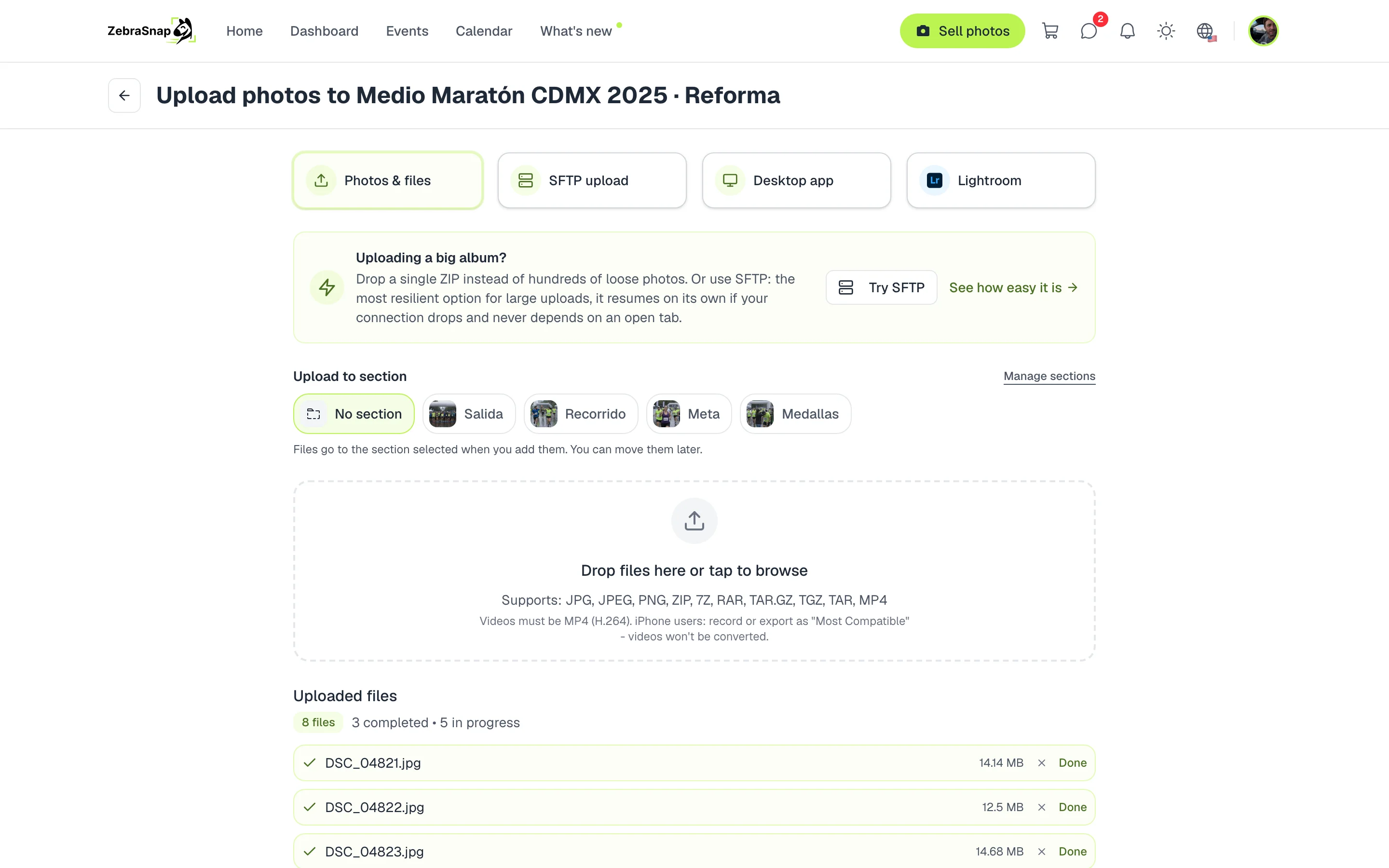
When you upload photos on the web, you choose where they go in Upload to section. Each file goes to the section selected when you add it, so you can upload the start and then the finish line without sorting anything afterwards.
A ZIP with folders creates the sections
If you upload a ZIP, each top-level folder becomes a section with its name, in natural order (2K, 5K, 10K). Subfolders are merged into the folder above them, and loose photos go to Unsorted. If the ZIP has a single folder wrapping everything, it is skipped and the folders inside it are used.
In your album
On your album page, the Sections card shows them all at a glance and takes you to organize them.
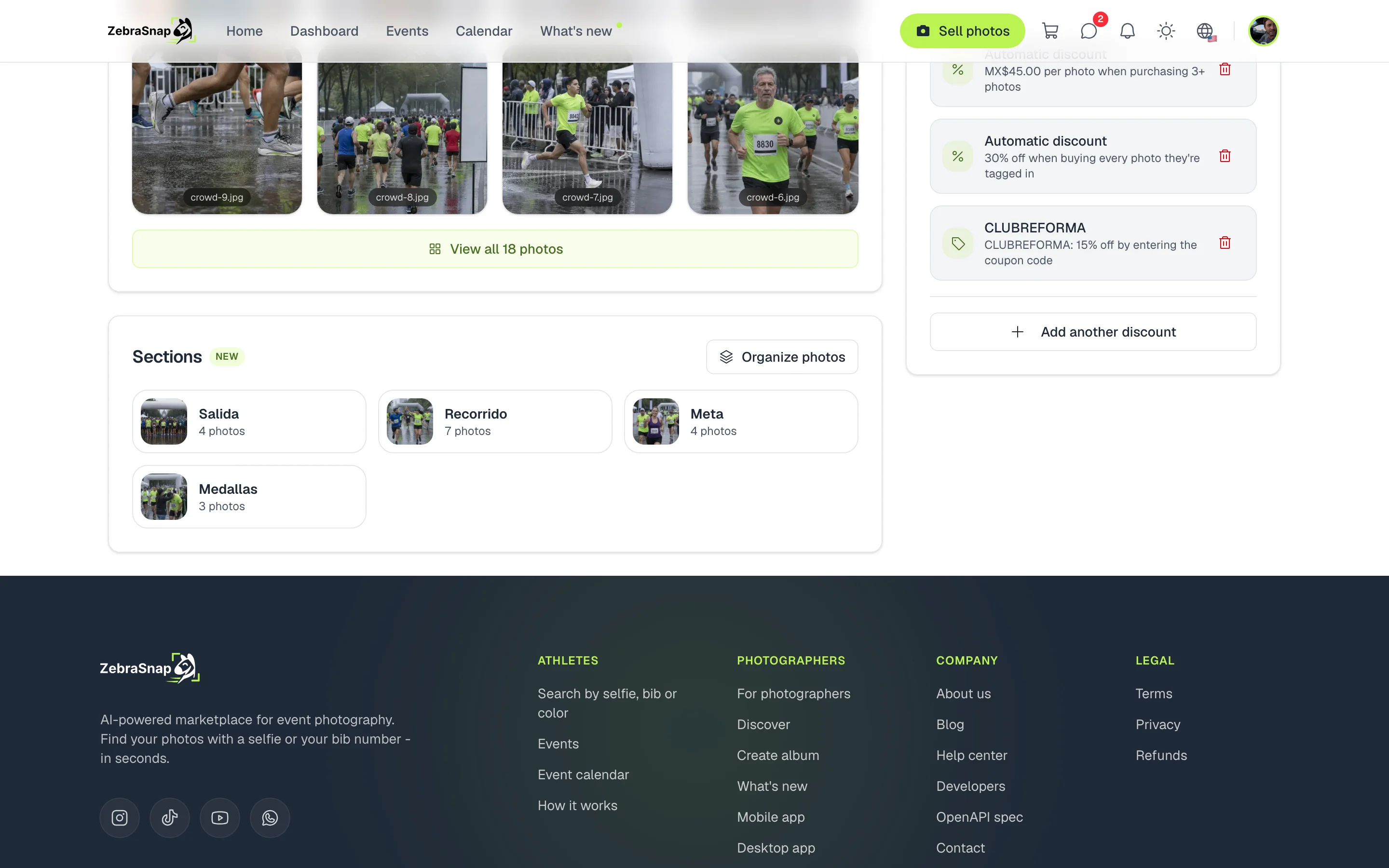
In the desktop app, your sections sit next to your photos: you drag photos onto them and choose which section to upload to.
How other photographers use it
A triathlon
Swim, Bike and Run: every athlete knows where to look and sees the photos of that moment first.
Three photographers, three spots
Each photographer exports their folder (Start, Kilometer 10, Finish line), you put them together in a ZIP and the sections are ready when you upload it.
A wedding
Ceremony, Reception and Portraits: guests quickly find the moment they are looking for.
Frequently asked questions
- How many sections can an album have?
- Up to 30, with names of up to 80 characters.
- How does the ZIP with folders work?
- Each top-level folder in the ZIP becomes a section with its name. Subfolders are merged into the folder above them, and loose photos at the root stay unsorted.
- What if I already have a section with that name?
- The photos from that folder are added to the existing section. Photos you already sorted by hand are not moved.
- What happens if I delete a section?
- Its photos are not deleted: they go back to Unsorted and stay in the album.
- Do buyers see empty sections?
- No. They only see sections that have photos.
- All plans
- Web and desktop app