

Help center
Uploading from the web (Photos & files)
The fastest way to get started: drag photos, ZIPs, or videos into your browser and ZebraSnap handles the rest. Step by step, plus what to do when something fails.
In short
The web uploader is the Photos & files option on your album's upload page. Drag images (or one big ZIP) into the box, press Start upload, keep the tab open until the bar finishes - and that's it. Processing happens on our servers afterwards, so once the upload completes you can close the page.
It's the best choice for everyday batches. For huge albums (thousands of photos), SFTP or the desktop app will treat you better - more on that below.
Step by step
-
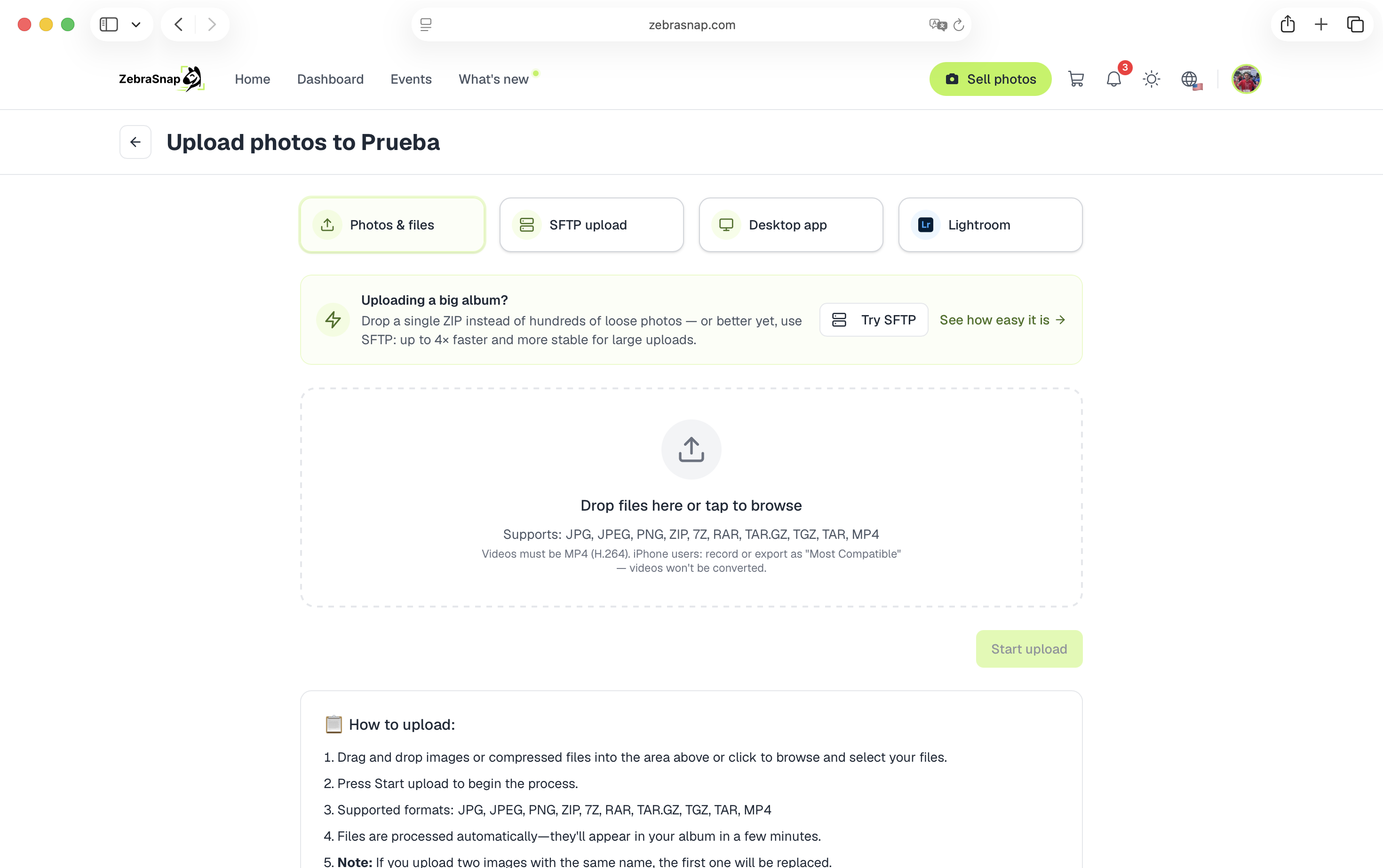
Open your album and press Upload, then choose Photos & files.
-
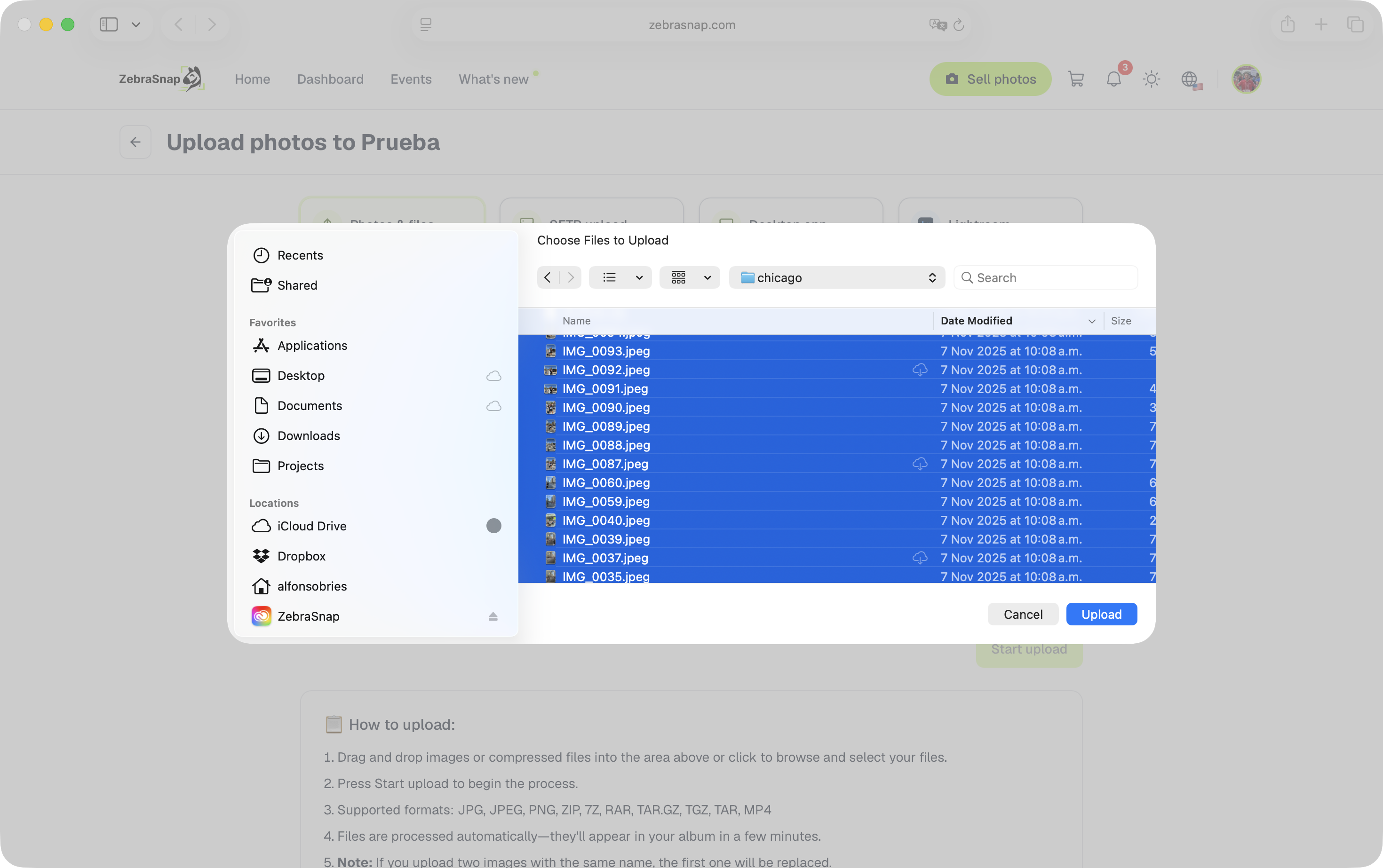
Drag your files into the dashed box - or click it to browse. You can select photos (JPG, JPEG, PNG), videos (MP4), or compressed files (ZIP, 7Z, RAR, TAR.GZ, TGZ, TAR).
-
If the album has sections, pick one in Upload to section so the photos land in the right place.
-
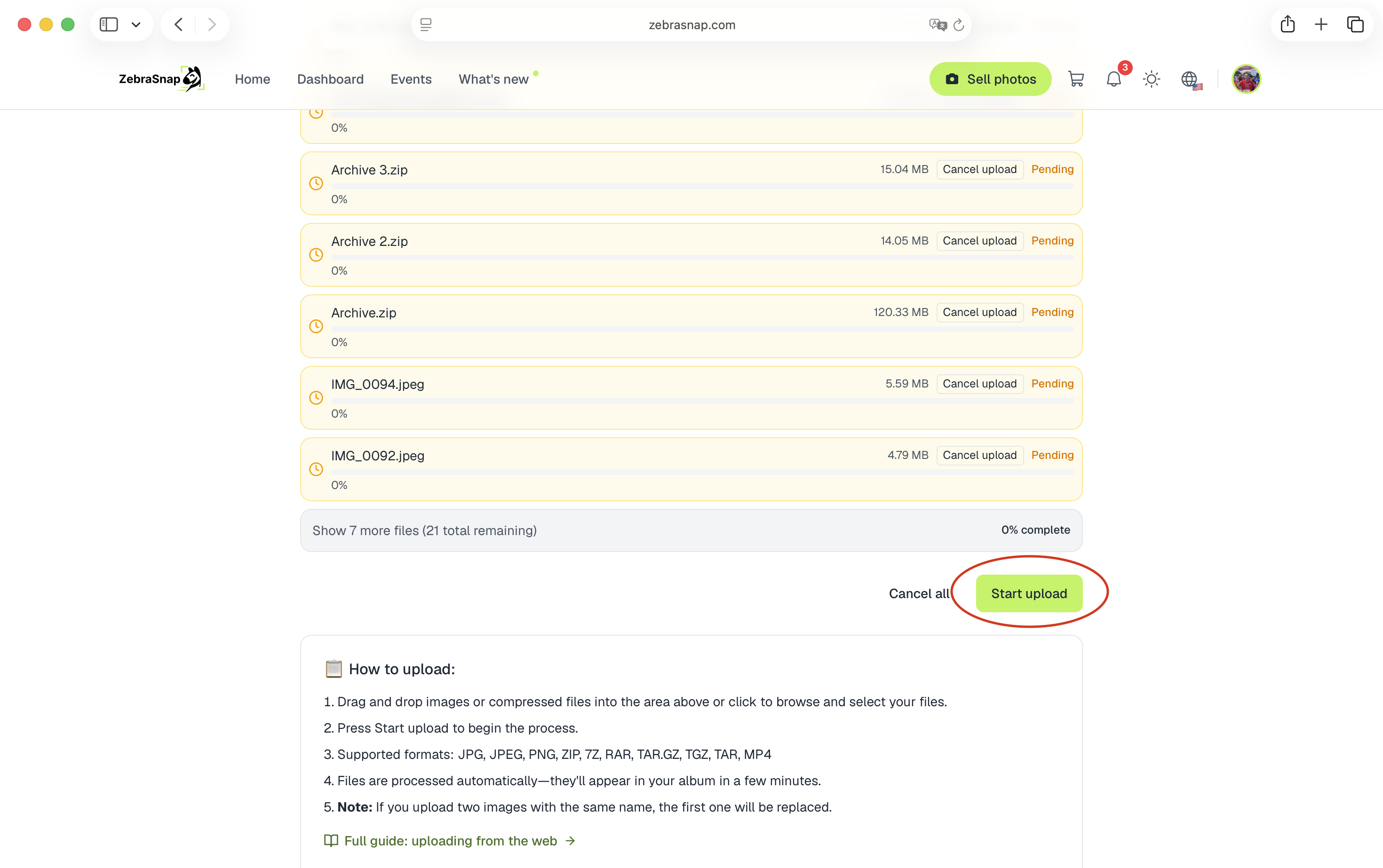
Press Start upload. Each file shows its own progress bar; up to six upload at the same time.
-
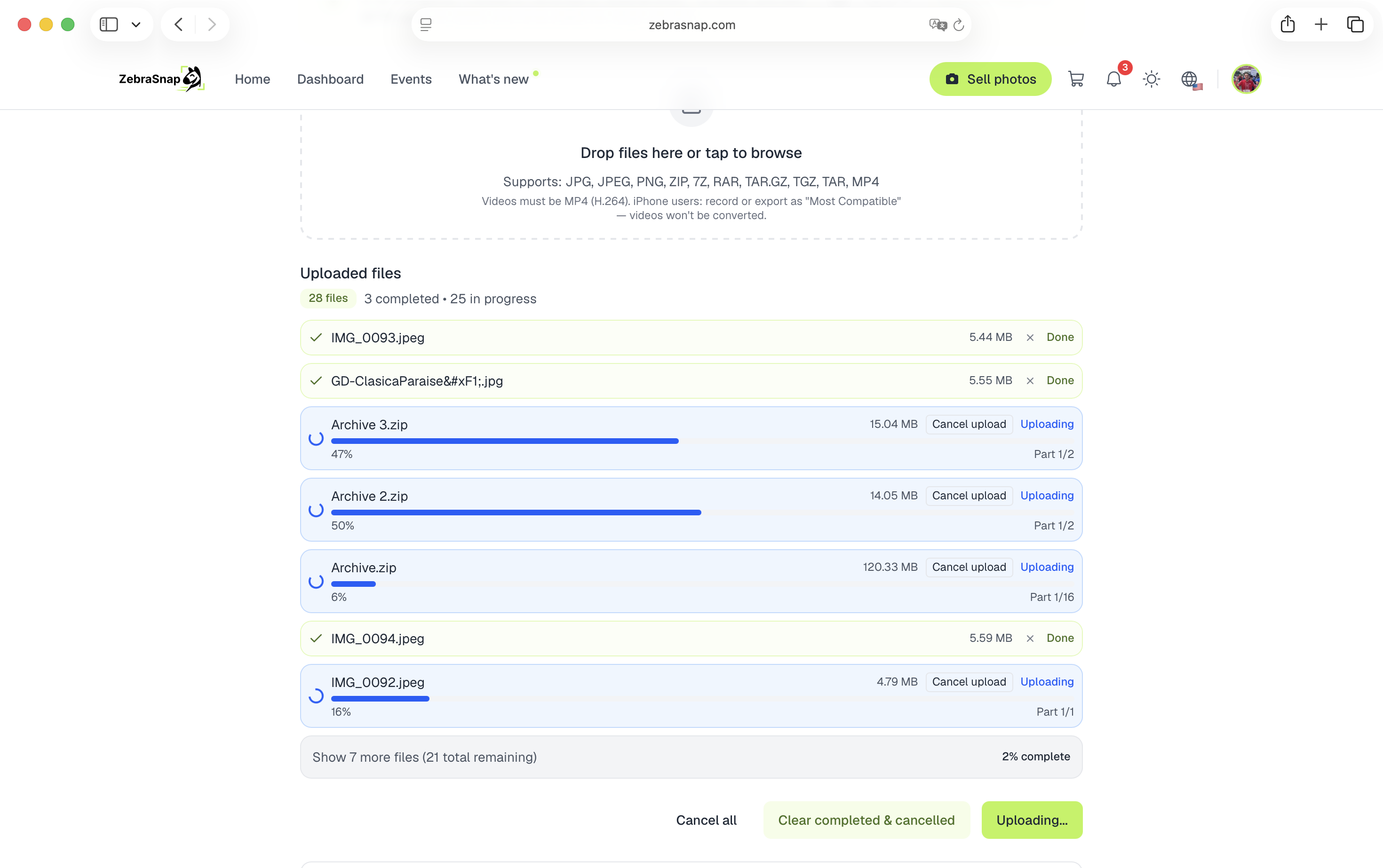
Keep the tab open while files are uploading. The upload runs from your browser, so closing the tab pauses it. (While you wait, Open games has a few small games to keep you company.)
-
When every file says completed, you're done - now you can close the page. Your photos appear in the album automatically once processing finishes, usually within a few minutes.
The ZIP trick
Instead of selecting 800 individual photos, zip them into one file and drop that. We unzip it on our side and add every photo to the album. One file means one progress bar, fewer requests, and far fewer chances for your connection to hiccup mid-batch.
If your ZIP has folders, each folder becomes a section of your album, for example 10K and 5K. If everything sits inside a single folder, the album stays without sections.
Good to know
- Same filename = replaced. Upload a corrected version of
DSC_1234.jpgand it replaces the previous one - no duplicates. The flip side: a different photo with the same name (two cameras, two memory cards) also replaces it, and photos you deleted come back if you upload them again. Check your file names before a big upload. - Flaky Wi-Fi is handled. Each chunk of a file retries automatically with backoff, so a brief connection drop usually fixes itself. If a file still ends in error, just press upload again - only the failed files need to go up again.
- Limits: photos up to 16 MB each, videos (MP4, H.264) up to 2 GB. RAW and HEIC aren't supported - export to JPEG first.
- Videos are sold with a watermarked low-quality preview; see How videos work.
Uploading a big album?
The browser is comfortable, but it's not the strongest tool for thousands of files: the tab must stay open, and a long session over hotel Wi-Fi is asking a lot.
- SFTP is the most resilient option: it keeps going even if your connection blips and doesn't depend on an open tab. It's a one-time, ten-minute setup - we walk you through it click by click.
- The desktop app gives you automatic retry and resume with zero configuration, and keeps uploading with the window closed.
- On your phone? The mobile app uploads straight from your camera roll, iPhone HEIC photos included.
All upload methods
This is one of five ways to upload. See How to upload photos: all the ways, explained for the full comparison.
Related articles
- How to upload photos: all the ways, explainedZebraSnap gives you five ways to upload: the web, the desktop app, the mobile app, SFTP and Lightroom. Which one to pick, what files we accept, and tips for big albums.
- Uploading with SFTP - step by step with CyberduckThe most resilient way to upload big albums, even on flaky connections. What SFTP is, where to find your credentials, and a click-by-click walkthrough with Cyberduck (any SFTP client works).
- Uploading with the ZebraSnap desktop appThe Mac and Windows app that uploads whole events in the background, resumes after a lost connection, watches your export folder, and lets you manage albums, sales and messages from your computer.
Still need help?
Can't find what you're looking for? Our team is happy to help.