

Help center
How to buy your photos
Add photos to your cart, apply a promo code, pay by card (or cash and bank transfer in some countries) and get your files. No account needed. What currency you pay in and what the checkout asks for.
In short
- Open a photo and tap Add to cart. Repeat for every photo you want.
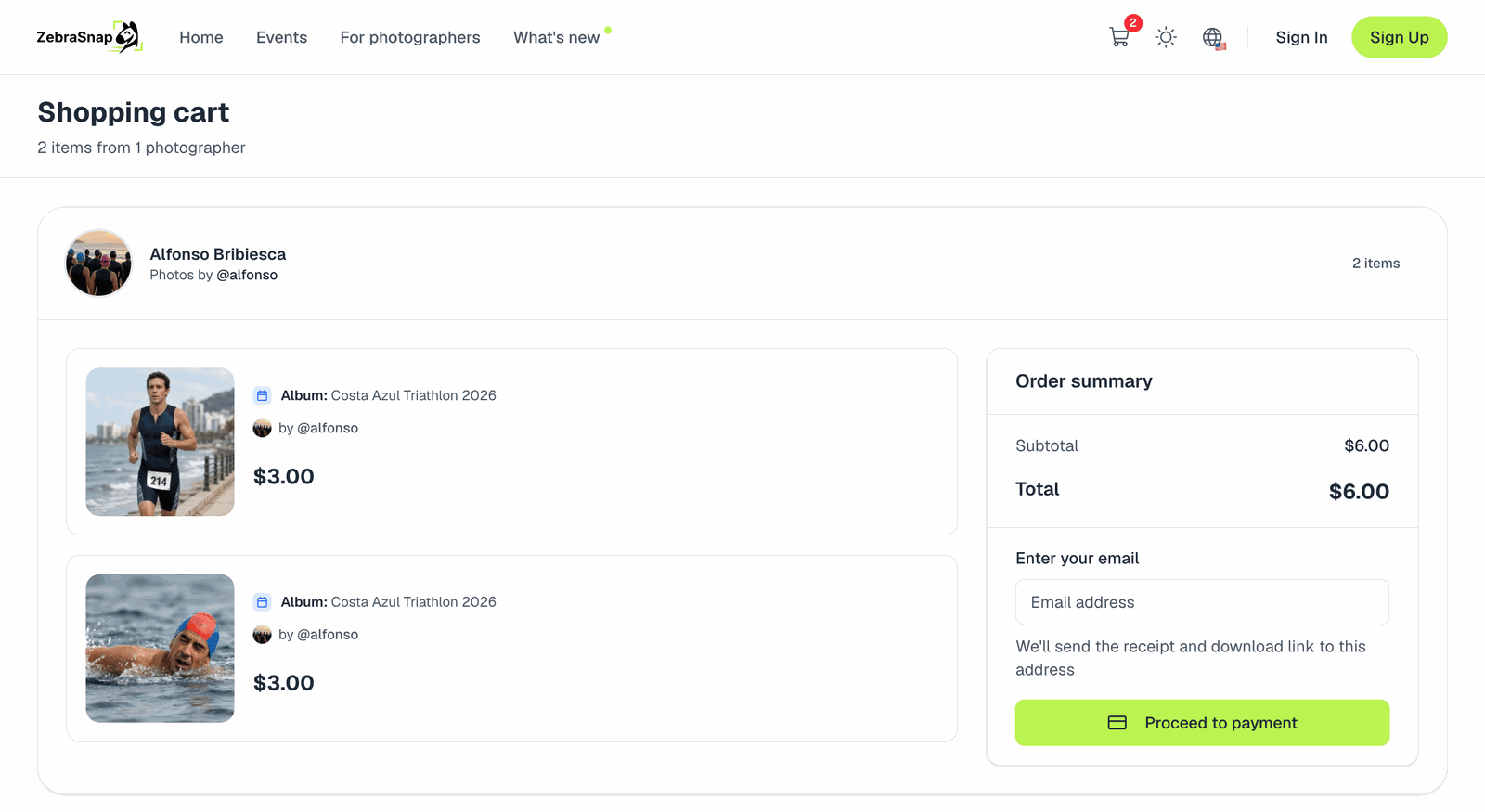
- Open your cart (Shopping cart) and check the total.
- If you are not signed in, enter your email: we send the receipt and the download link there.
- Tap Proceed to payment and pay on the secure payment page.
- When the payment goes through you land on Payment received. Tap View my order to download your photos.
You do not need a ZebraSnap account to buy. See How to download the photos you bought for the last step.
Adding photos
- One at a time: open a photo and tap Add to cart.
- Everything at once: after a search, use Add all (N photos) to cart to add every result in one go.
Photos stay in your cart while you keep browsing, even across different albums.
Buying from several photographers
Each photographer sells their own photos, so if your cart has photos from more than one of them you will see You're buying from multiple photographers. Your cart is grouped by photographer and each group is paid separately: pay one group, come back to the cart and pay the next one.
Promo codes and discounts
Many photographers offer automatic discounts, like a lower price when you buy several photos, or a fixed price for all your photos. Those apply by themselves: the cart shows the discount and the new total.
If the photographer gave you a code, type it in the Promo code box in the cart and tap Apply. The box only appears when that photographer has codes. If it is not there, their discounts (if any) are already applied automatically.
What currency you pay in
You pay in the currency the photographer chose for the album. The price you see in the album and in the cart is the price you are charged, in that currency. Depending on your country, taxes may be added at checkout, and your bank may add its own fee if the album's currency is different from your card's.
If a price looks wrong (for example, much higher than the photographer told you), don't pay: ask the photographer, or tell us with the chat bubble.
The payment page
After Proceed to payment you move to a secure payment page run by our payment processor (Stripe, or dLocal Go for some photographers in Latin America). ZebraSnap never sees your full card number.
- Billing address: the payment page asks for it because banks and taxes require it.
- Phone number or a code sent by SMS: that is Stripe's optional Link feature, which saves your card for faster checkouts. It is not ZebraSnap asking. If the number it shows is not yours, or you don't want to use it, choose to pay without Link and enter your card as usual. You can manage or change your Link details at link.com.
Ways to pay
- Card (credit or debit). Depending on your device and country, Apple Pay or Google Pay may also appear.
- Mexico: cash at OXXO or a SPEI bank transfer. See Pay with cash at OXXO or by SPEI transfer.
- Latin America: photographers who sell with dLocal Go can offer local methods such as PIX, cash networks or bank transfers, depending on the country. What is available is shown on the payment page.
We can't add a payment method just for one purchase, and we don't take transfers outside the payment page (for example SINPE Móvil to a phone number). Pay only through the payment page, so your order is recorded and your photos are delivered automatically.
If the payment doesn't go through
See My payment was declined. In most cases it is the bank blocking an online charge, and a call to the bank or another card fixes it.
Free photos
Some albums are free. Depending on how the photographer set them up, you either see a Download button right on the photo, or you add photos to the cart and finish a checkout with a total of zero (no card needed) to get the download link by email.
Related articles
- How to download the photos you boughtWhere your purchased photos are, how to download them on a computer, iPhone or Android, what to do if you lost the email, and why a photo saved from the album looks small and watermarked.
- My payment was declinedWhy a card payment doesn't go through when you buy photos, what to try, and the message you see when an order is below the minimum amount.
- Pay with cash at OXXO or by SPEI transferHow to buy photos in Mexico without a card: pay in cash at any OXXO store or send a SPEI transfer from your banking app.
Still need help?
Can't find what you're looking for? Our team is happy to help.