

Help center
How to find your photos from an event
Find every photo of you from a race or event: by selfie, by bib number, by clothing color, by section, or by picking a face. Also: albums that only show your own photos, videos, and getting notified about new albums.
In short
- Open the event (search it on the Events page) or the photographer's album from the link they shared.
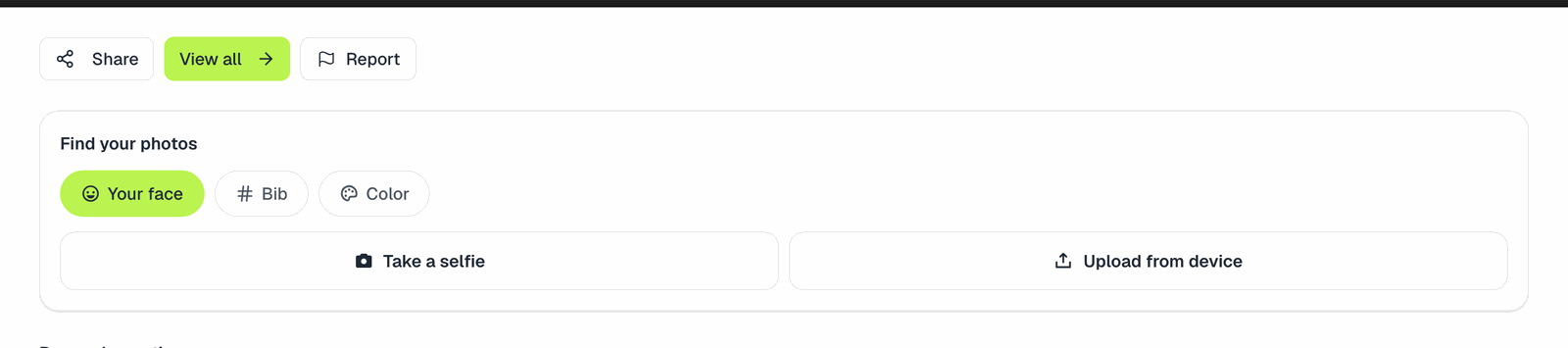
- Use Search photos and pick how to search: Your face (a selfie), Bib (your race number) or Color (the color of your clothes).
- Tap a photo to see it bigger, then add the ones you like to your cart.
You do not need an account to search or to buy.
Event or album?
An event is the race itself: its name, date and place. Several photographers can cover the same event, and each one publishes their own album inside it.
- Opening the event lets you look through every album from every photographer at once.
- Opening an album (for example from a link a photographer posted) only shows that photographer's photos.
If you only find a few photos in one album, go back to the event page: someone else may have caught you too.
The ways to search
Your face (selfie)
Take a selfie or upload a photo of yourself and we show the photos where your face appears. It works best with:
- A recent, well-lit photo, facing the camera.
- Just you in the frame.
- No sunglasses, hat or mask, even if you wore them during the race.
Your selfie is only used to run the search. See Your photos and your privacy for what we keep and what we don't.
Bib number
Type your number exactly as it is printed, letters included (for example A1024). Double-check it against your race confirmation: it is easy to mix up a digit from memory.
Color (Beta)
Pick the main color of the clothes you wore. This is a rough filter: it groups photos by the dominant color, so it misses photos and includes ones that are not you. Use it as a quick first pass, never as proof that you are not there.
Find someone's photos
Found one photo of you (or a friend)? Open it and use Find someone's photos, then pick the face. We show every photo in the album where that same person appears. It is the fastest way to collect all the photos of a friend or a family member.
Browse by section
Some albums are split into sections, like Swim, Bike and Run, or Start and Finish line. If you see Browse by section cards, open the part of the race where you were and scroll only those photos.
Albums that only show your photos
Some photographers turn on a setting that hides the full gallery. You will see:
This gallery only shows the photos that match you. Take a selfie to see yours.
In these albums you can only search with a selfie (Find my photos). There is no bib or color search and no way to browse everything, so a good, clear selfie matters even more.
Videos
Some photographers also sell short videos. When the photographer has video recognition, your face and bib number are matched in videos too, and they show up in the same results as photos. Video previews play a short, silent, low-resolution clip; you get the full video after you buy it.
Get notified about new albums
Photographers often keep publishing for days after an event. On the event page, tap Get notified (you need to be signed in) and we will email you when a new album is published in that event.
Nothing showing up?
Read Can't find your photos? Here's what it means. It explains why a search can come back empty and how to be sure.
When you have found them, How to buy your photos walks you through the cart and payment.
Related articles
Still need help?
Can't find what you're looking for? Our team is happy to help.