
Help center
Bring your own Stripe account
Use your own Stripe account to sell on ZebraSnap — keep 100% of every sale, pay no commission, and become the merchant of record. Available in Stripe-supported countries like Brazil.
What "bring your own Stripe" means
Most photographers sell through ZebraSnap's Stripe Connect: we handle the payment account and keep a small commission per sale. Bring your own payment (BYOP) is the alternative — you connect your own Stripe account, and:
- You keep 100% of every sale. ZebraSnap takes no commission. The only Stripe fees that apply are the ones Stripe charges you directly on your own account.
- You are the merchant of record. Money from a sale lands directly in your Stripe account, and the charge appears under your business — not ZebraSnap's.
- You pay a subscription instead of a commission. Because we don't take a cut, BYOP uses a dedicated plan priced higher than the commission plans. It comes with a 15-day free trial so you can set everything up and test a sale before paying.
There's no free tier with BYOP — once the trial ends, an active subscription keeps your albums on sale.
Who it's for
BYOP is built for photographers in countries where ZebraSnap's Connect platforms can't pay out, but Stripe itself is available. See Countries below to check whether your country qualifies.
Before you start
You'll need:
- A Stripe account in a Stripe-supported country (we'll walk you through creating one).
- An active BYOP subscription (start the 15-day free trial from Settings → Subscription).
Step 1 — Create your Stripe account
If you already have a Stripe account with charges enabled, skip to Step 2.
-
Go to stripe.com and select Sign up (or Start now).
-
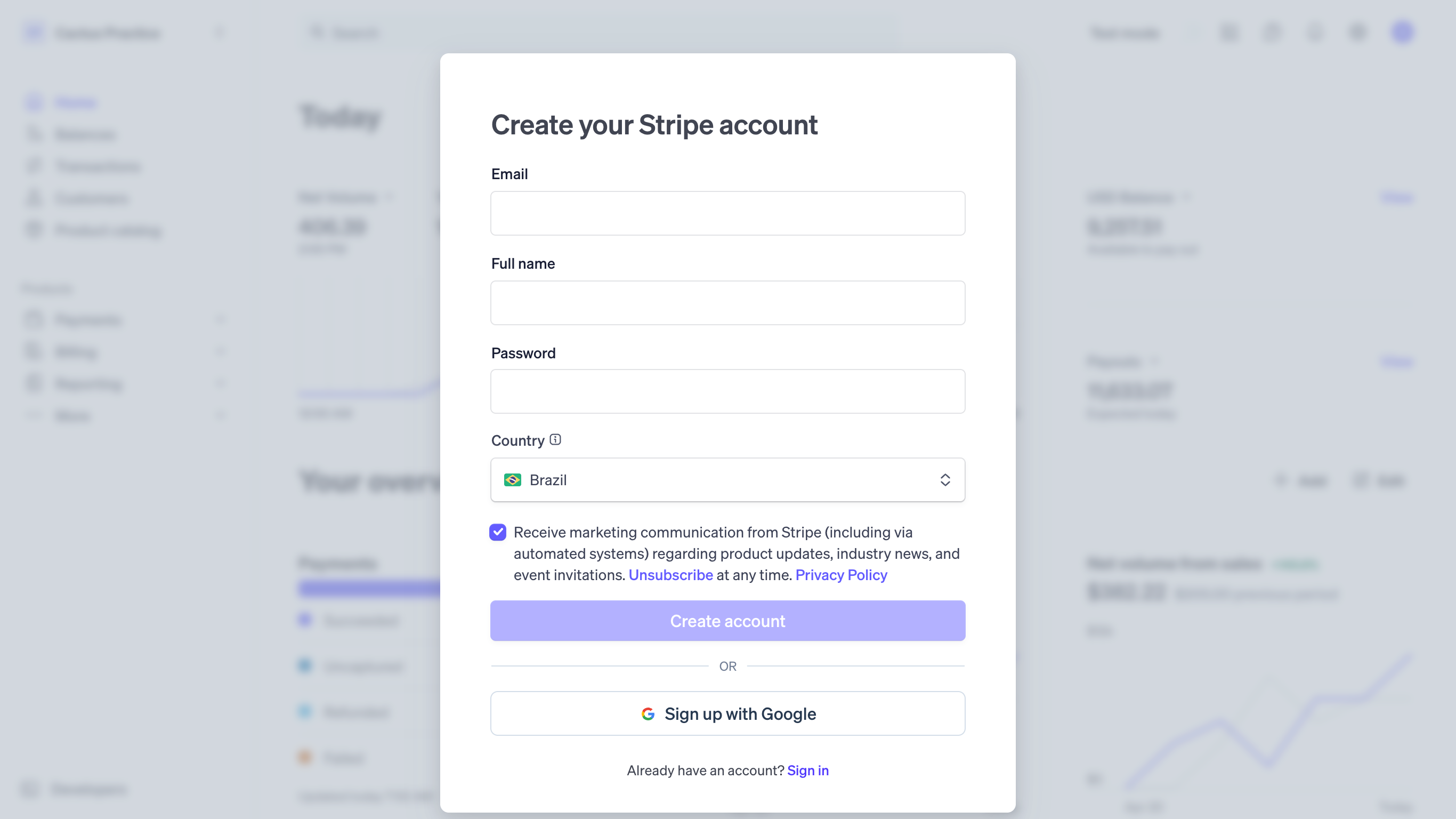
Enter your email, full name, and a password, then confirm your email address.
-
Choose your country. This is the country your business operates and banks in — it can't be changed later, so pick carefully.
-
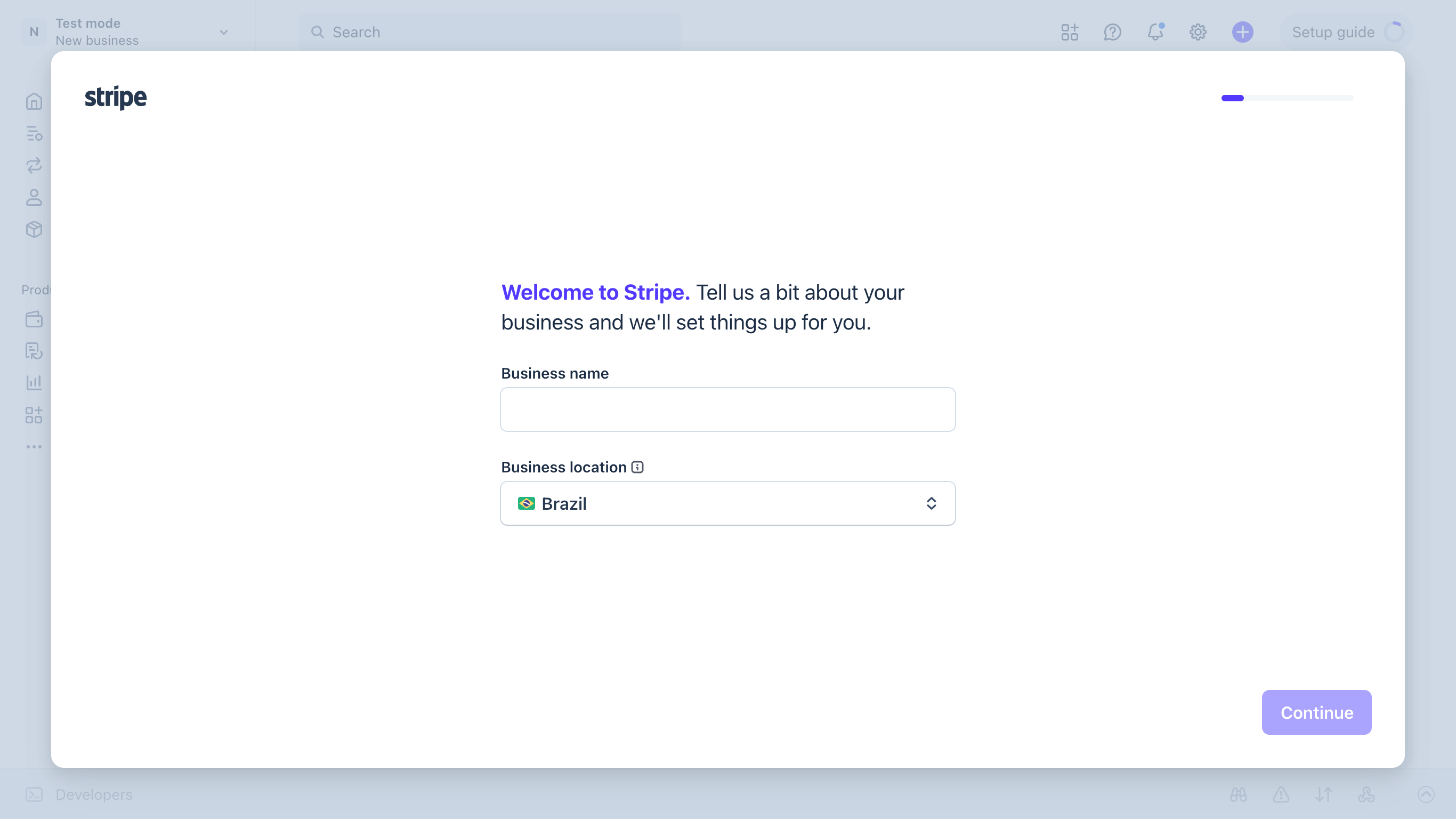
Activate your account by filling in your business details (business type, address, tax ID where required) and your bank account for payouts.
-
Once Stripe shows that payments are enabled (sometimes called "charges enabled"), your account is ready.
For the full, always-up-to-date walkthrough, see Stripe's own guide at stripe.com.
Step 2 — Find your API keys
Your API keys let ZebraSnap create charges on your account.
-
In the Stripe Dashboard, open Developers → API keys.
-
You'll see a Publishable key (starts with
pk_live_) and a Secret key (starts withsk_live_). Reveal the secret key to copy it.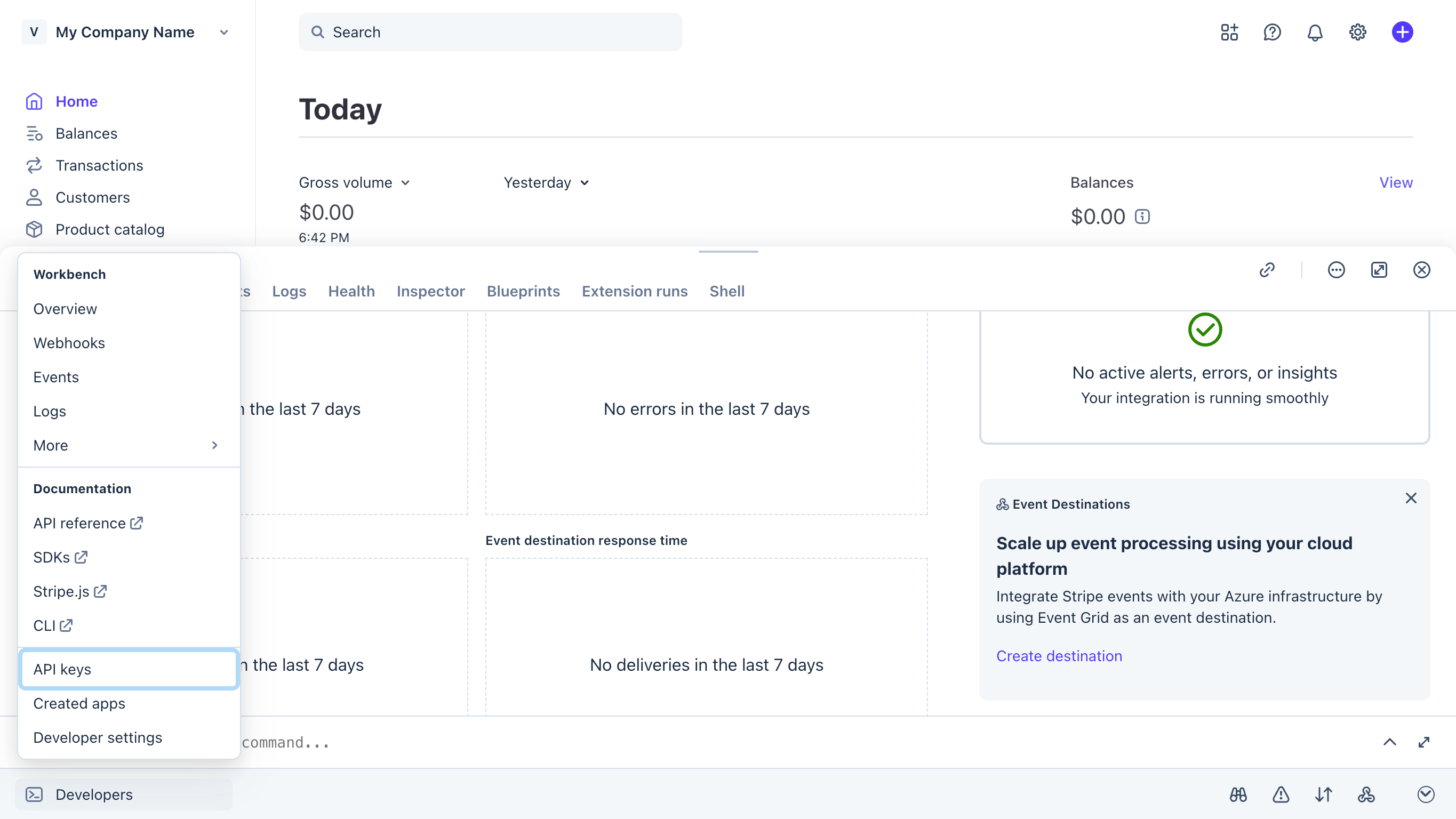
-
Make sure you're using live keys (not test keys) when you're ready to take real payments. Keep your secret key private — treat it like a password.
Step 3 — Paste your keys into ZebraSnap
-
In ZebraSnap, open Settings → Payouts.
-
Choose the bring your own Stripe account option.
-
Paste your publishable key and secret key, then save.
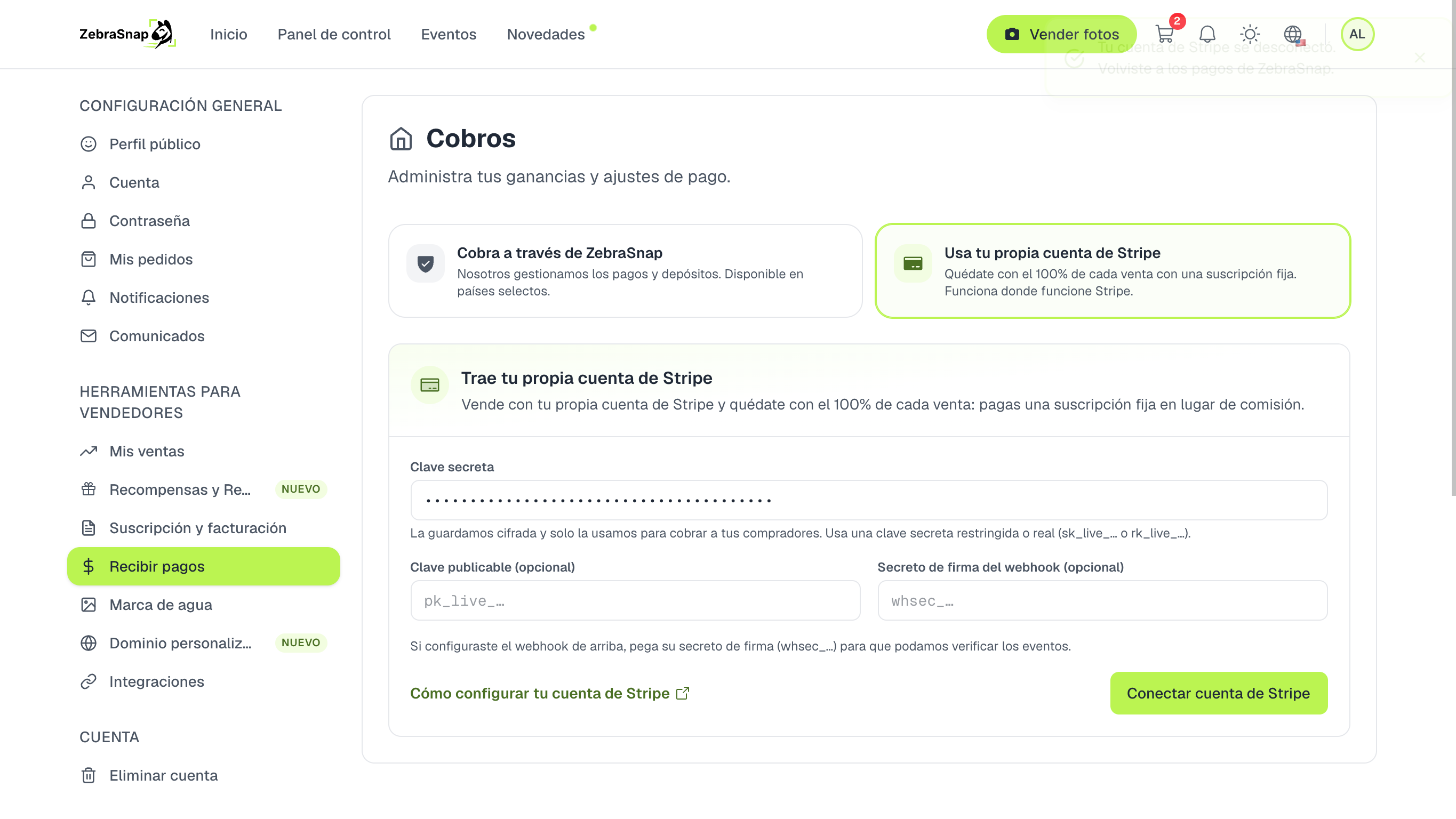
We validate the keys against Stripe right away. If your account has payments enabled, we store the secret key encrypted and switch your account to BYOP mode. From then on, every sale is charged directly on your Stripe account.
Step 4 (optional) — Set up the webhook
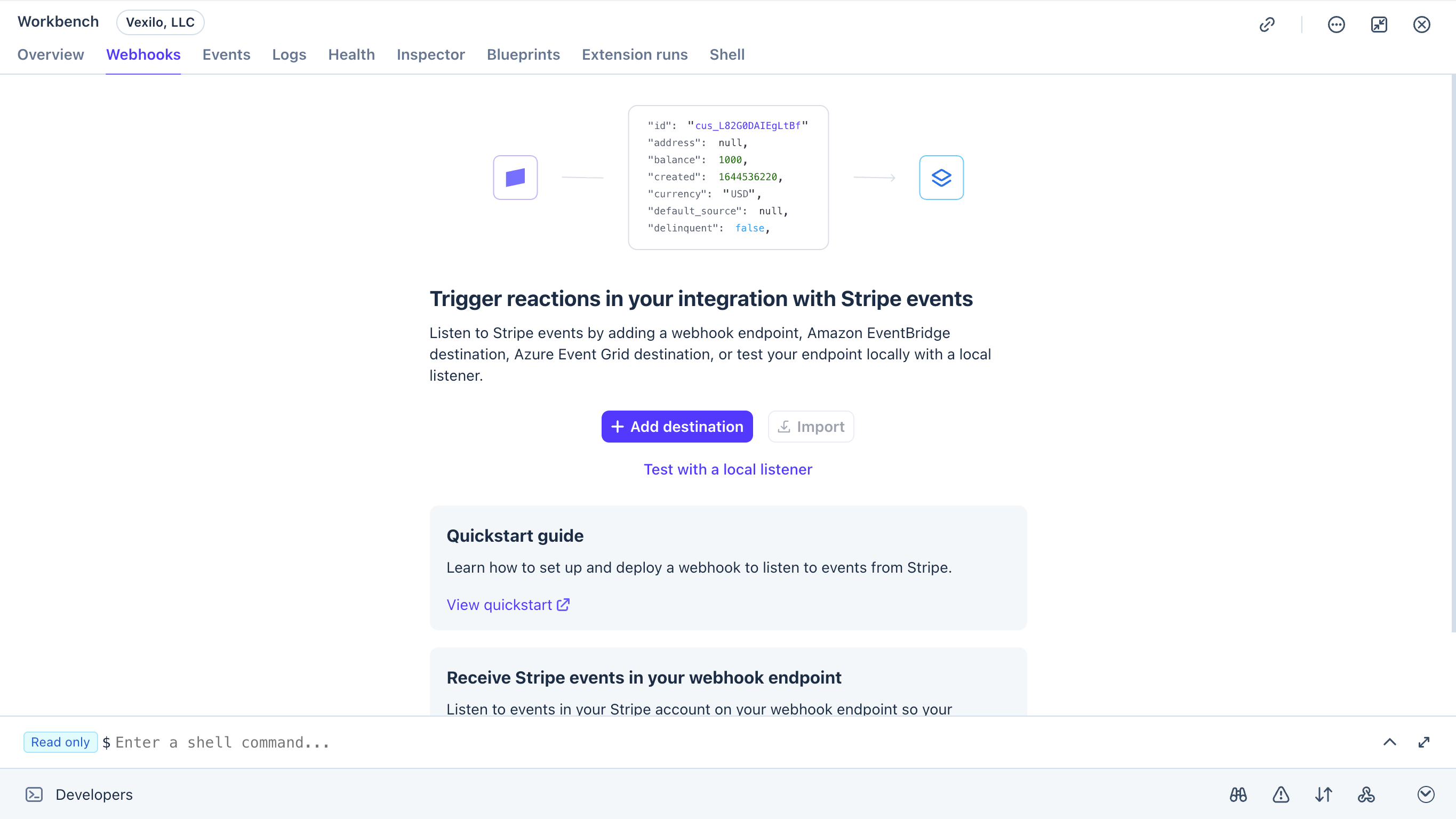
A webhook lets Stripe notify ZebraSnap the instant a payment succeeds, so orders are marked paid immediately.
-
After saving your keys, ZebraSnap shows you a webhook URL and a signing secret field on the same Payouts page.
-
In the Stripe Dashboard, open Developers → Webhooks → Add endpoint, paste the URL we gave you, and subscribe to the payment events we list.
-
Copy the endpoint's signing secret (starts with
whsec_) back into ZebraSnap and save.
You don't strictly need the webhook. If you skip it, ZebraSnap still confirms payments — it checks Stripe when the buyer returns after paying, and a background job reconciles any orders that slipped through. The webhook just makes confirmation instant and is the most reliable option, so we recommend it.
Refunds, taxes, and disputes are yours
Because you're the merchant of record, the things that come with running your own Stripe account are your responsibility:
- Refunds are issued from your Stripe Dashboard (or through ZebraSnap, which uses your account). ZebraSnap doesn't front refunds.
- Taxes — collecting, reporting, and remitting any sales tax, VAT, or income tax on your sales is up to you. ZebraSnap never calculates or withholds tax on BYOP sales.
- Disputes and chargebacks are handled in your Stripe Dashboard, under Stripe's rules and timelines.
We never see or calculate the Stripe fees on your account, so ZebraSnap won't show you a "net after Stripe fees" number for BYOP sales — check your Stripe Dashboard for the exact amounts.
Countries
ZebraSnap supports two ways to get paid, and they cover different countries:
- Stripe Connect (commission plans). Our Connect platforms can only pay out in the countries we operate cross-border payouts for. This is the default for most photographers.
- Bring your own Stripe (BYOP). Available in any country where Stripe lets you open an account — including places our Connect platforms can't reach, such as Brazil.
The full BYOP list mirrors config('byop.stripe_countries'). If your country isn't eligible for Connect but Stripe operates there, BYOP is your path to selling on ZebraSnap. If your country supports both, you can pick whichever model suits you better.
FAQ
Can I switch from a commission plan to BYOP (or back)? Yes, from Settings → Subscription and Settings → Payouts. Your published albums stay, but new sales follow whichever model is active.
Do I need the webhook to get paid? No. Payments still work without it; the webhook just makes order confirmation instant. See Step 4.
Does ZebraSnap touch my sales money? No. With BYOP, every charge lands directly in your Stripe account. ZebraSnap only charges your separate subscription.
Still stuck? Open the contact form and we'll help you within 24 hours.
Related articles
Still need help?
Can't find what you're looking for? Our team is happy to help.